

Mobile
Android
1
Open the dashboard in Chrome
Visit merchant.clickpesa.com in Chrome.
2
Open the browser menu
Tap the three-dot menu at the top right of the address bar.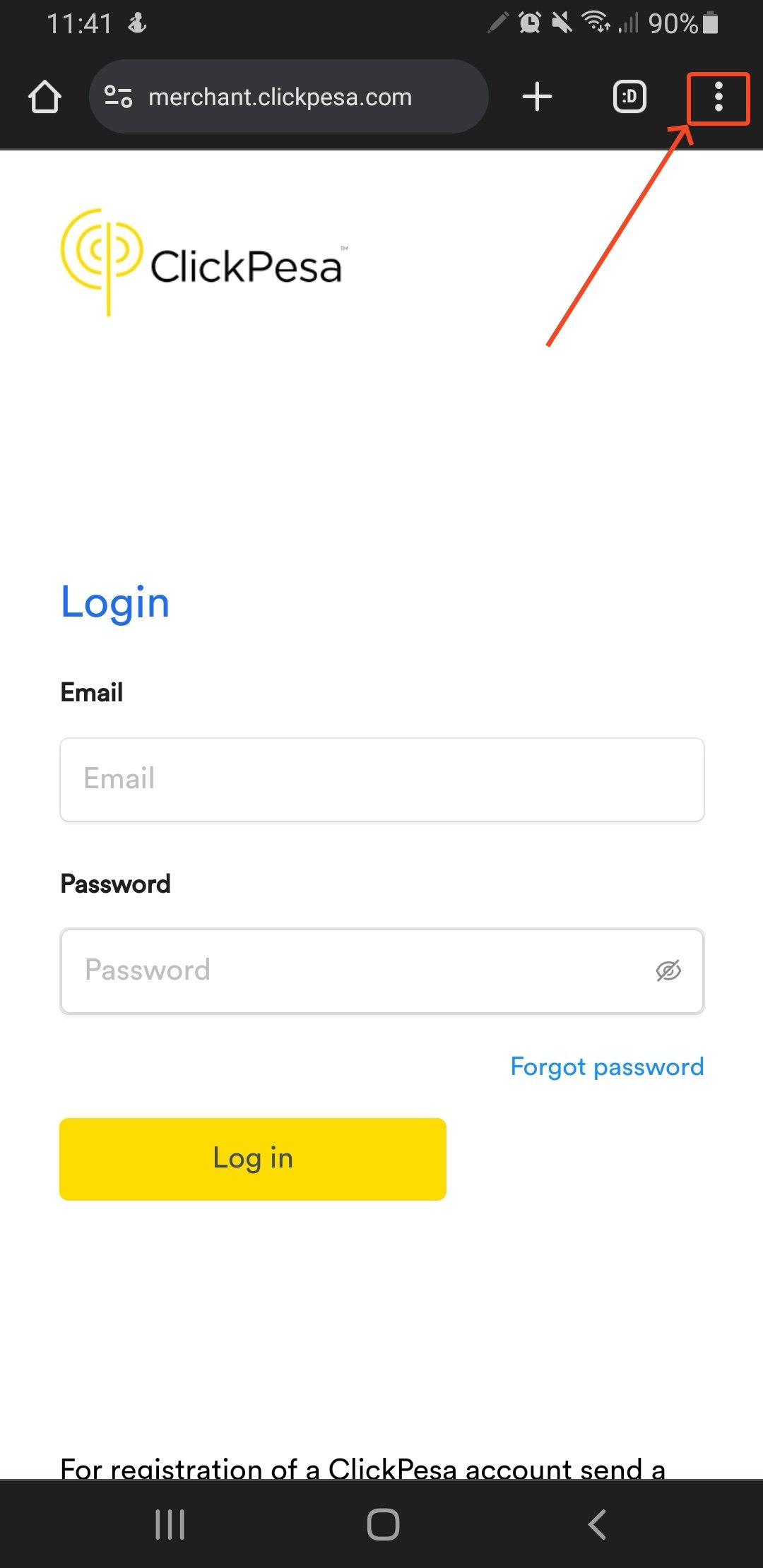
Chrome menu on Android.
3
Install the app
Tap Install App at the bottom of the menu.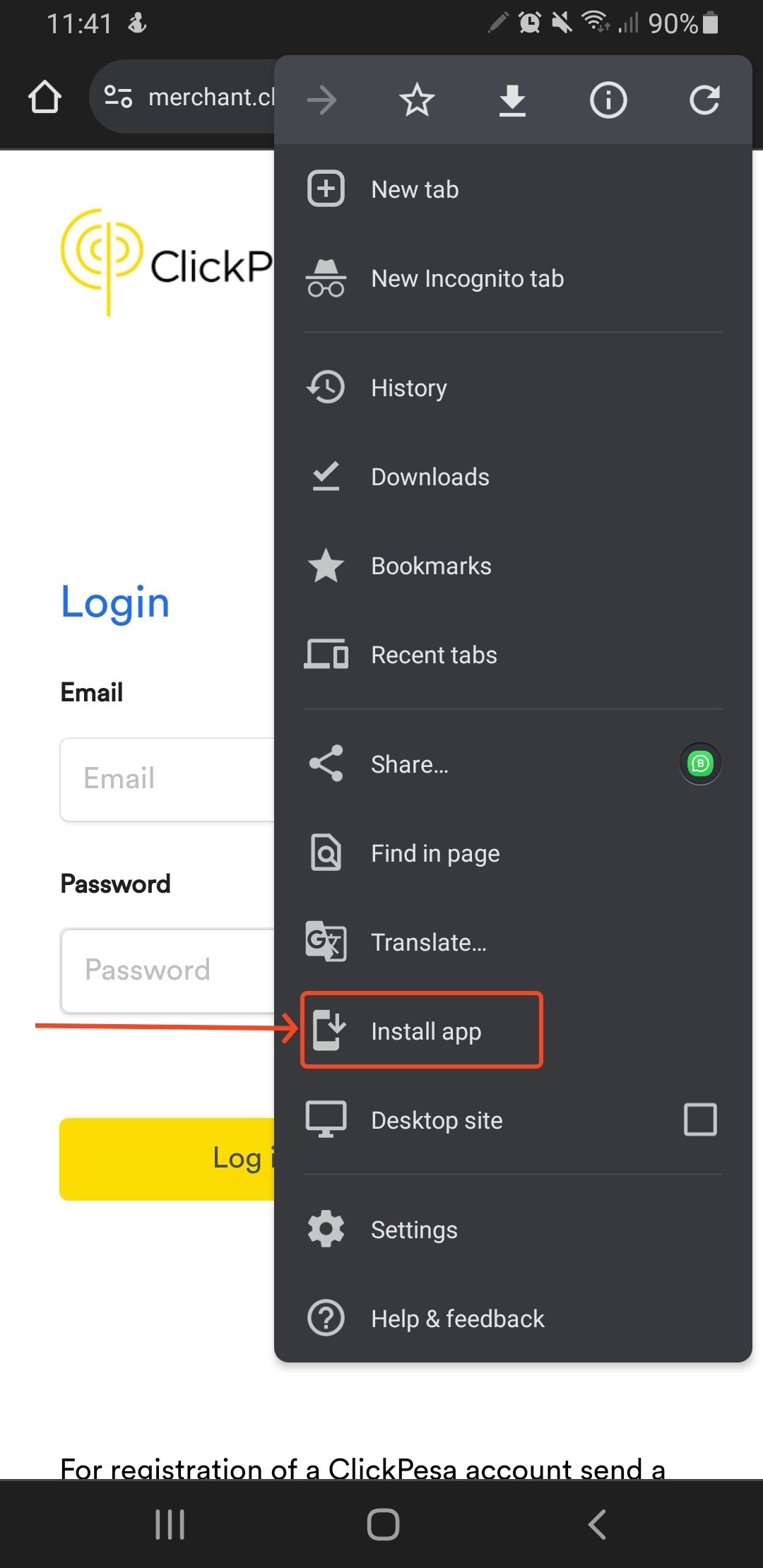
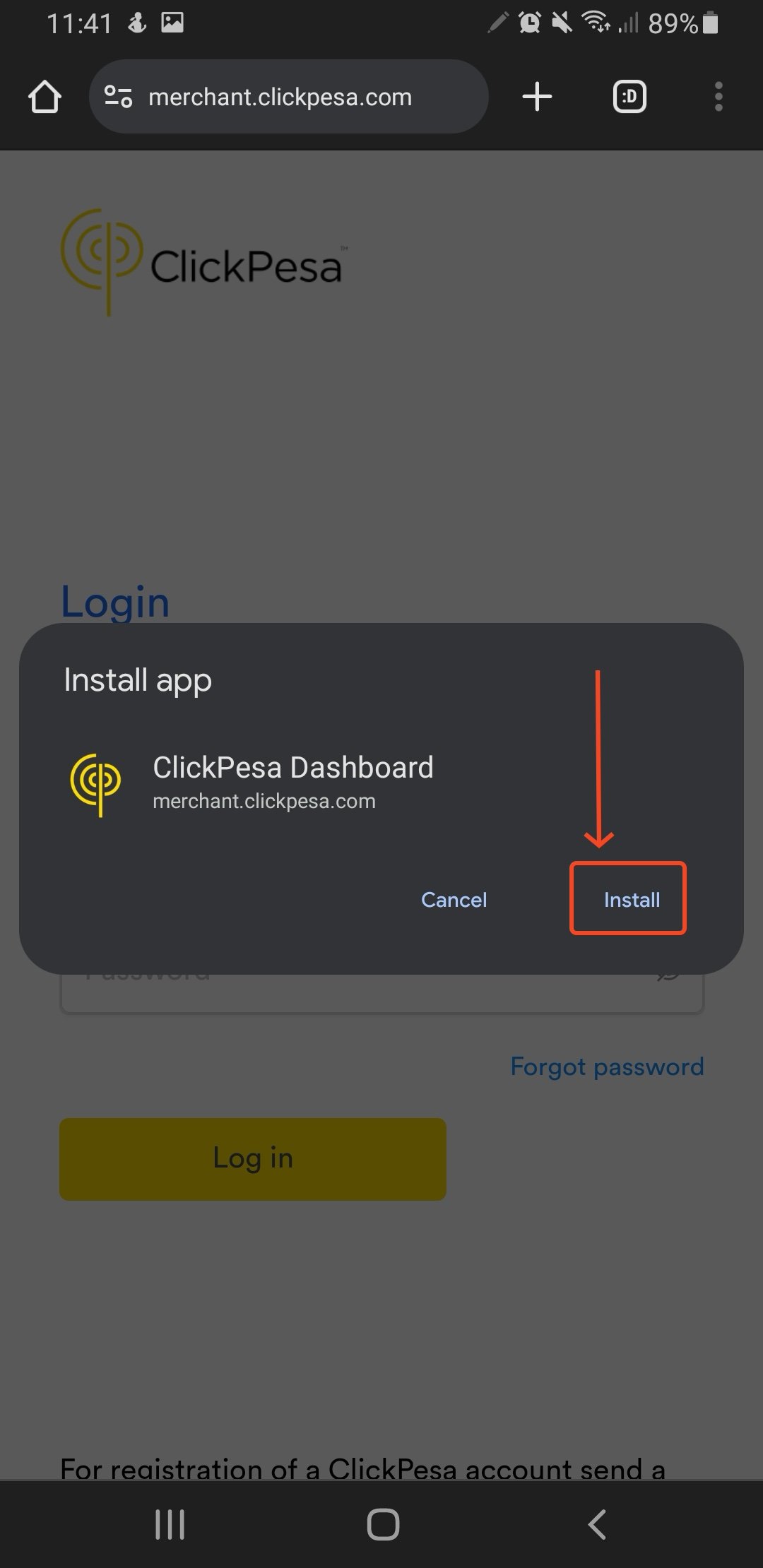
Select Install App.
Confirm the install prompt.
4
Open from your home screen
The ClickPesa icon appears in your app list for quick access.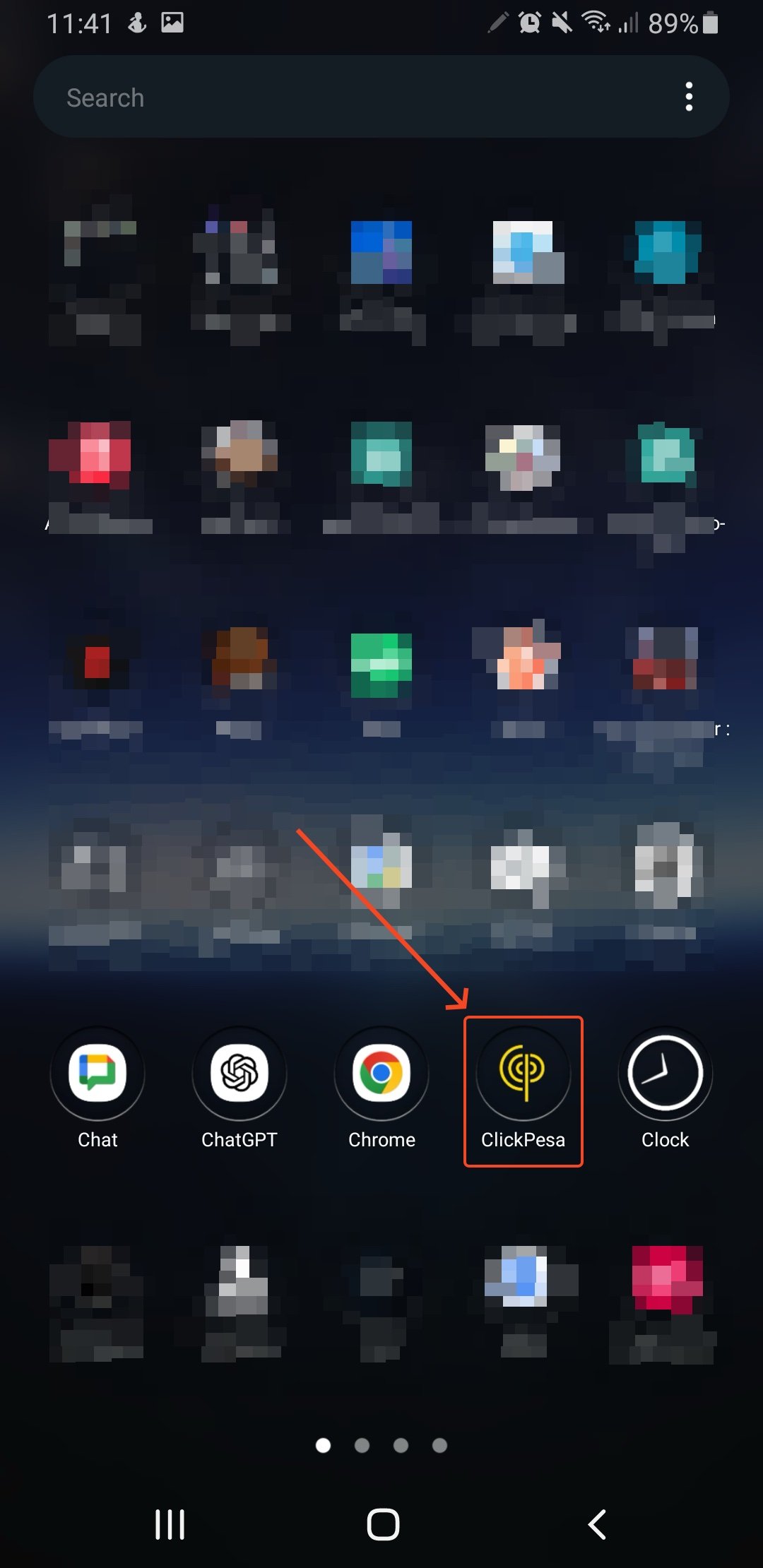
ClickPesa icon on the Android home screen.
iPhone
1
Open the dashboard in Safari
Visit merchant.clickpesa.com in Safari.
2
Open the Share menu
Tap the Share icon at the bottom center.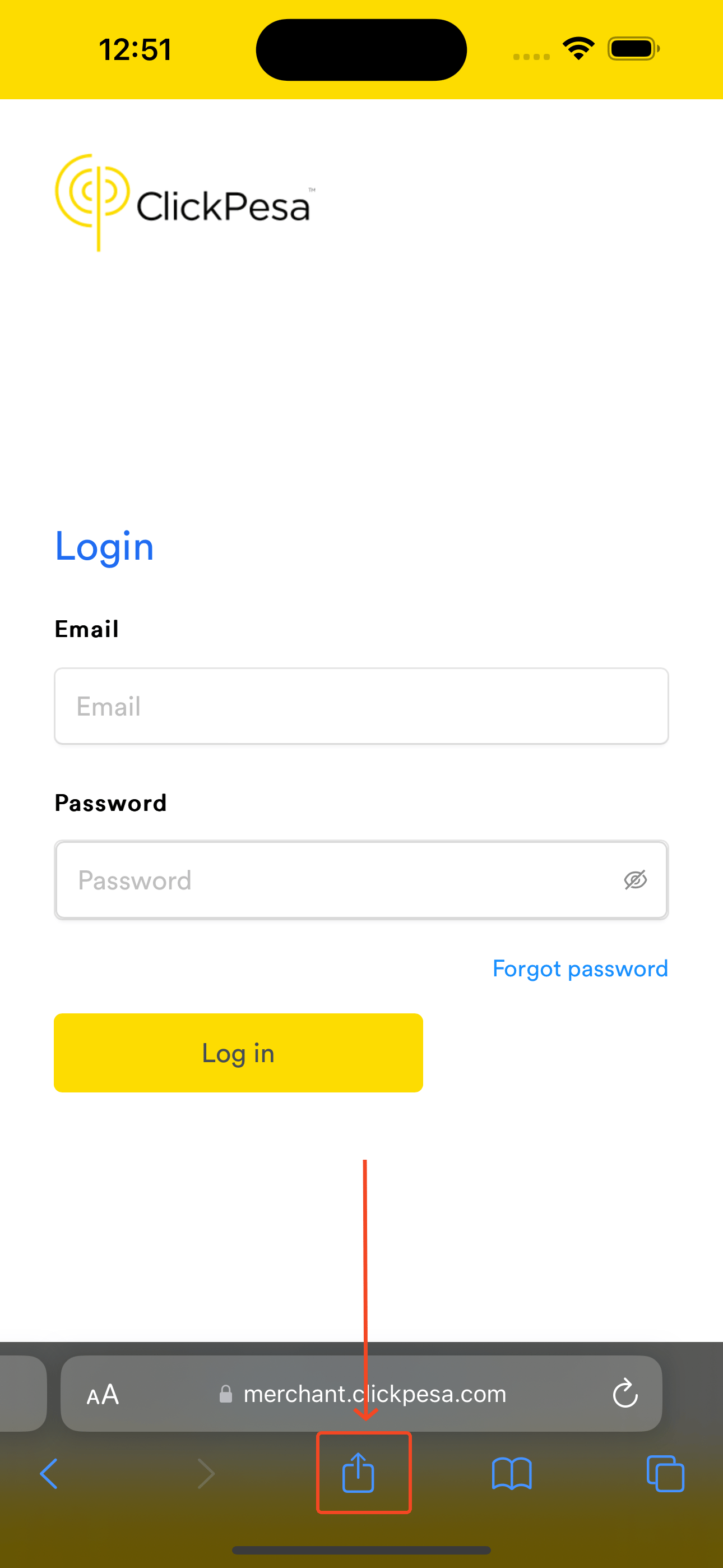
Safari Share menu on iPhone.
3
Add to Home Screen
Tap Add to Home Screen.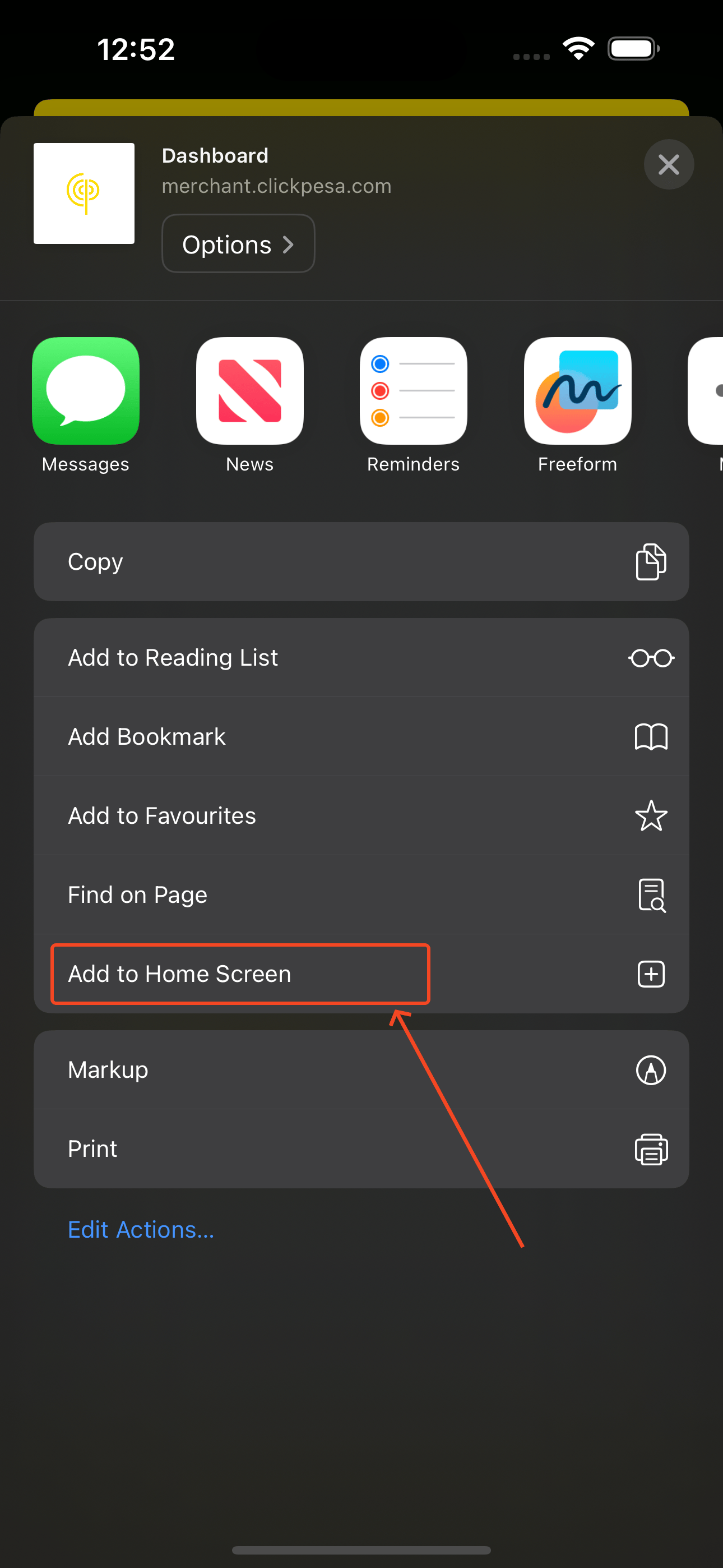
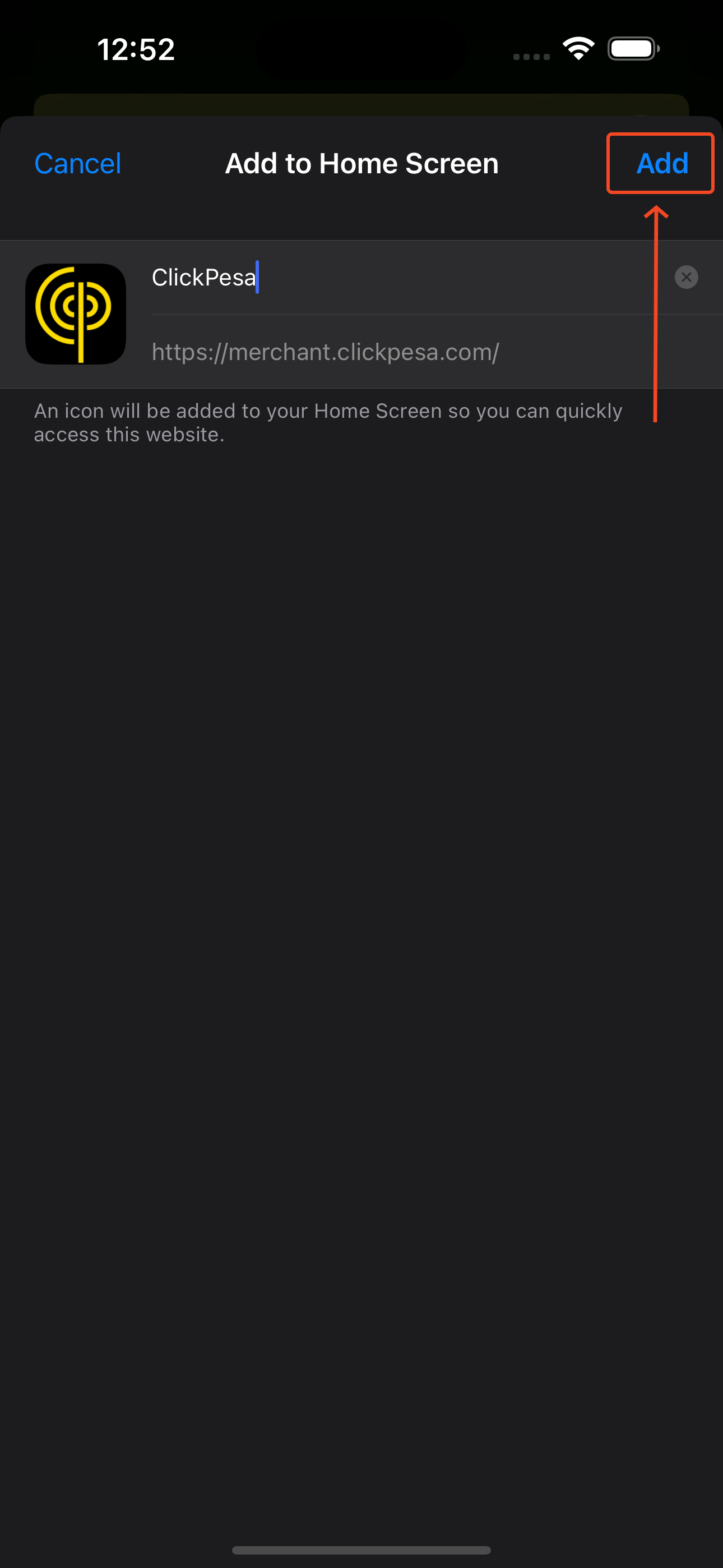
Select Add to Home Screen.
Optionally edit the name, then tap Add.
4
Open from your home screen
The ClickPesa icon appears on your home screen.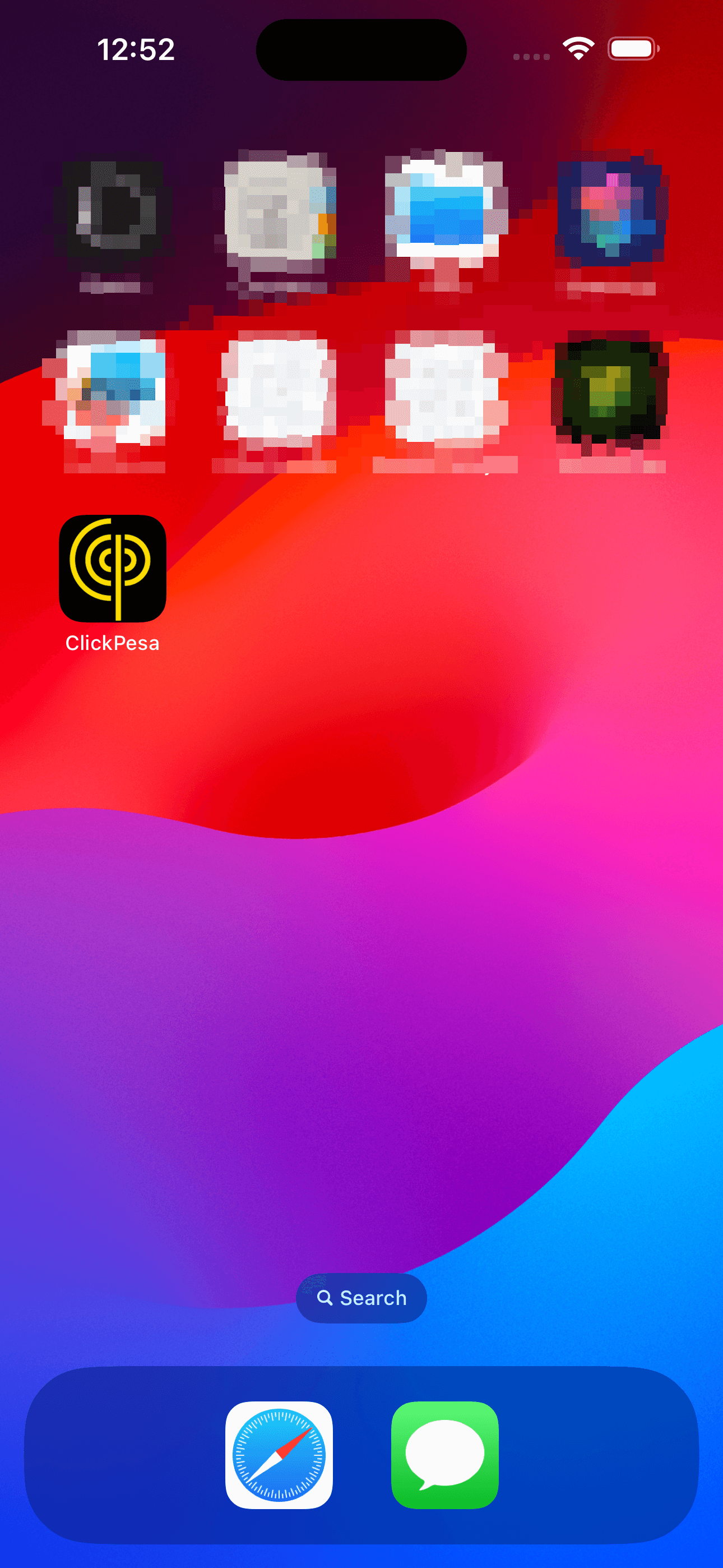
ClickPesa icon on the iPhone home screen.
Desktop
Windows, Linux, and Mac
1
Open the dashboard in Chrome
Visit merchant.clickpesa.com in Chrome.
2
Install the app
Click the install icon in the address bar.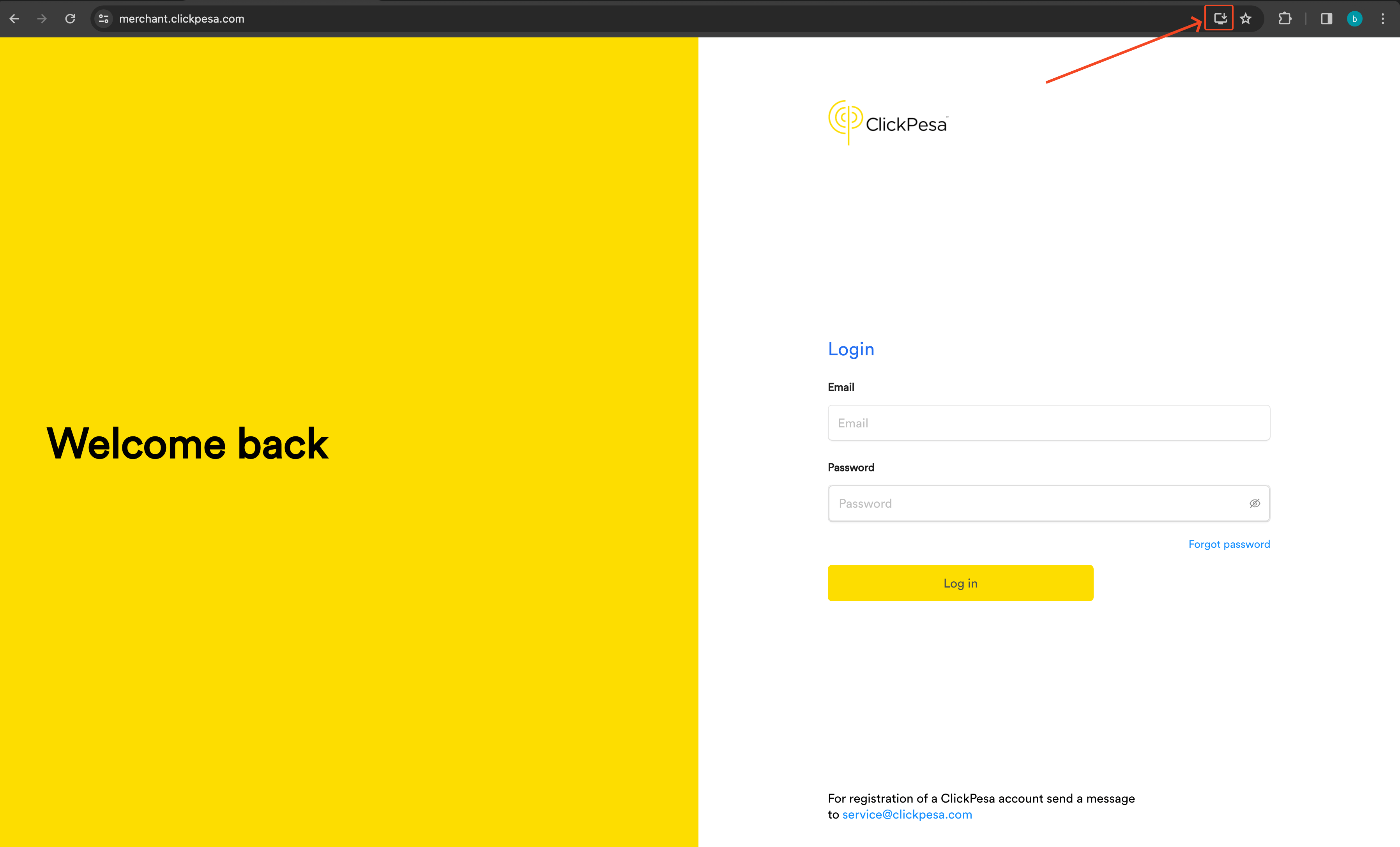
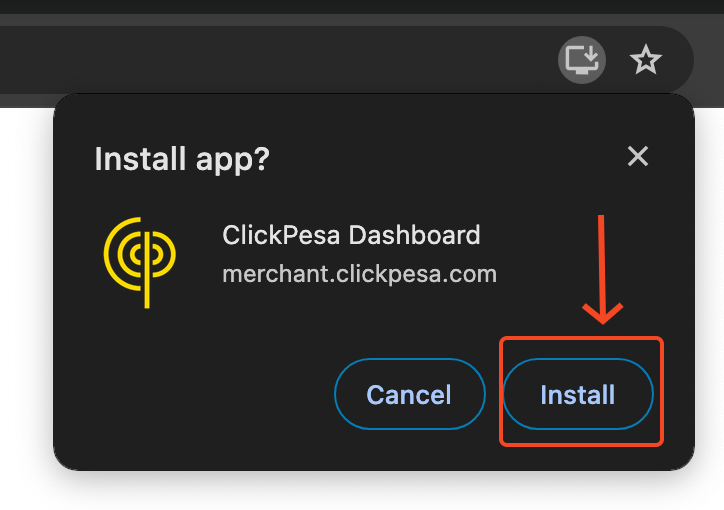
Install icon in the Chrome address bar.
Confirm the install prompt.
3
Open from your desktop
The ClickPesa icon appears in your desktop app list.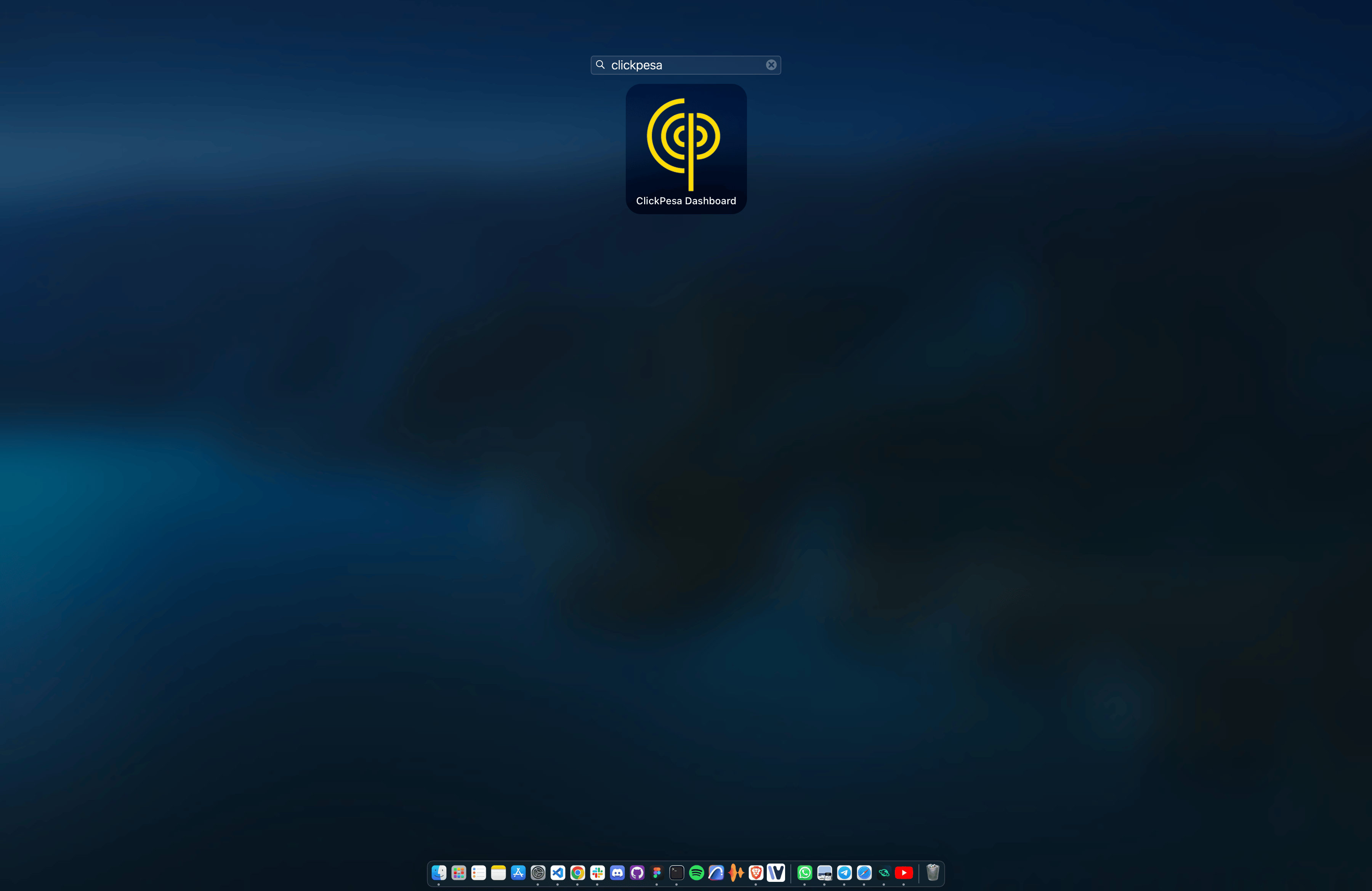
ClickPesa icon in the desktop app list.