

Introduction
This feature simplifies the process of exporting your transactions for quickbooks. We’ve already organized the data for you, so all you need to do is choose which data and fields you want and export. In this guide, we’ll walk you through how to filter your transactions to find exactly what you’re looking for. Then, we’ll show you how to export that data for quickbooks.How to use this feature
How to access this feature
- Login to your merchant.clickpesa.com account.
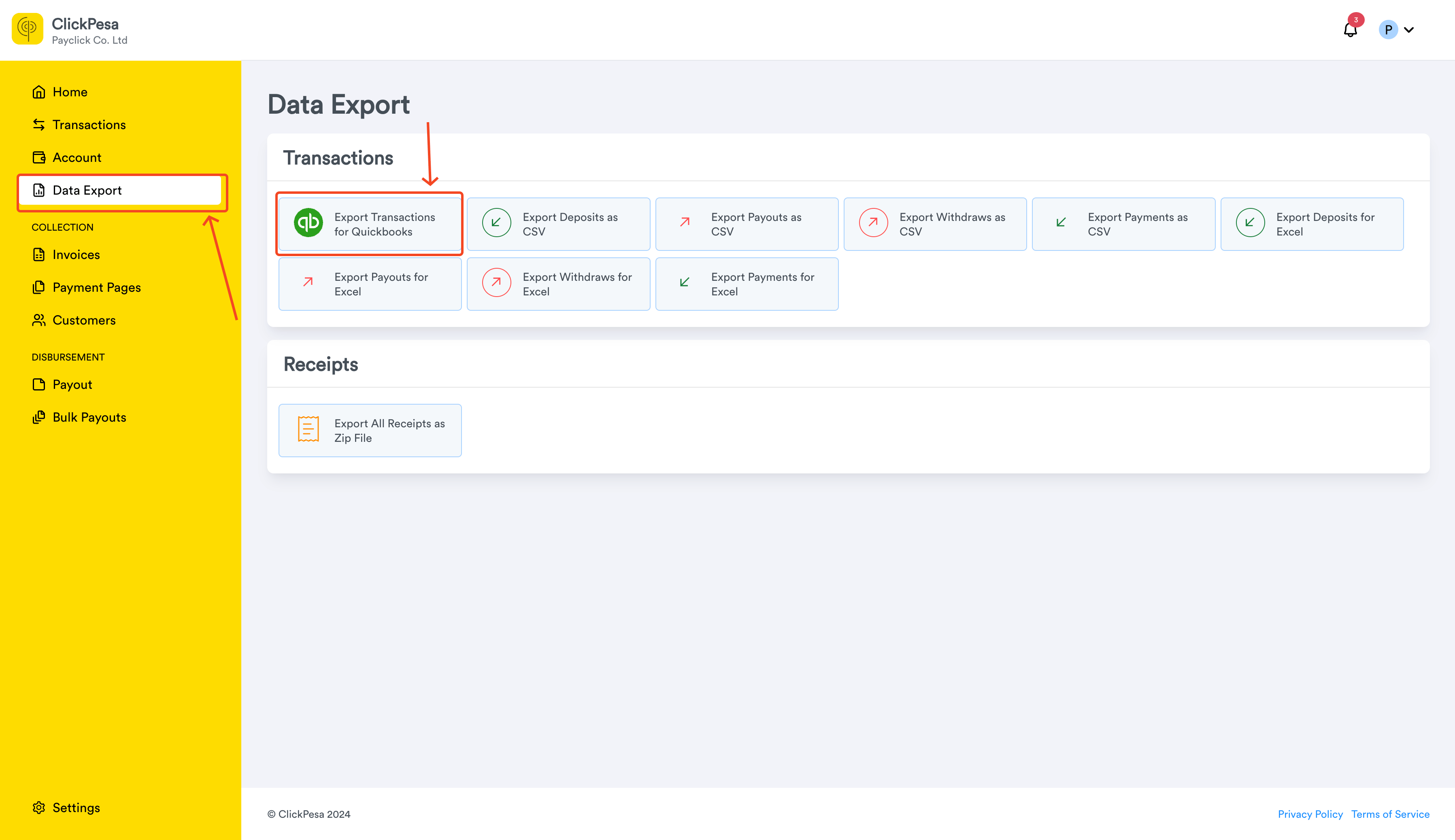
- Navigate to Data Export and select Export Transactions for Quickbooks card.
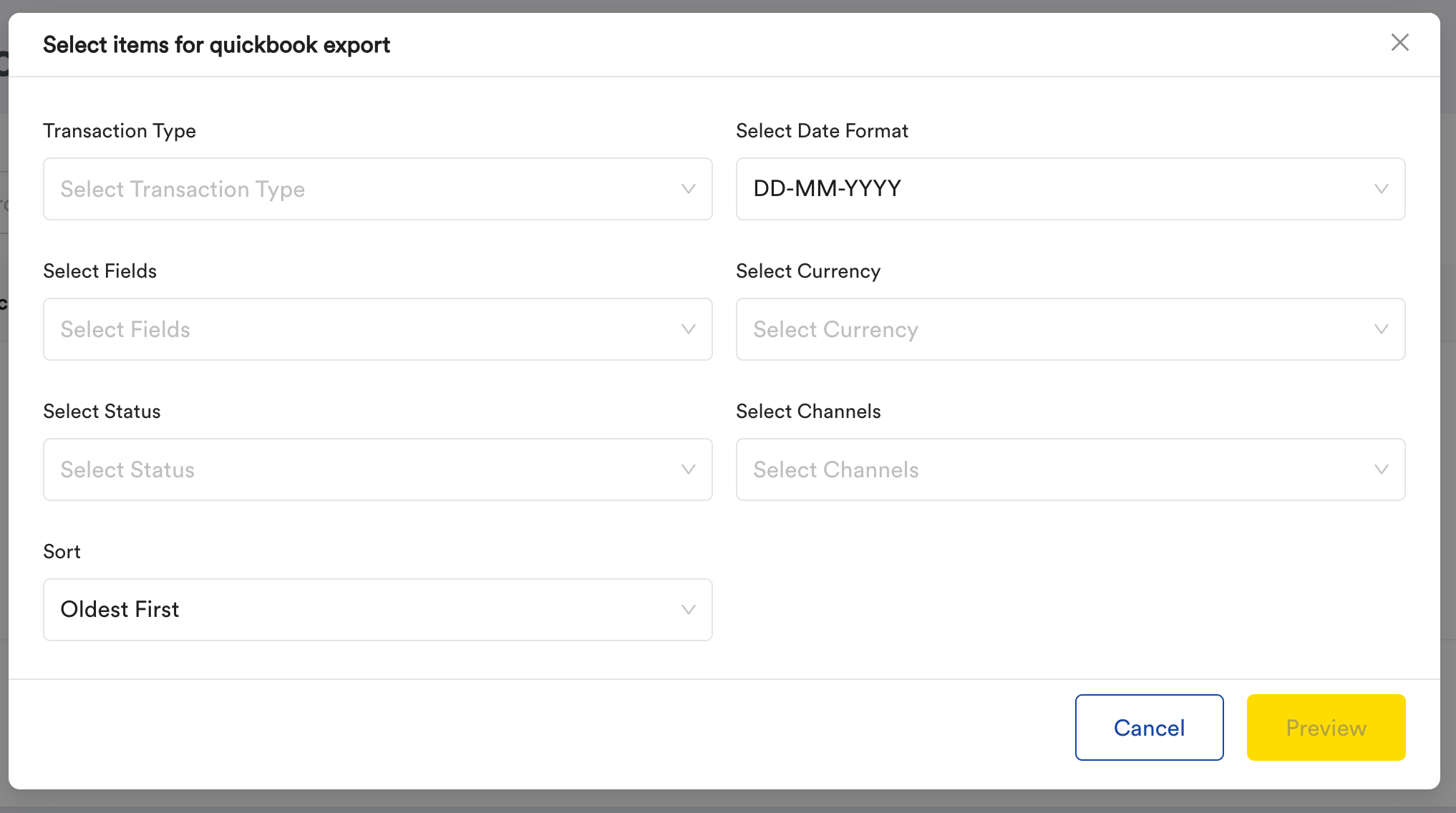
- Once clicked it will open a popup / modal with fields to select for export.
Configure data to export
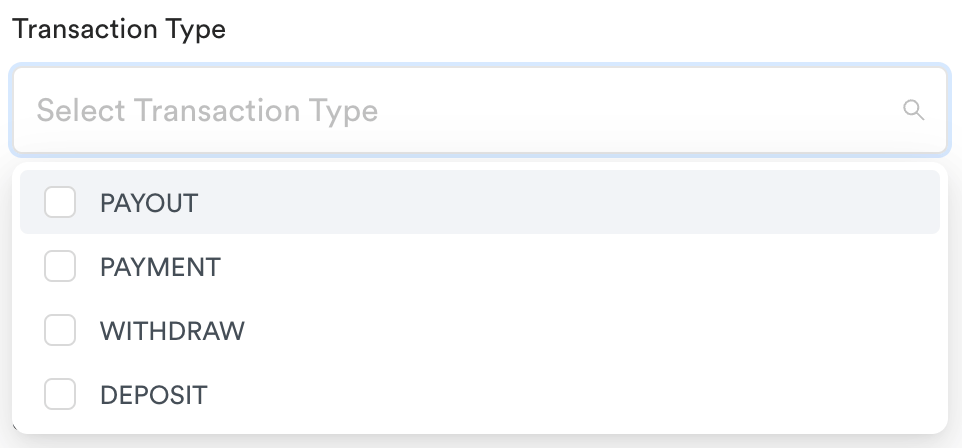
- Select Transaction type, we have 4 different transaction types in our platform, “PAYOUT”, “PAYMENT”, “DEPOSIT” and “WITHDRAW”. Selecting atleast one of this will add options to other selectors as well grouped by selected transaction types.
- Other selections shown on the modal are date format, this will let you select date format that will be suitable for how you have set your quickbooks account. other fields includes
- Select Fields
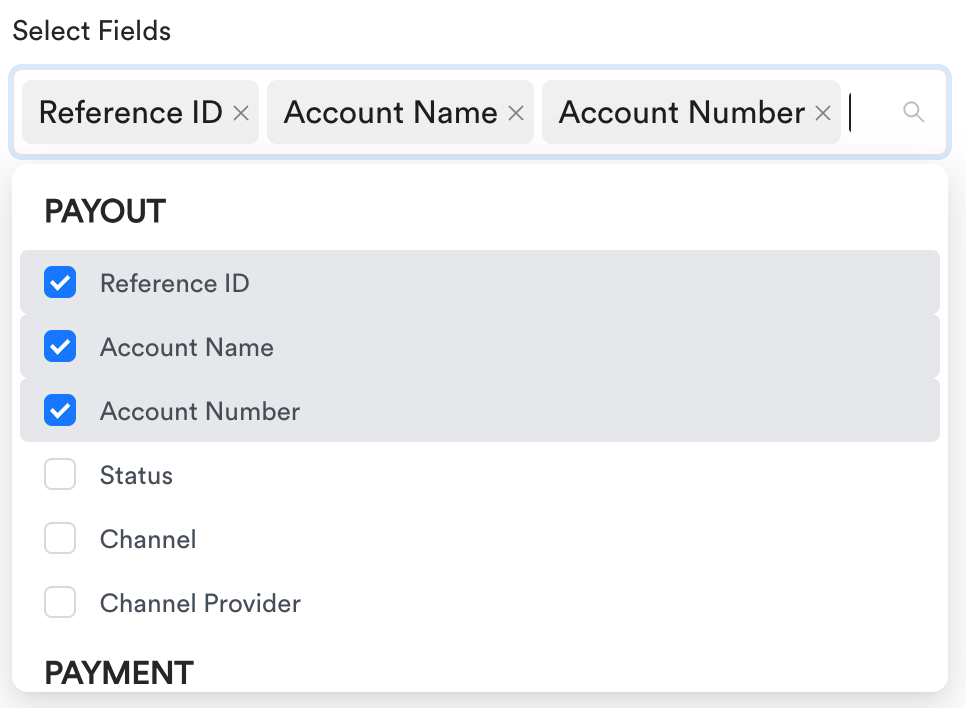
This will allow you to select fields per transaction type. This fields will be added in record description in the order of selection ie. first selected field in transaction type will be added first and last will be added last, more explanation is on Description column on step 3.
- Select Fields
-
Select Currency
Currently we support TZS and USD for payments and withdraws and only TZS for payouts and deposits. We allow selecting currency that you want their records for instance if in PAYMENT type you select TZS, only payments with TZS as settlement currency will return. By default if no currency is selected will return all transactions -
Select Status
You should be able to filter transaction by their status. For quickbooks we only support transactions that went through hence fewer status. for instance for DEPOSIT we only support SUCCESS, for PAYMENTS we support SETTLED, REFUNDED, REVERSED and REVERSED WITH CHARGES, for PAYOUT and WITHDRAW we support SUCCESS, REFUNDED and REVERSED. These status when selected will return only transactions with those status by transaction type. By default if no status is selected for a particular transaction type all transactions will be returned -
Select Channels
Channels field is also used for filtering data, each Transaction type has their own channels which was the medium for them to go through. Once channel is selected it will return transactions that belong to that channel. By default if none is selected it will return all transactions. -
Sort
You should be able to sort data by newest or oldest first when exporting data for Quickbooks.
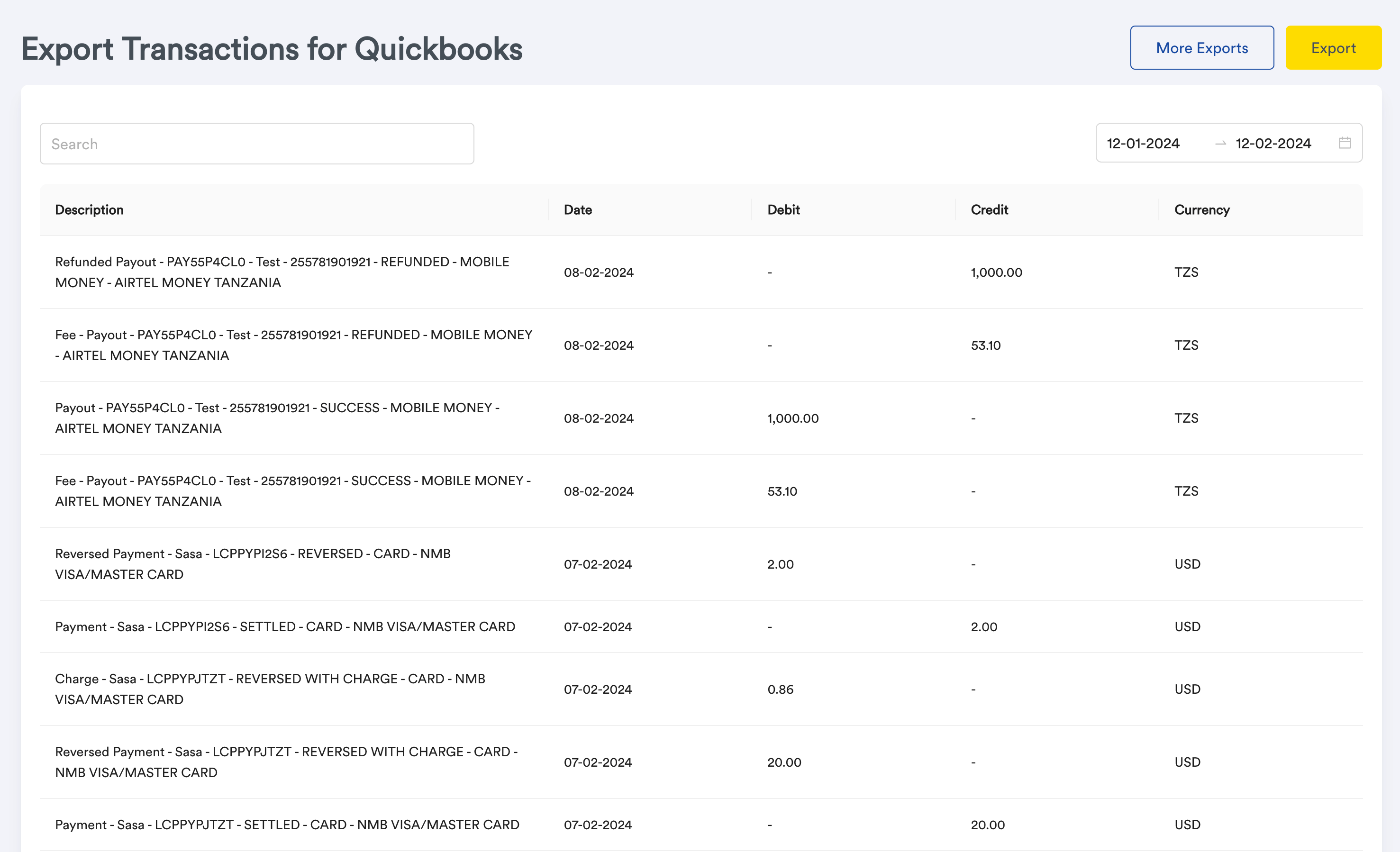
- Once you have selected your options and click Preview it will open a page with title "" and list of all transactions per your selection with five columns
-
Description
This will contain record name and all the fields you selected in the modal separated by ” - ”.
These record names are different per transaction type and transaction status. For instance you selected status, channel and channel provider in the fields of PAYOUT transaction type here is how description will look like,
“Payout - SUCCESS - MOBILE MONEY - TIGOPESA TANZANIA” in the order of selected fields. where “Payout” is the record name. Lipa Namba payouts appear as Lipa Namba in the channel field.
Here is the list of all names and description per transaction types-
PAYOUT
Payout = SUCCESS Payout
Fee - Payout = Payout fee
Reversed Payout = REVERSED Payout
Refunded Payout = REFUNDED Payout -
WITHDRAW
Withdraw = SUCCESS Withdraw
Fee - Withdraw = Withdraw fee
Reversed Withdraw = REVERSED Withdraw
Refunded Withdraw = REFUNDED Withdraw -
PAYMENT
Payment = SETTLED Payment
Fee - Payment = Fee incurred on SETTLED BILLPAY payments
Reversed Payment = REVERSED Payment
Refunded Payment = REFUNDED Payment
Charge = Charges for when reversing a payment incurred charges - DEPOSIT
- Deposit = SUCCESS Deposit
-
PAYOUT
-
Date
This entails the time the record was created. -
Debit
Money that went out from your ClickPesa balance. -
Credit
Money that went in your ClickPesa balance. -
Currency
Record currency.
-
Description
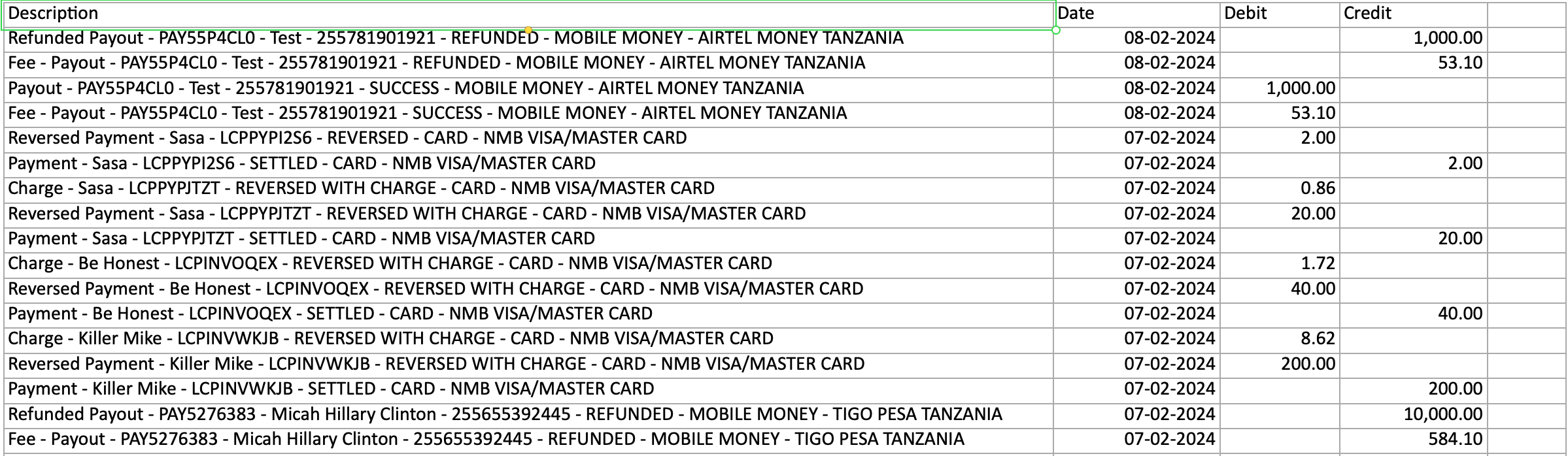
- Once Export button is clicked it will download file called quickbooks.csv with four columns “Description”, “Date”, “Debit” and “Credit”. Which is now ready to be imported in quickbooks system without any hassle.
Common Use cases #
- Importing data into quickbooks account system.