

How to use deposits
How to do a deposit
- From your dashboard, navigate to the left-hand side and select “Account”.
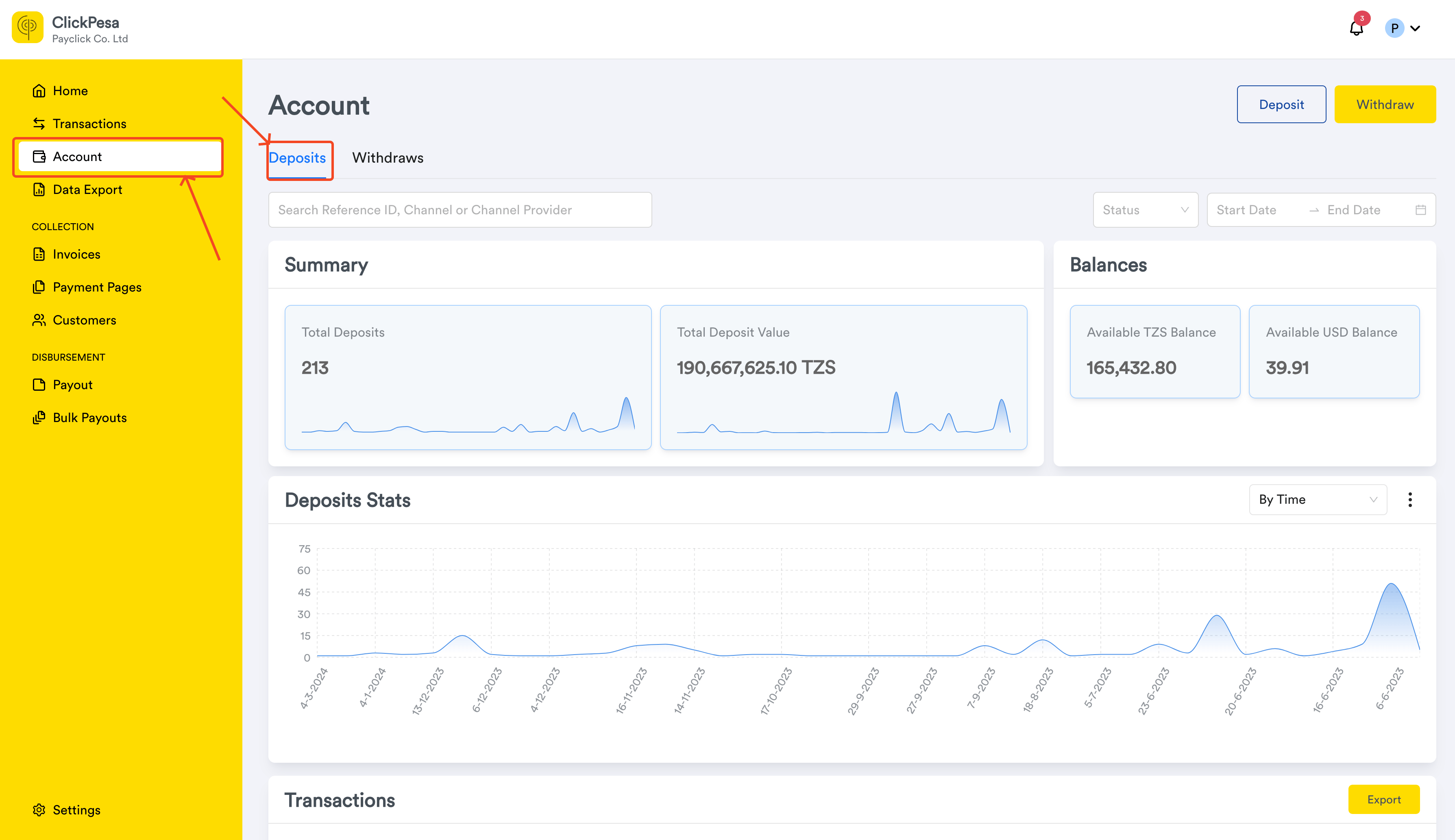
- Click the “Deposit” button at the top right corner of the transactions page. You can only withdraw when there is a positive balance.

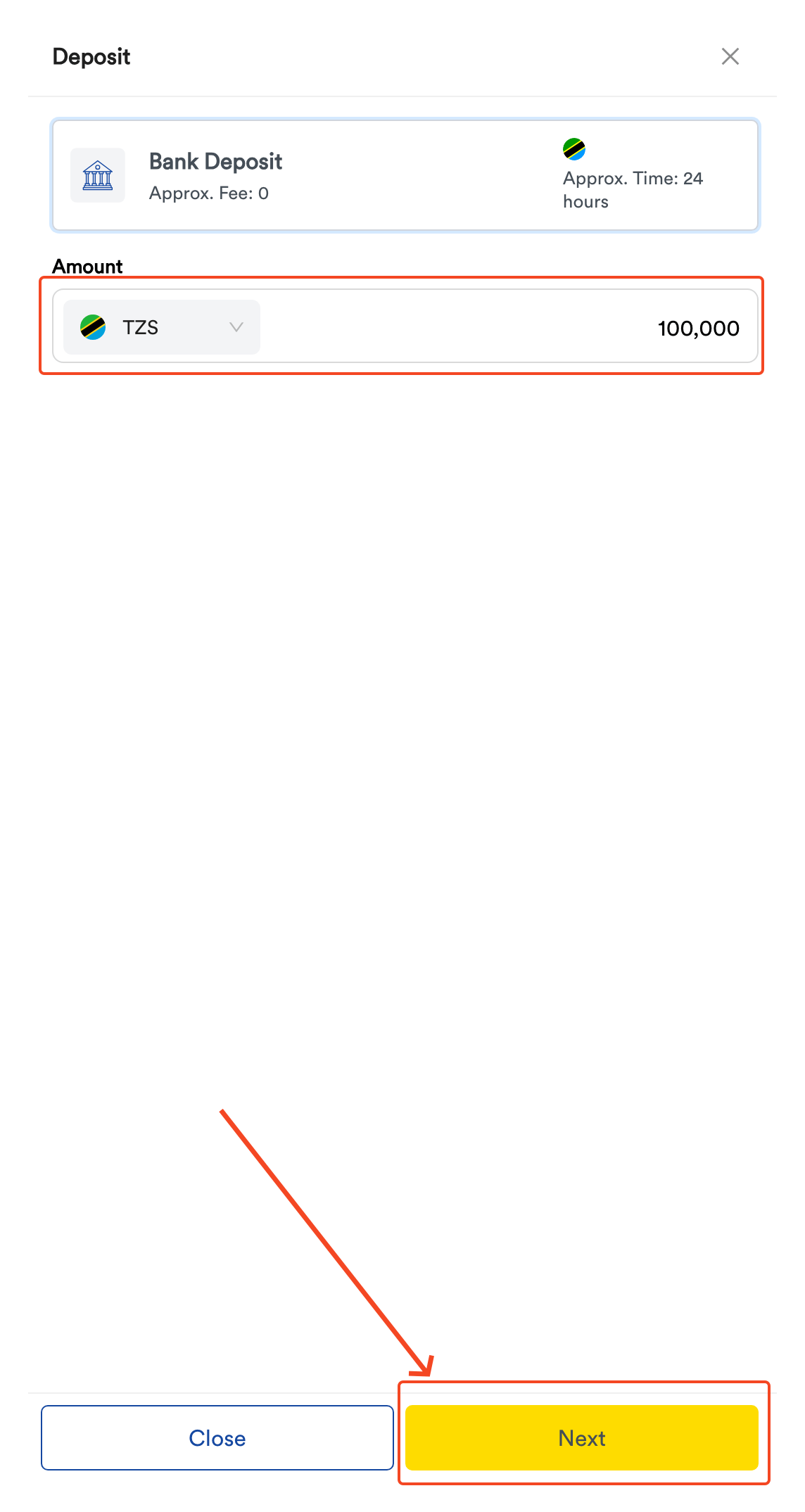
- This will open a drawer with Bank method already selected, an amount field and currency selector with two options (TZS and USD).
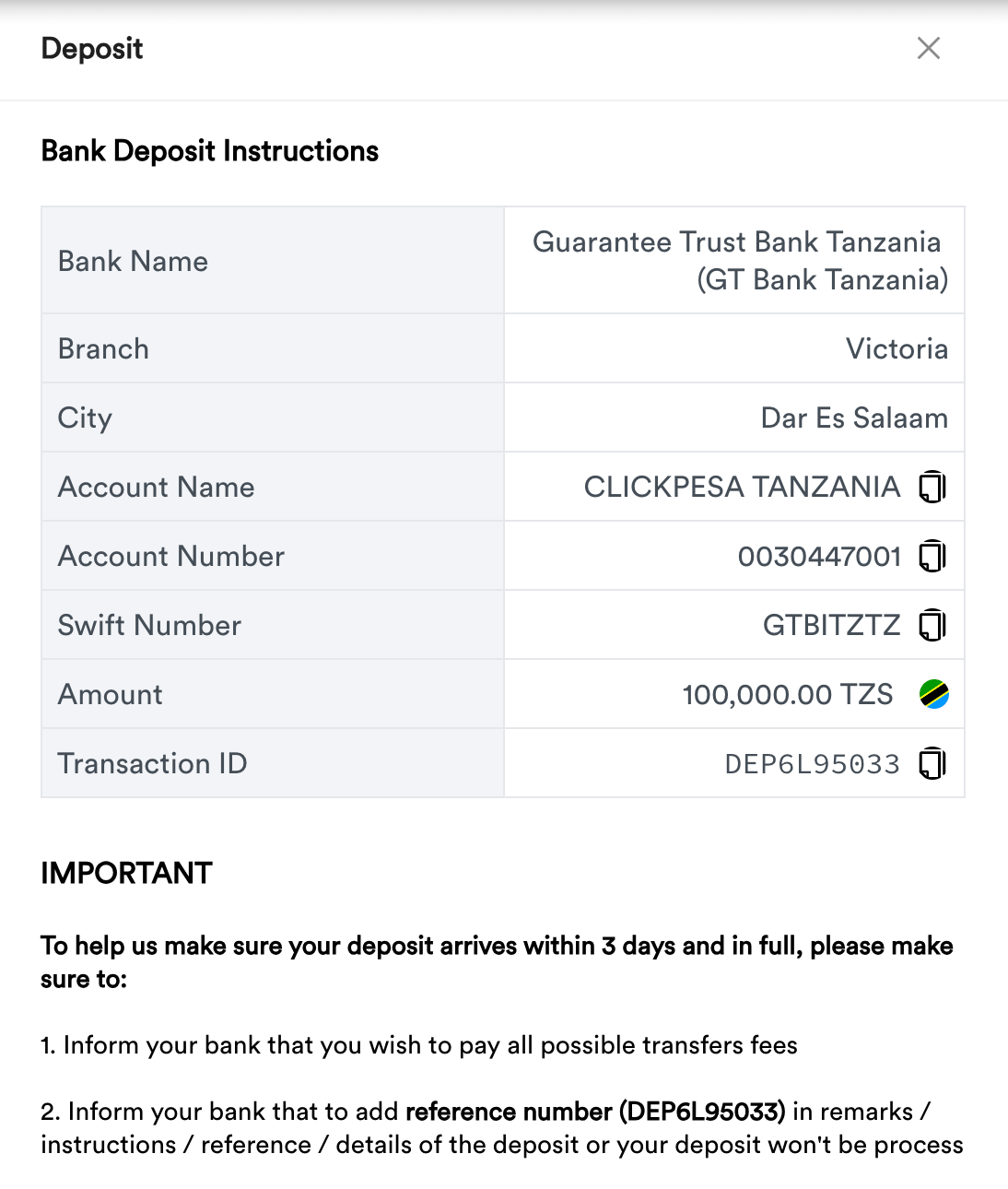
- You will be presented with deposit instructions upon clicking Next button. You will also receive notification via email and dashboard with deposit instructions.
- Once deposit is successful you will receive funds to your account and a notification via email or dashboard.
- If funds are not deposited within 3 days, the deposit will automatically be canceled and you will have to initiate another deposit.
View all deposits
- From your dashboard, navigate to the left-hand side and select “Account”
- You will be able to filter deposits summary and data by date, status and searching by reference, order id, channel or channel provider.

- On the page you should be able to see summary with deposits count and value
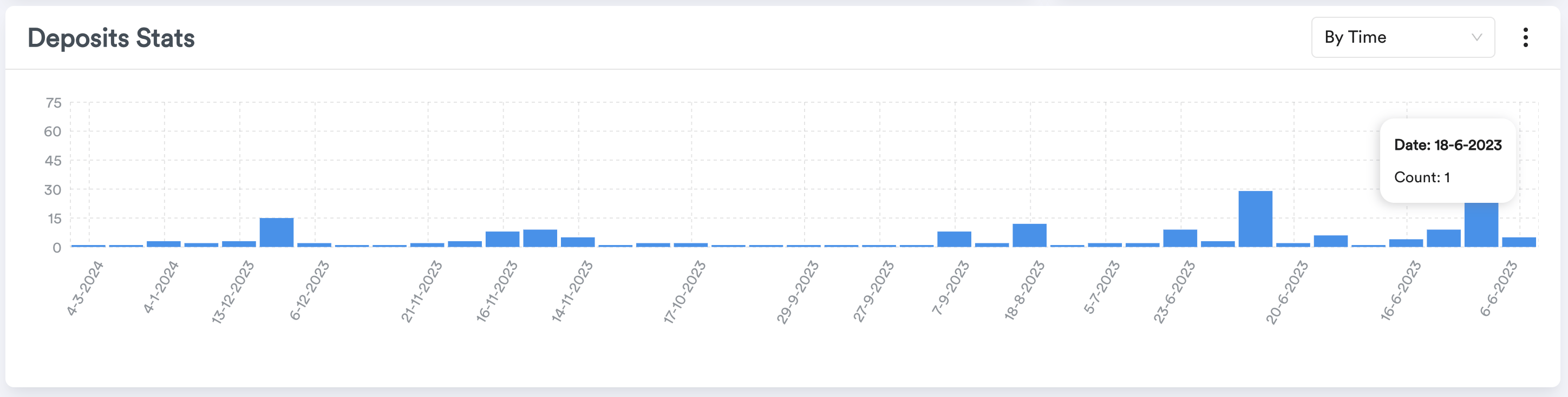
- You will also be able to see a graph section where data are measured by time or status.
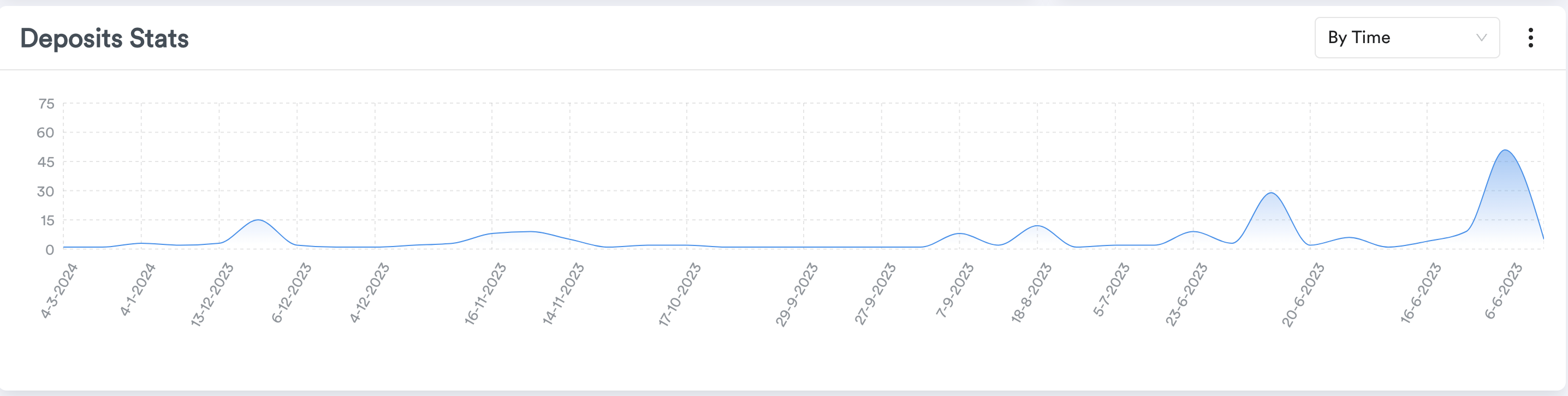
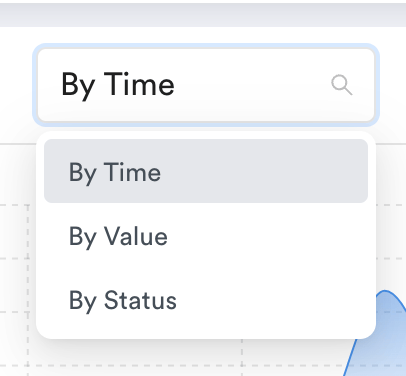
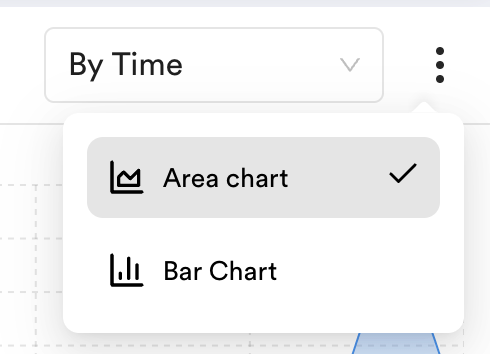
- On the graph you will be able to change graph data by selecting Time, value or status. You should also be able to change data style between area chart and bar chart
- You’ll be able to view deposits data on the table.
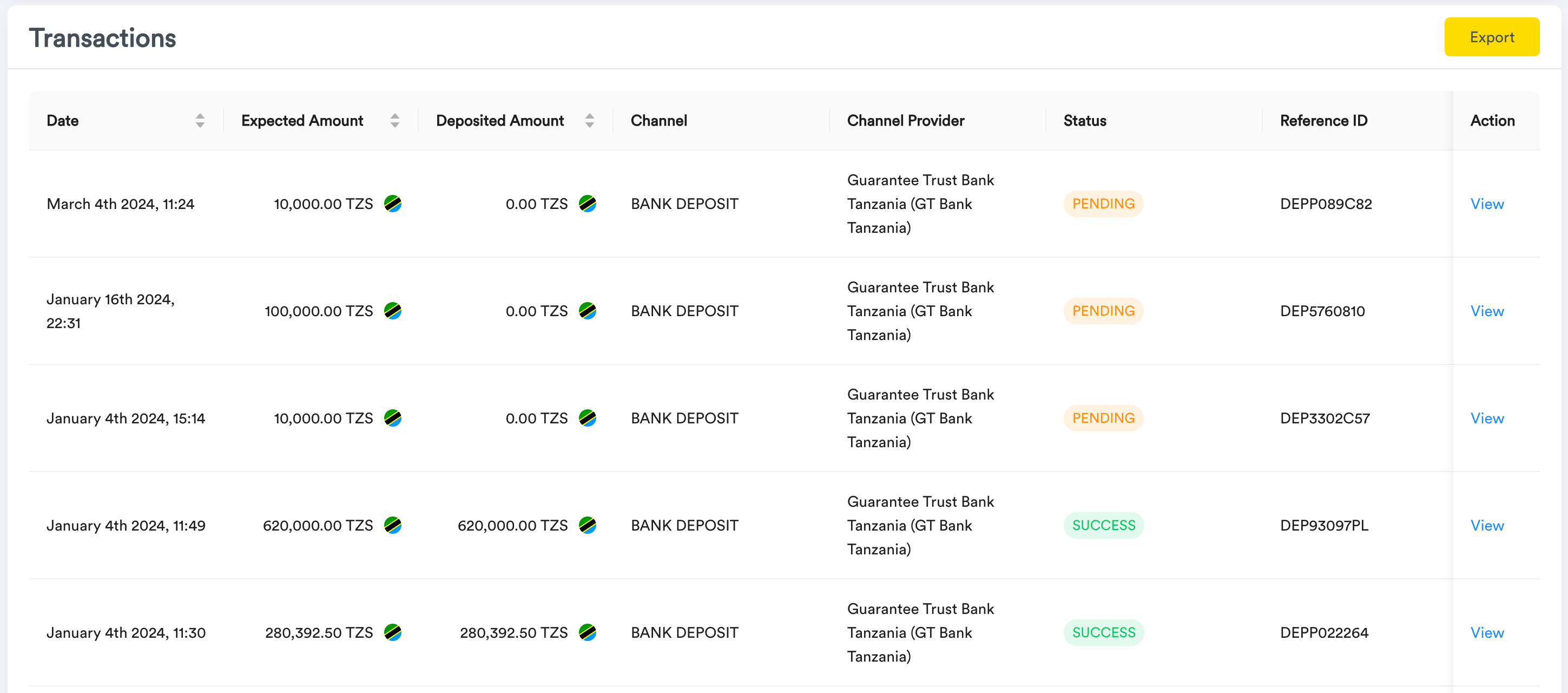
- Deposits will be shown with different status,
- PROCESSING – Transaction was initiated successfully and waiting for you to make deposit
- SUCCESS – Transaction was successfully and funds are in your balance
- FAILED – Transaction failed
View single deposit
- In the deposits table, locate the a withdraw you wish to view. On the far right of its row, click the “View” button.
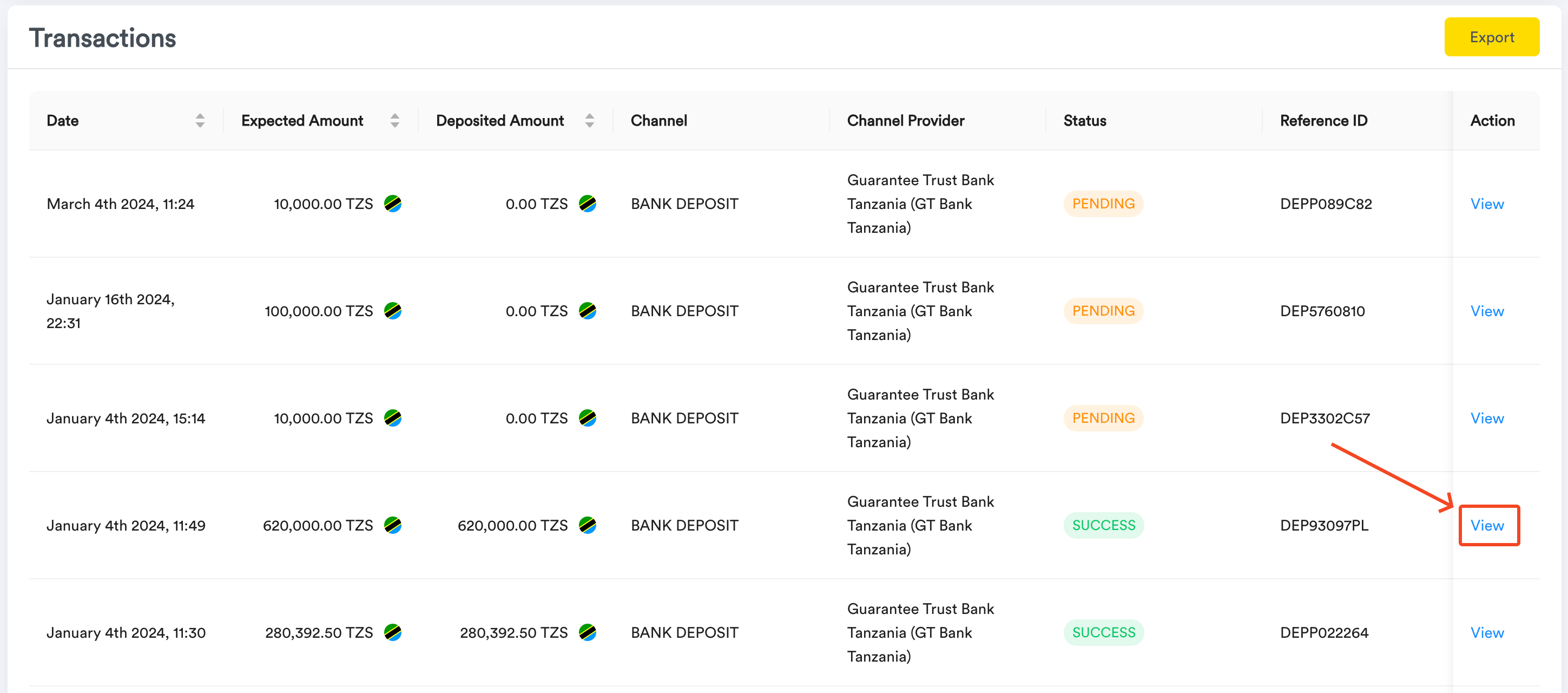
- A drawer will appear on the right, showcasing detailed information about the selected deposit
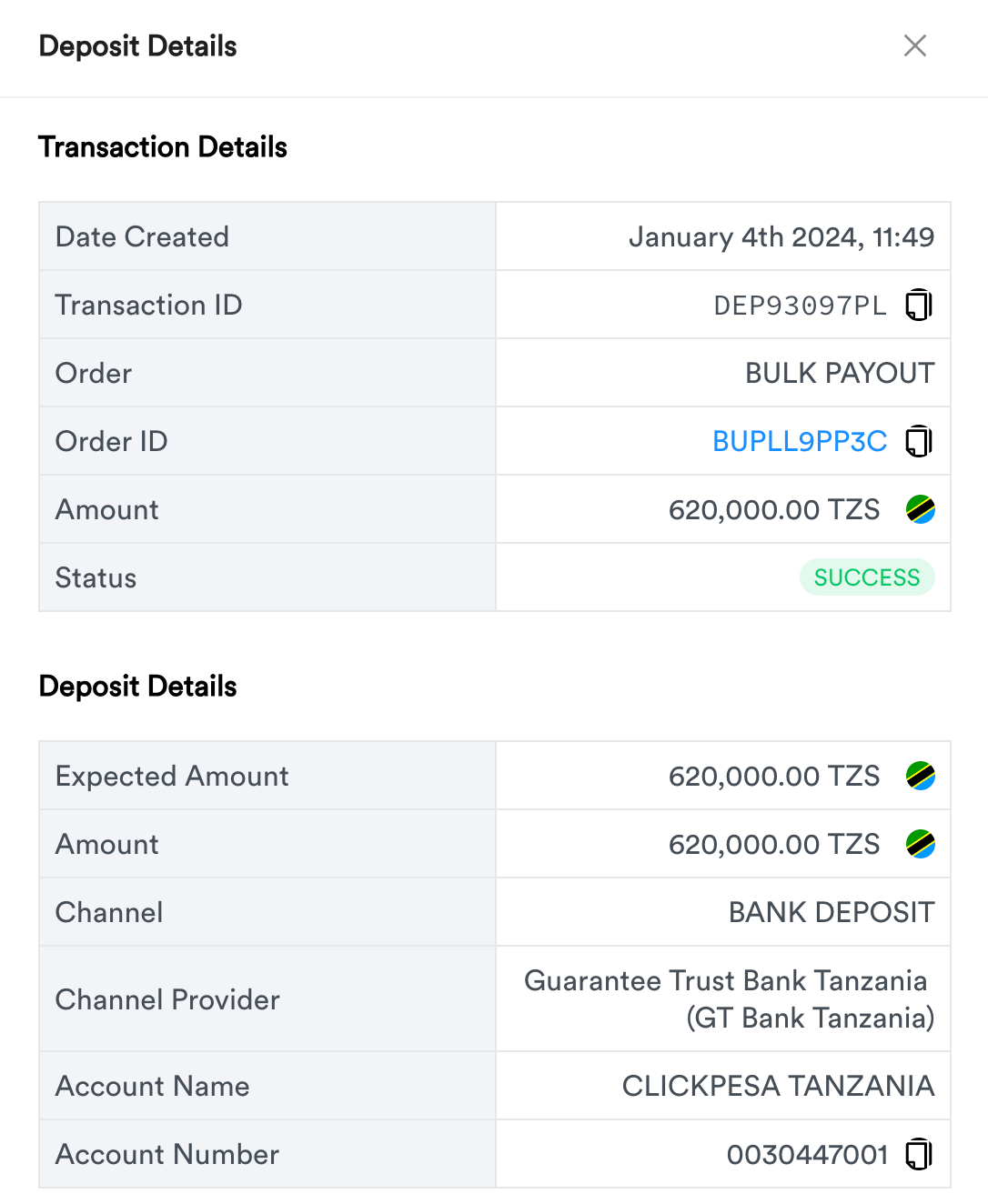
- You are able to copy ID and other data from details drawer for this transaction. For sharing it with clickpesa support team in case transaction went wrong or other usage.

Export deposits
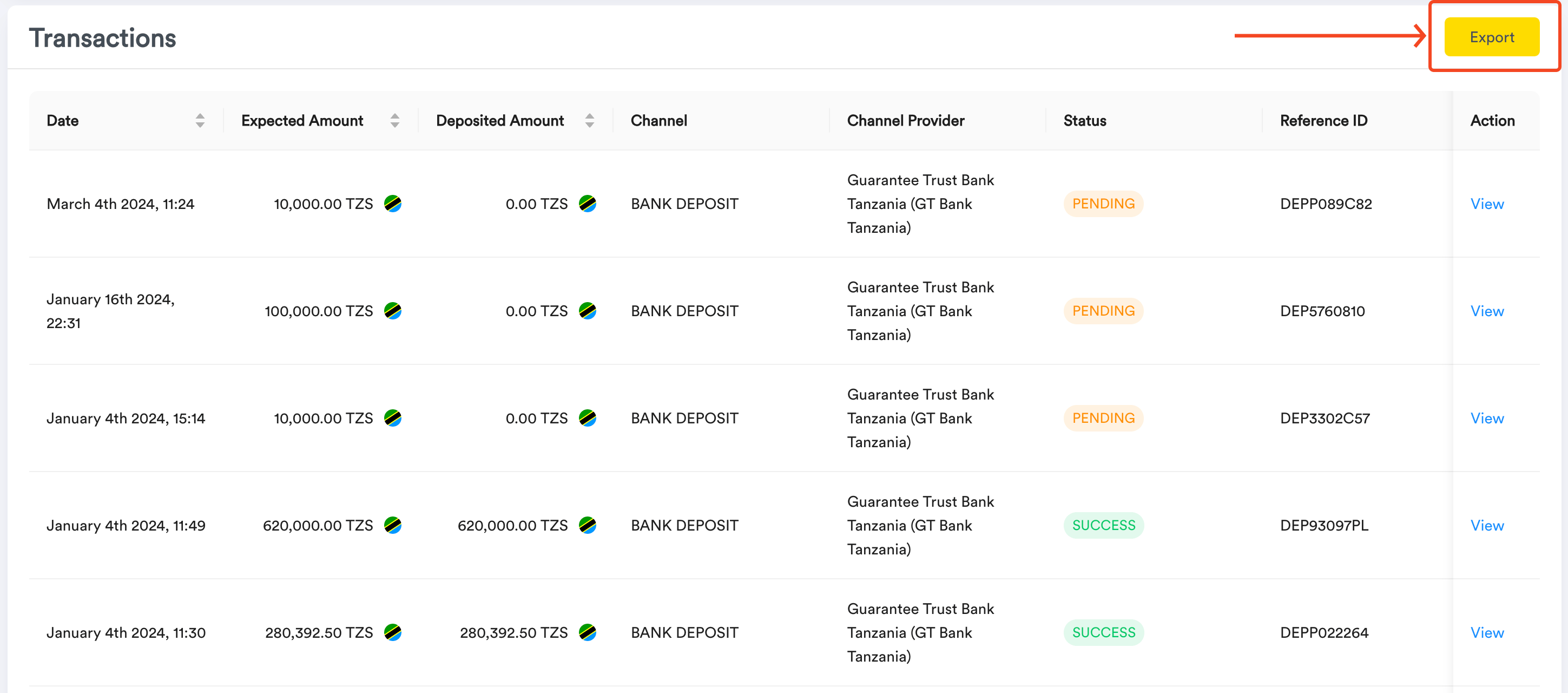
- In the Withdraws Table, locate and click the “Export” button at the far right. This will take you to deposit export page.
Common Use Cases
- You use this feature mainly if you want to view your transaction details for deposits
- You can use this feature when you want to export the deposit transaction and export it to another system.
- In case you want to payout but you don’t have enough funds on your balance, you can deposit enough funds to make the payout.