

For programmatic payouts, see the Mobile Payouts API, Bank Payout API, or Lipa Namba Payout API.
How to send a single payout
How to Access and Configure
To access the bulk payout feature, visit merchant.clickpesa.com, login with your account and navigate to the “Payout” menu item.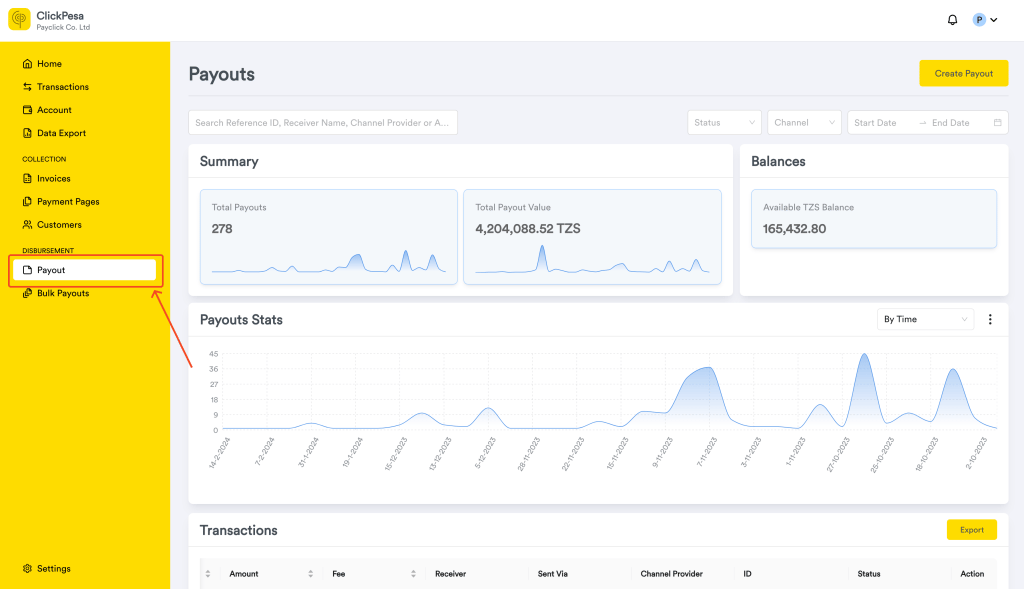

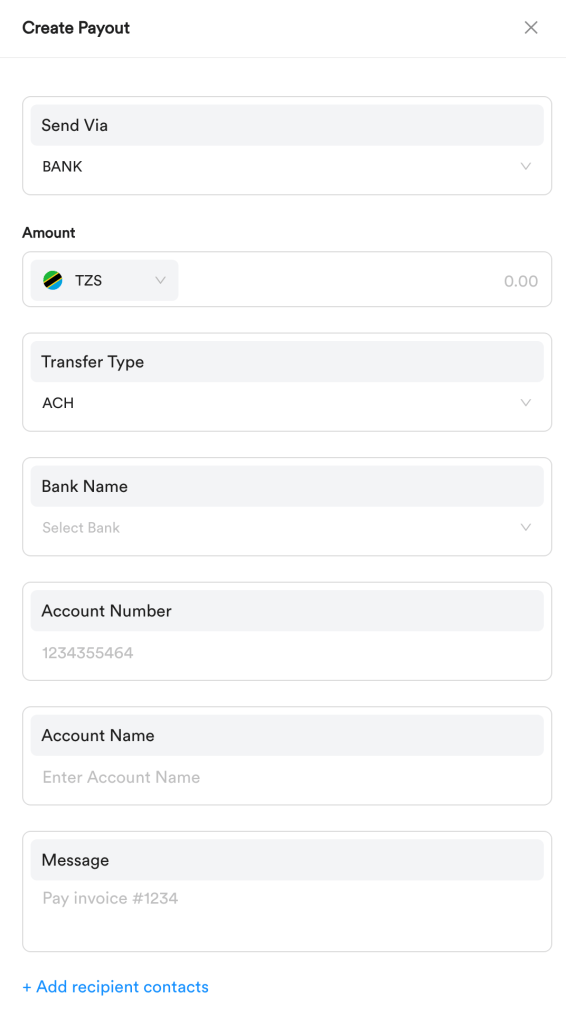
Note:
- ACH (EFT)
The payout is settled within 1 working day. Weekend days and holidays are not included. - RTGS (TISS)
The payout is settled within the same day. Weekend days and holidays are not included
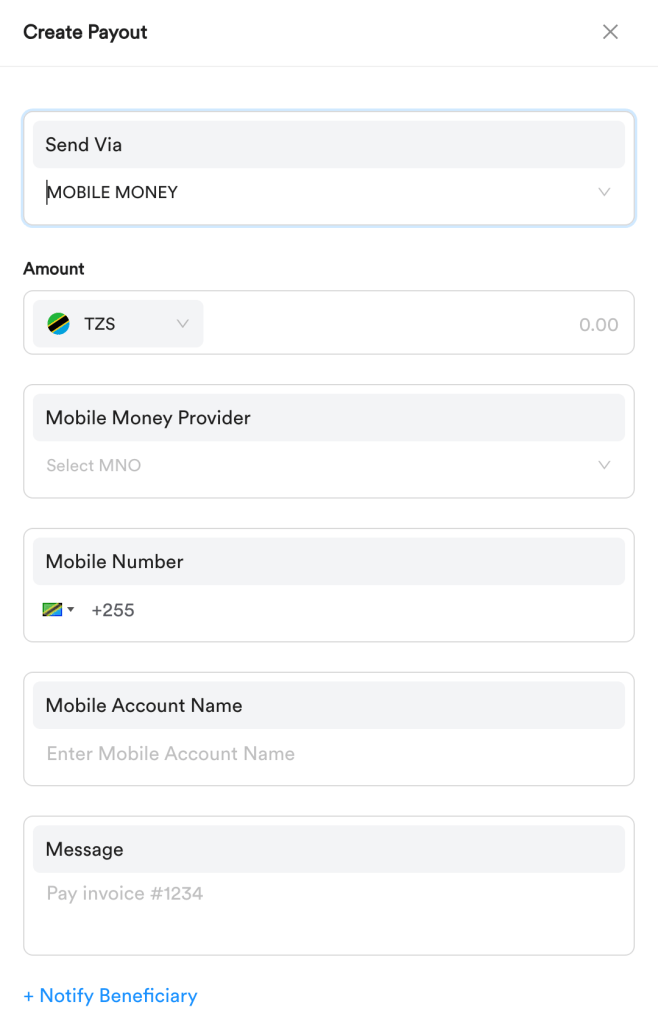
After filling in those details, you can add a note to the recipient (Email and Message, optional). The recipient is notified when ClickPesa can reach their number. Add these fields if you also want the message to include your business name, the note, and customer support.
The following are the fields you will find when doing single payout for Lipa Namba
Click Verify Name after entering the Lipa Namba and provider. The beneficiary name is required — you cannot type it in.
You can send from a TZS or USD balance. The recipient always receives TZS.
After filling in those details, you can add a note to the recipient (Email and Message, optional). The recipient is notified when ClickPesa can reach their number. Add these fields if you also want the message to include your business name, the note, and customer support.
Note: Recipient messages use the language from Settings → Notifications.
Note: Some mobile money number have a limit of 3,000,000 TZS which if you enter amount greater than this, it will cause transaction to bounce.
These are the mobile money receiving channels we support, make sure to use this names mentioned in this list when creating your payout file.
These are the bank receiving channels we support, make sure to use this names mentioned in this list when creating your payout file.
Notifications
The recipient is notified when ClickPesa can reach them (for example their mobile money number). Language comes from Settings → Notifications. Add their email, phone, or a note if you want the message to include your business name and customer support. You get email and SMS from Settings → Notifications when the payout is sent, reversed, or refunded. If you added recipient contacts, they also hear when the payout is reversed.Fees and fee configurations
Fee bearer
You can set up who is the fee bearer between you and recipient or both on Payout Settings. What will this mean on the payouts?- If fee is on you, the fee will be added on top of the amount you’ve entered and the recipient will receive the exact amount you provided (You will be charged the whole fee)
- If fee is on beneficiary, The fee will be deducted from the amount you’ve entered and the recipient will receive amount minus fee (Recipient will be charged the whole fee)
- If fee is on both, Half of the fee will be added on top of the amount you’ve entered (you will be charged half of the fee). Recipient will receive Amount minus half of the fee (recipient will be charged half of the fee).
Free GTBank Transfer
- When paying out to customer using GTBank, its free of charge, fee will be 0
How to create single payout
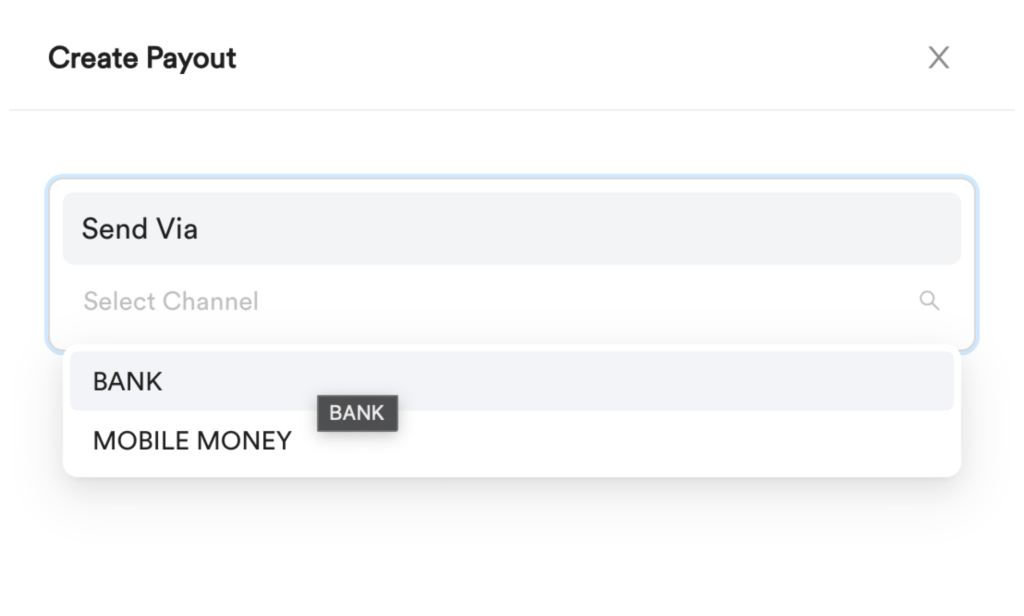
- On a Payout page, A ‘Create Payout` button will appear on top right conner. Upon clicking it, a drawer will open with one field to fill, ‘Send Via’ which allows you to select between BANK, MOBILE MONEY, or Lipa Namba.
- Fill in details per method selected. Find explanation here on what details to fill on those fields
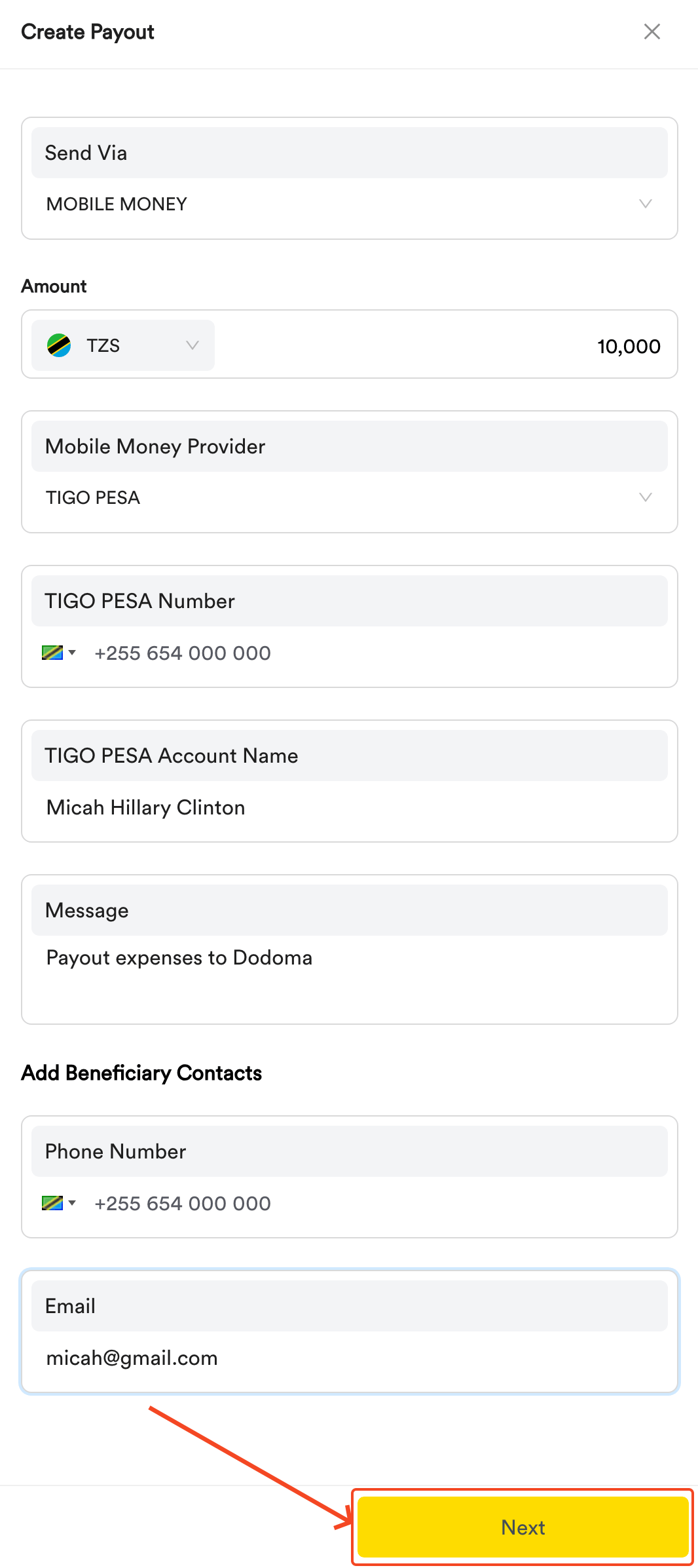
- Click Next Button to see the summary of the details before submitting them.
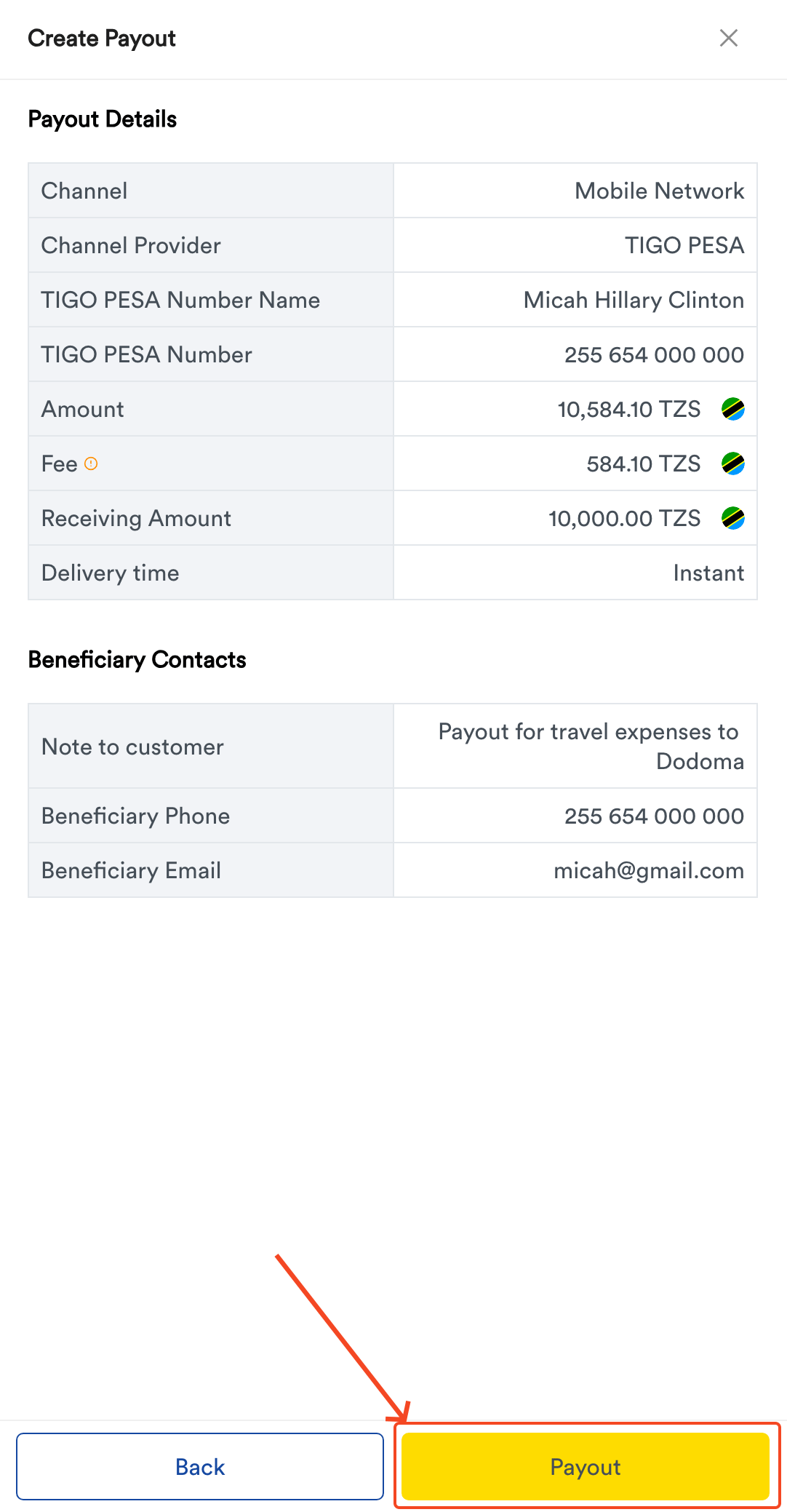
- If everything is correct, Click Payout button to initiate the payout.
- OTP will be sent out to your registered phone number. You will be prompted with OTP field to confirm the payout with options to resend if OTP was not received on your phone number.
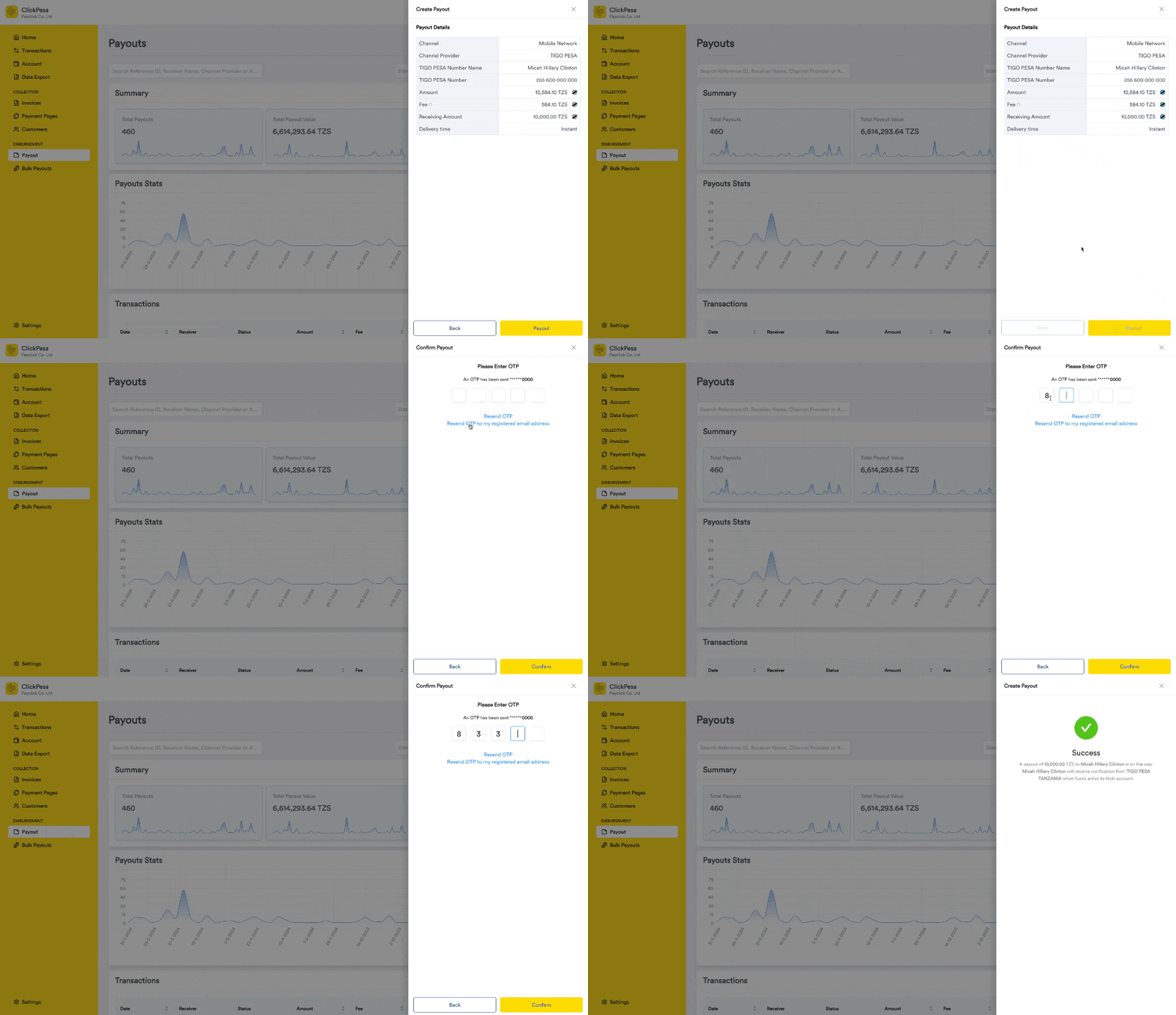
- Once payout is successful initiated you will receive notification via email or your dashboard.
Ability to verify mobile account names before paying out
When paying out to mobile, you will be able verify account names. On step 2 after entering details you will find a verify button under account number which when clicked it will return account name which you will be able to compare with the name you submitted.This is important feature as it helps reduce human errors especially when you enter a wrong number.
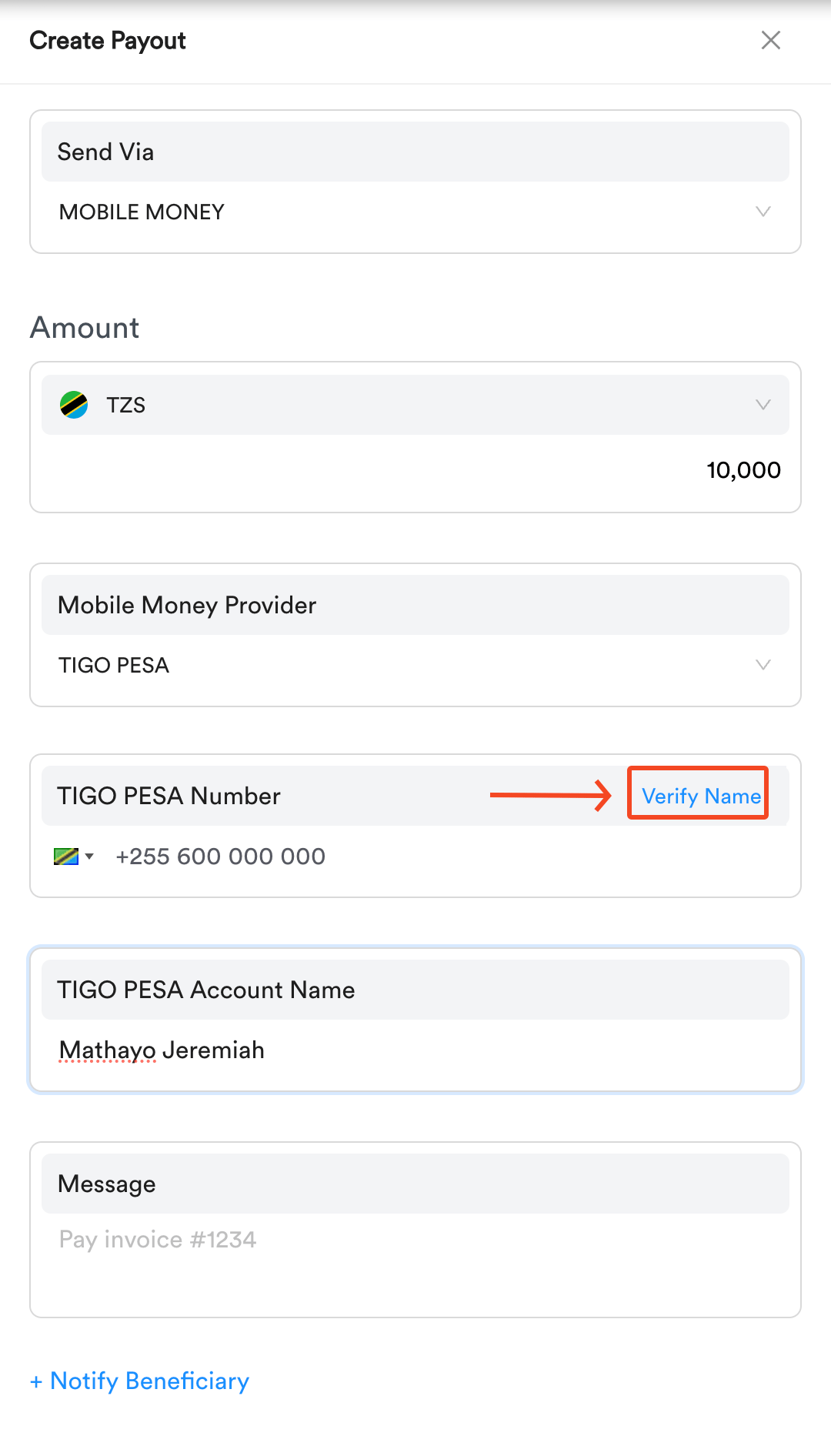
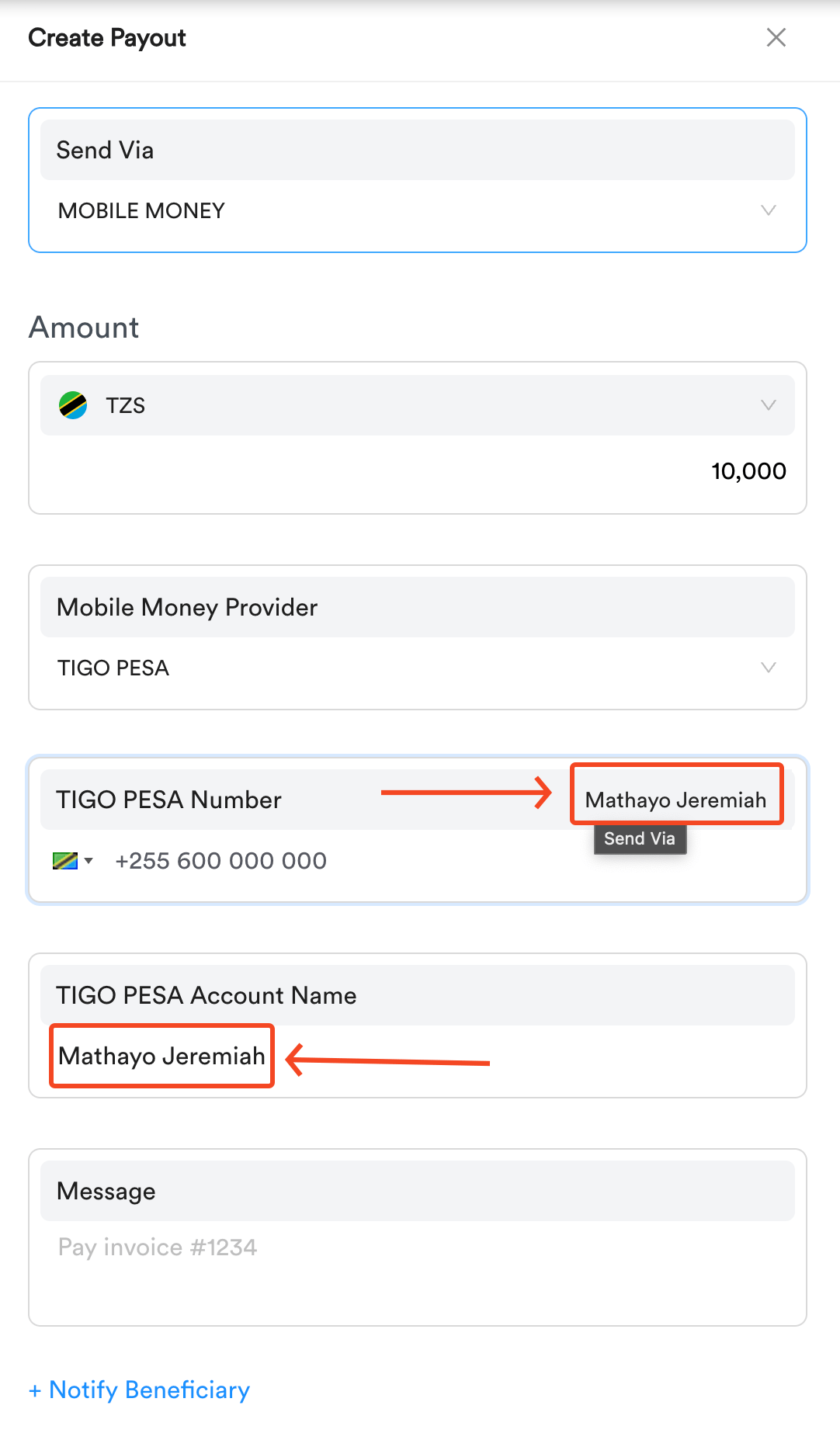
TIGOPESA) and AIRTELMONEY Mobile Payouts Only
Ability to verify Lipa Namba names before paying out
When paying out to a Lipa Namba, click Verify Name after you enter the number and provider. The name is required before you can continue.How to view single payouts
- On a Payout page, it contains the summary and table of all single payouts.
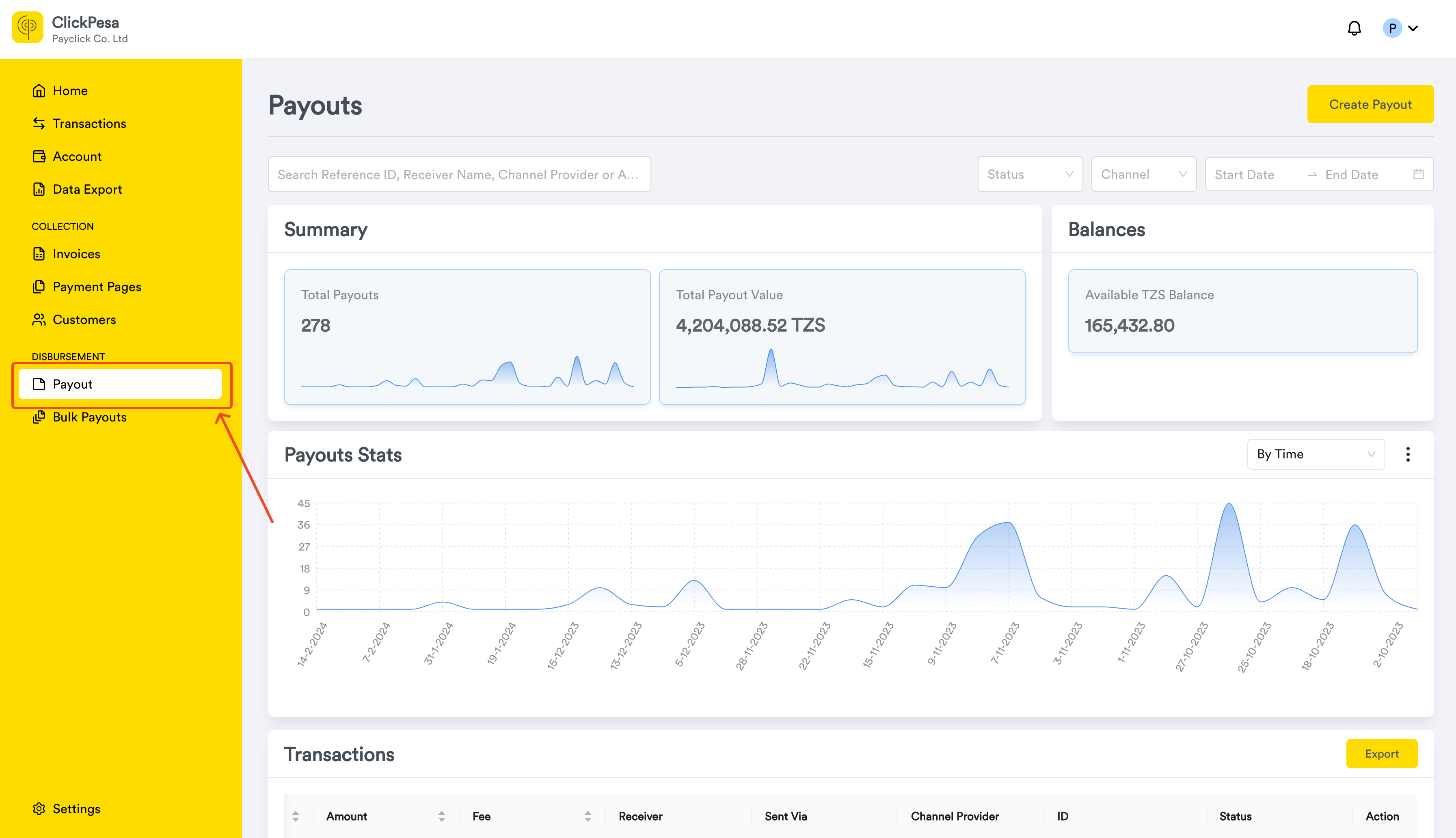
- You will be able to filter payouts summary and data by date, status, channels (MOBILE MONEY, BANK TRANSFER, LIPA NAMBA), and searching by reference, account name, account number or Lipa Namba, channel, or channel provider.

- On the page you should be able to see summary with payouts count and value
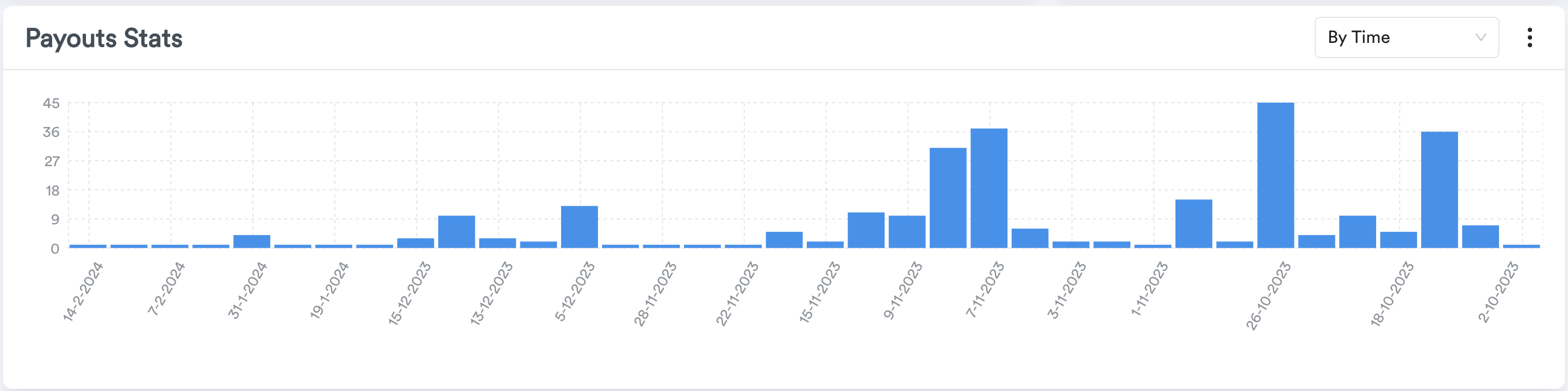
- You will also be able to see a graph section where data are measured by time or status.
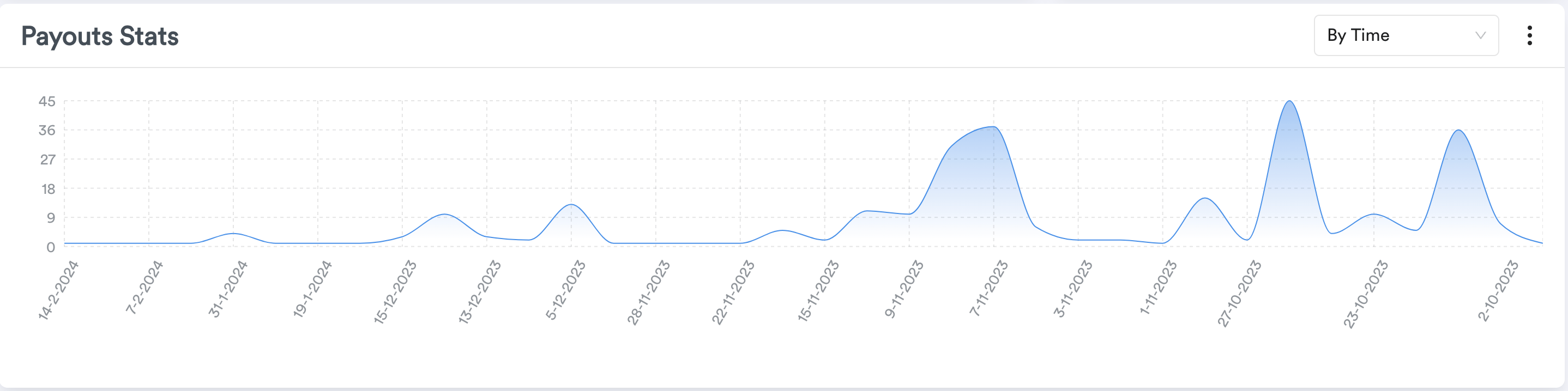
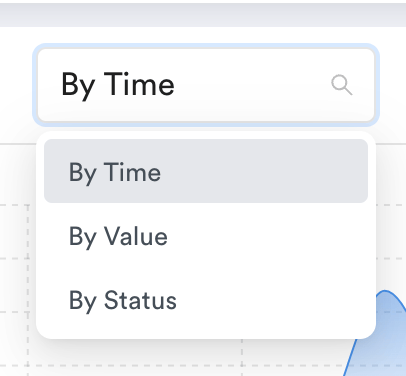
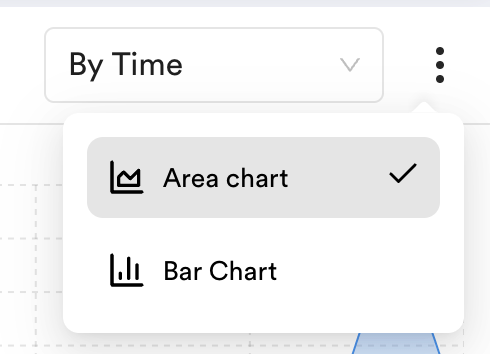
- On the graph you will be able to change graph data by selecting Time, value or status. You should also be able to change data style between area chart and bar chart
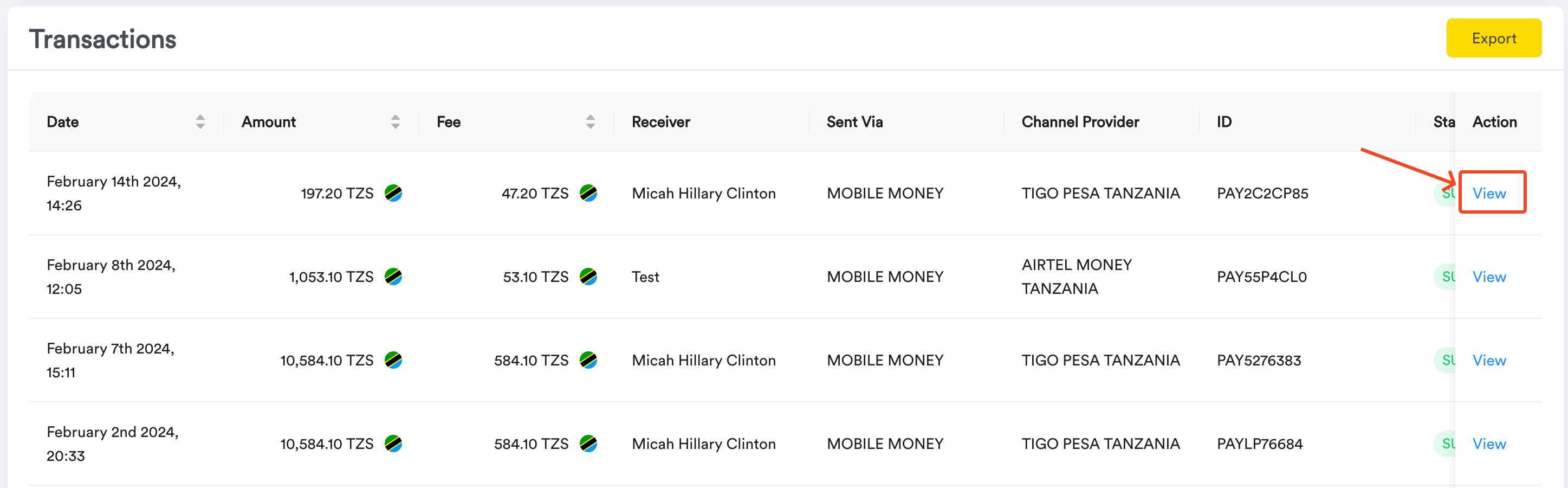
- You will also be able to sort payouts in the table by amount, date and fee

- To view single payout,
- In the payouts table, locate the payout you wish to view. On the far right of its row, click the “View” button.
- A drawer will appear on the right, showcasing detailed information about the selected payout.
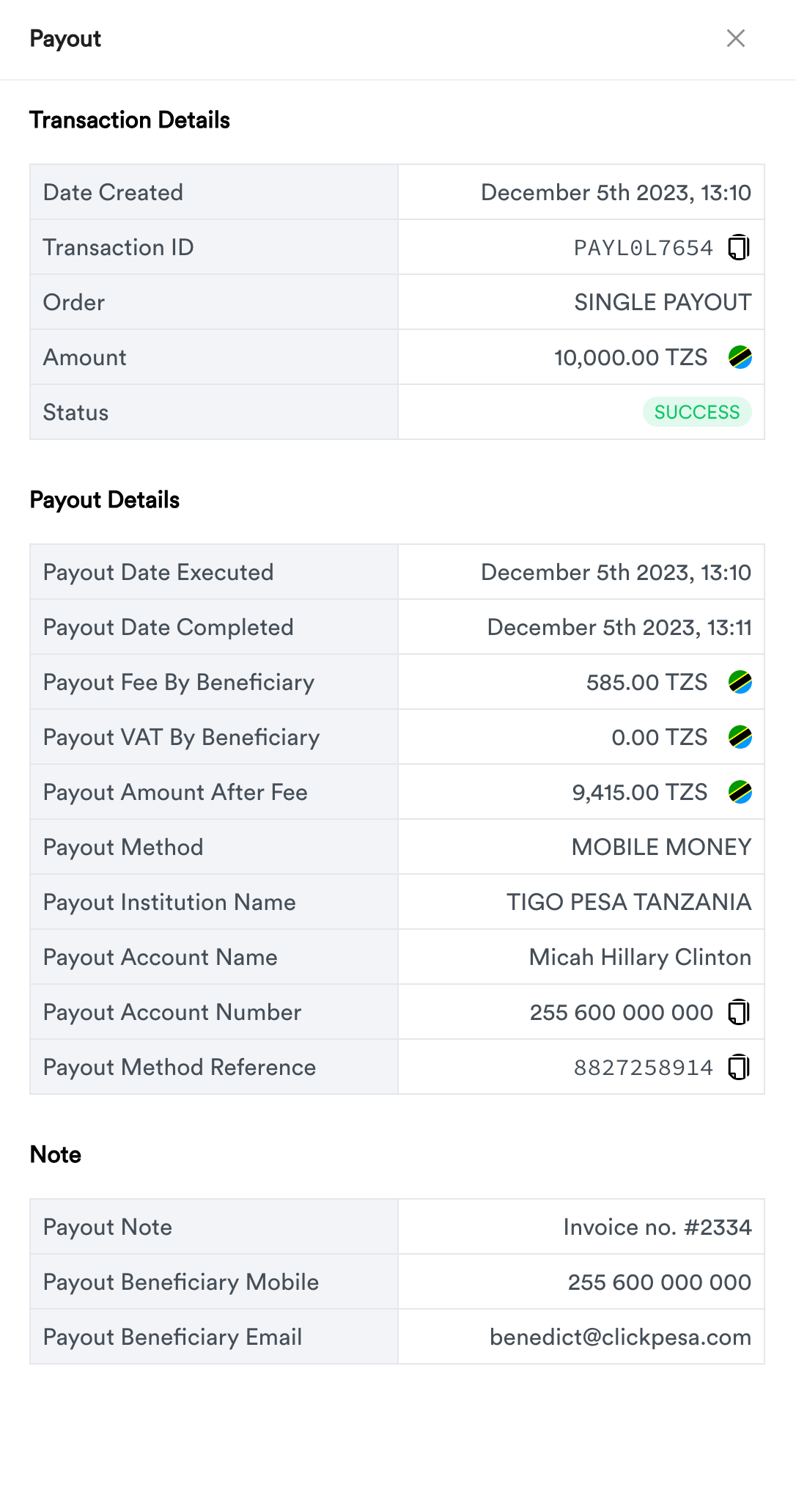
- You are able to copy ID and account number data from details drawer for this payout. For sharing it with clickpesa support team in case payout went wrong or sharing it with your customers.

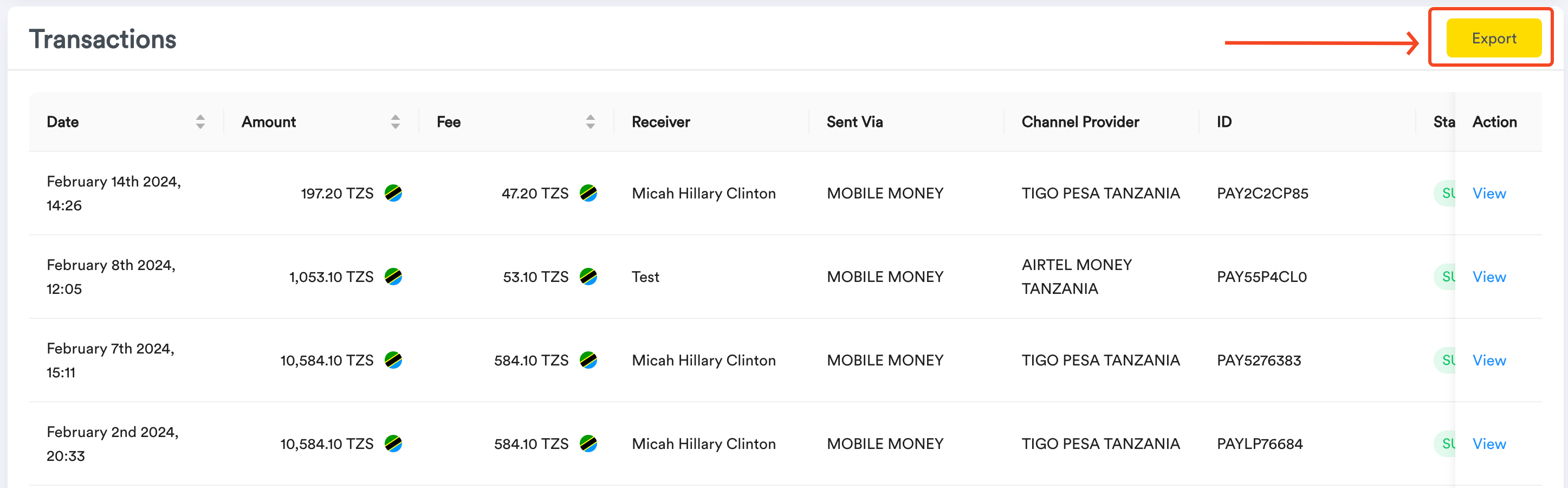
- To export payouts,
- In the Payouts Table, locate and click the “Export” button at the far right. this will take you to the payout export page.
Common Use Cases
Single payouts are ideal for various scenarios, such as:- Paying a one-time bonus to an employee.
- Disbursing funds to a specific supplier or contractor.
- Making individual payments to clients or partners on an as-needed basis.
Frequently Asked Questions (FAQ)
- Can I use ClickPesa for single payouts if my customers do not have ClickPesa accounts?
- Yes, your customers or recipients do not need ClickPesa accounts to receive single payouts. ClickPesa disburses to existing bank accounts, mobile money wallets, and Lipa Namba.
- What happens if I make a mistake and send a payment to the wrong recipient using ClickPesa’s Single Payout feature?
- It’s important to ensure that recipient details are accurate when initiating a single payout. If the details are incorrect, the transaction may fail, and the funds will be returned to your ClickPesa account. This process may take a few days.
- Can I track the details of the single payouts I’ve made using ClickPesa?
- Yes, you can view transaction details, including amounts and recipients, under the “Transaction” section of your ClickPesa account. There is also an option to export transaction data for your records.
- Can A Team member initiate or approve a payout?
- Yes, we support assigning payout roles to team members for initiating or approving single payouts. Learn More