

Introduction
Overseeing your payout transactions is a crucial aspect of any business, and being able to track and review payouts is fundamental to maintaining transparency and control over your finances. Our dashboard offers a streamlined and user-friendly interface to view all your payouts and even export this data for further analysis or record-keeping.How to use payouts
How to view all payout transaction
- From your dashboard, navigate to the left-hand side and select “Transactions” and the select Payouts tab.
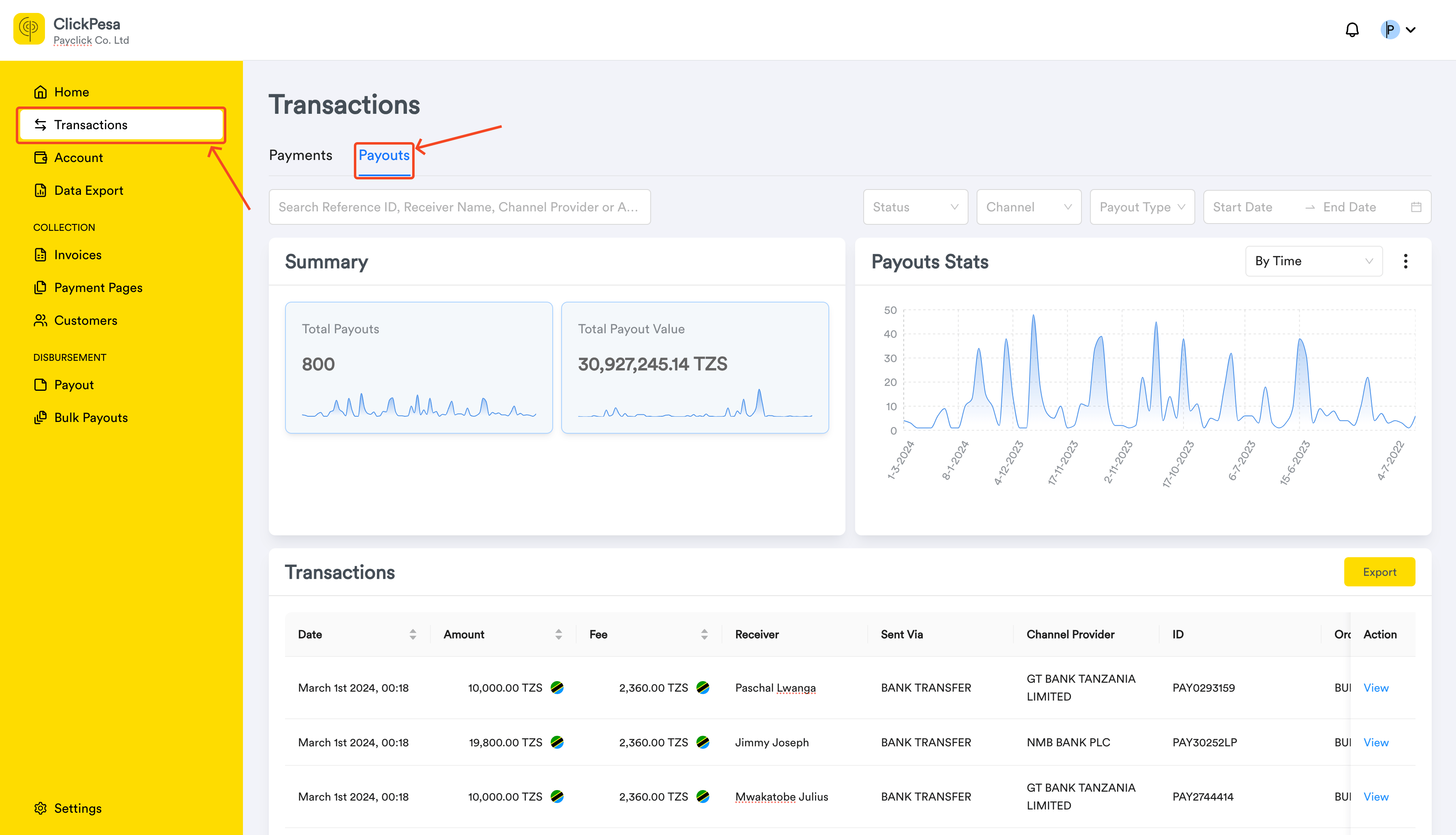
- You will be able to filter payouts summary and data by date, status, channels (MOBILE MONEY, BANK TRANSFER, LIPA NAMBA), payout type, and searching by reference, account name, account number or Lipa Namba, channel, or channel provider.

- On the page you should be able to see summary with payouts count and value
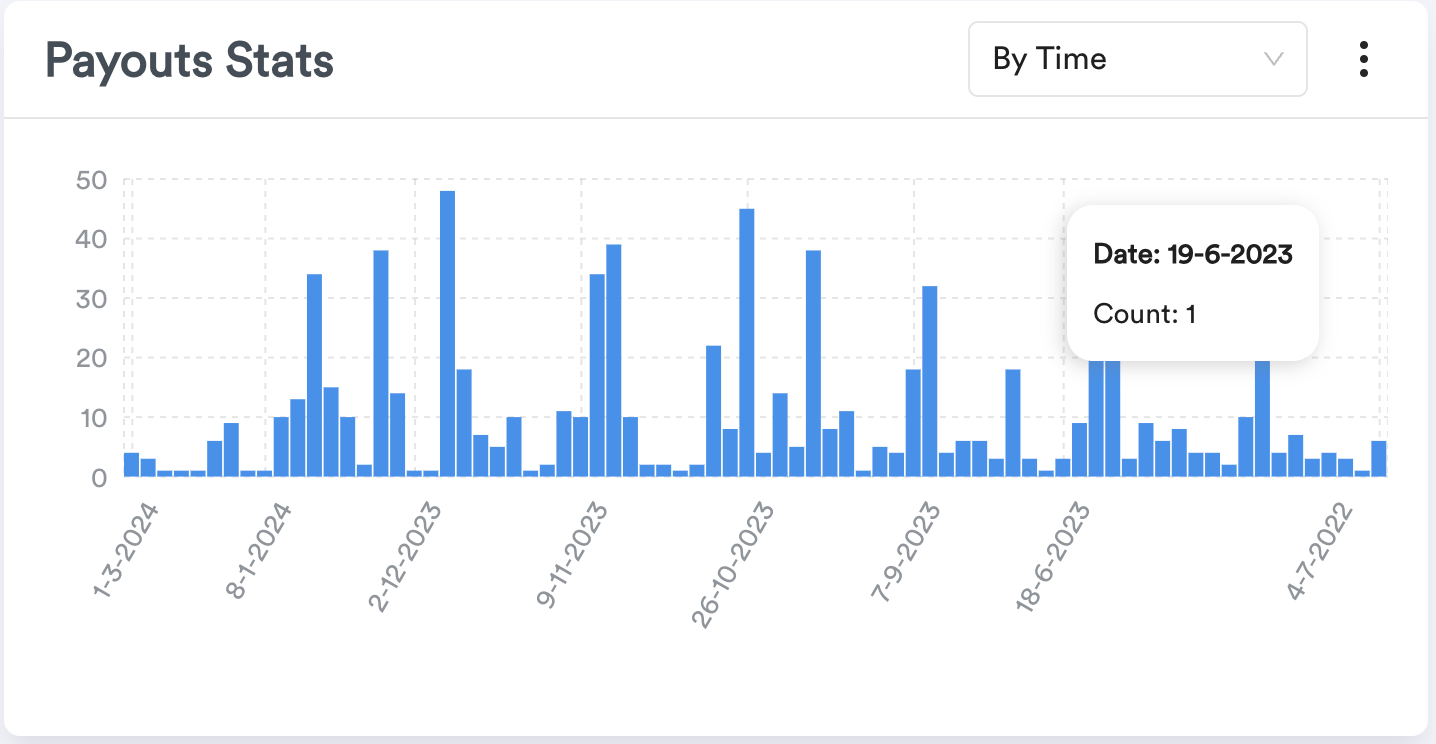
- You will also be able to see a graph section where data are measured by time or status.
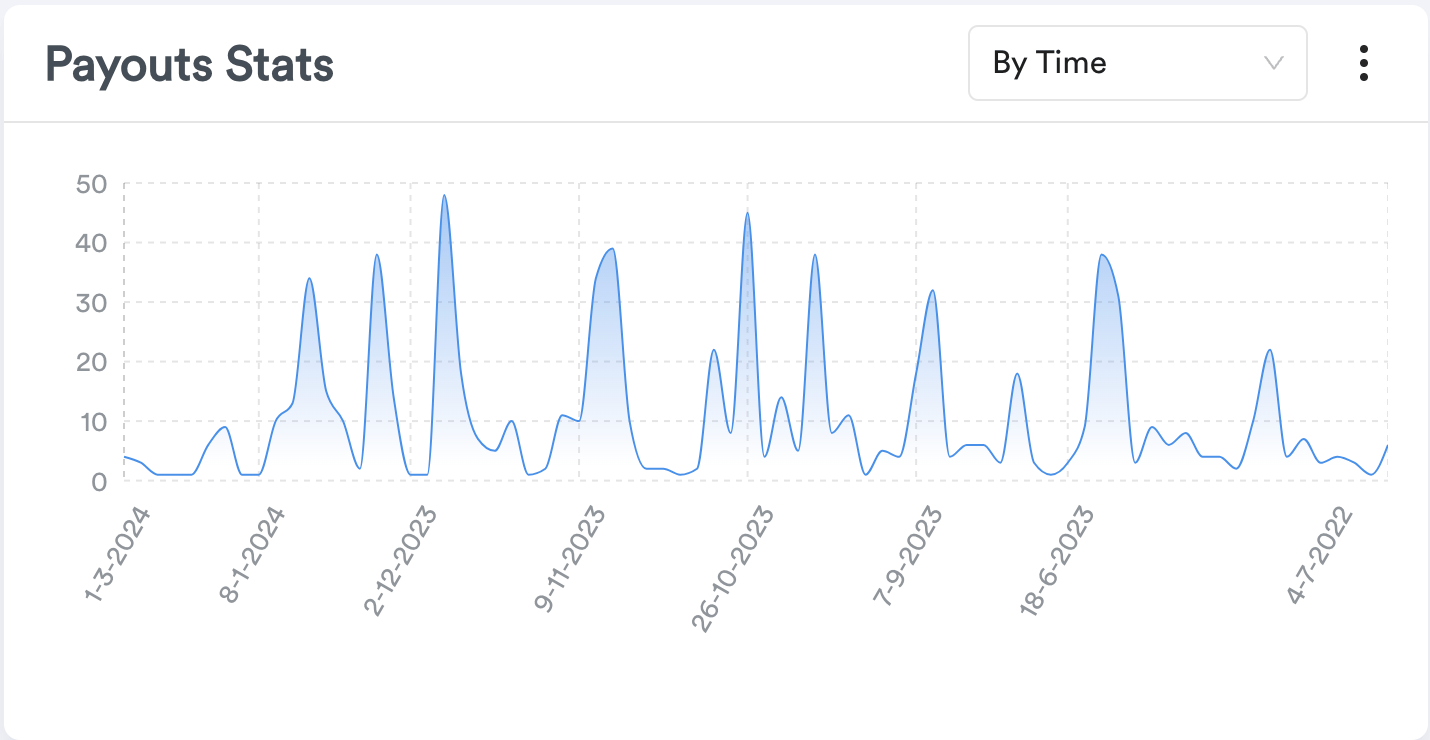
- On the graph you will be able to change graph data by selecting Time, value or status. You should also be able to change data style between area chart and bar chart
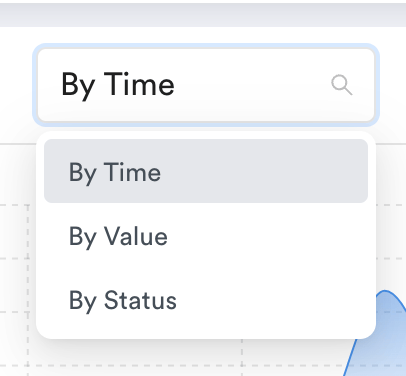
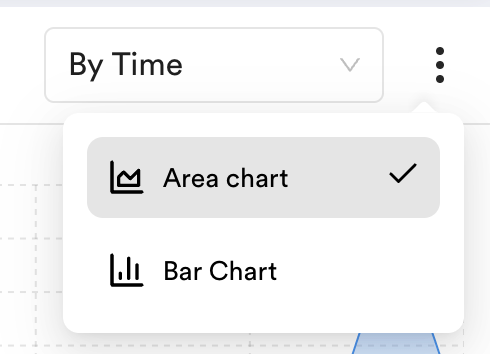
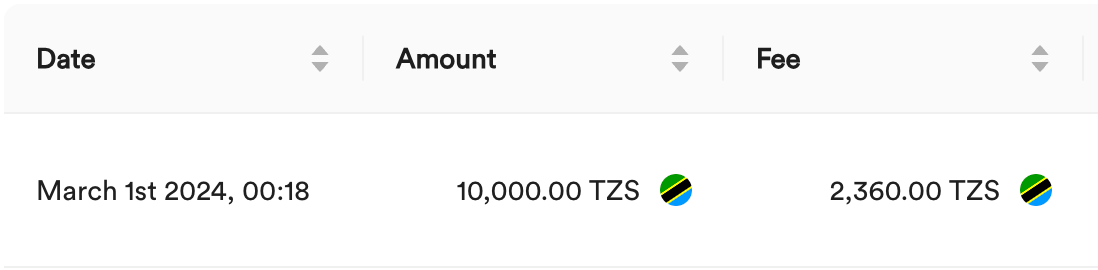
- You will also be able to sort payouts in the table by amount, date and fee actions, you can use the below two options:
How to view a single payout transaction
- In the payouts table, locate the payout you wish to view. On the far right of its row, click the “View” button.
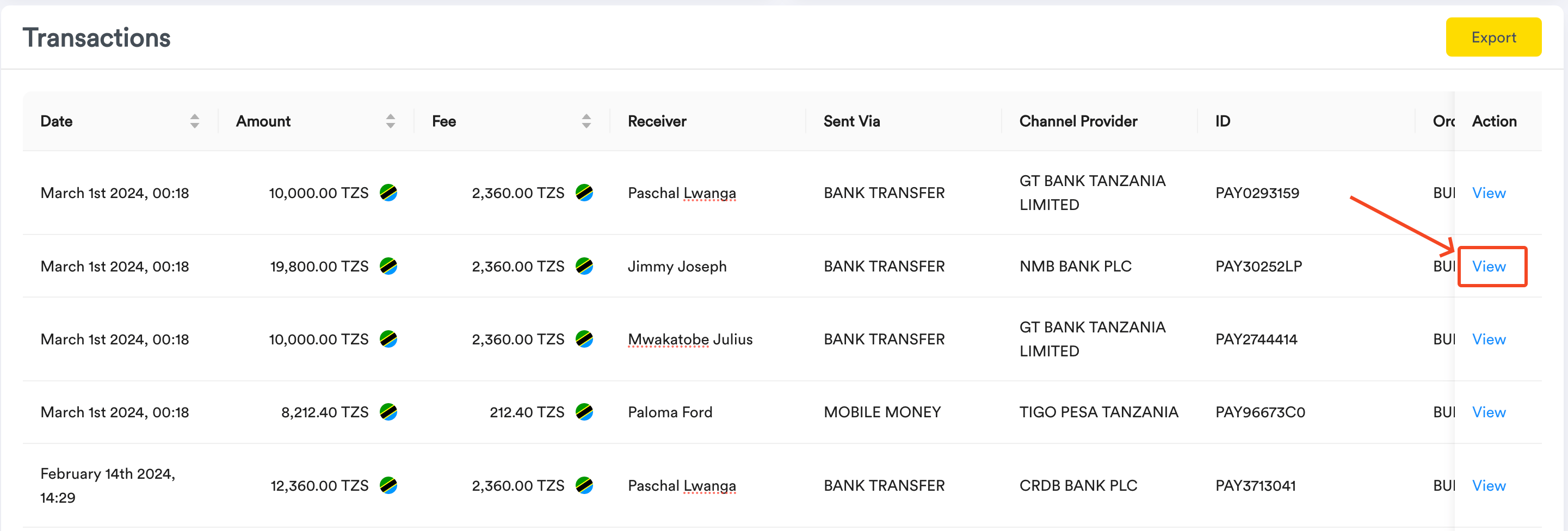
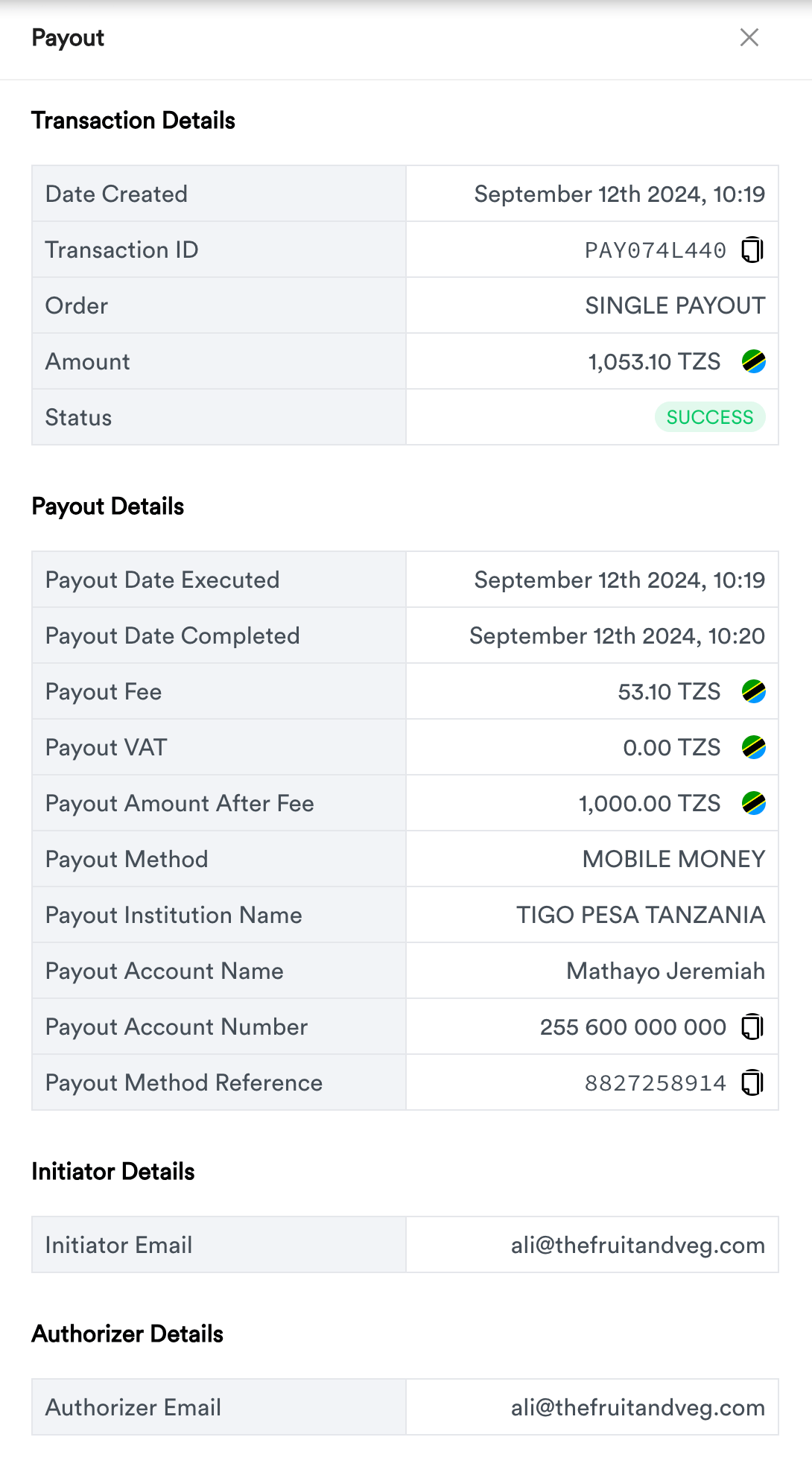
- Payouts will be shown with different status,
- PROCESSING – Transaction was initiated successfully and funds are on the way
- SUCCESS – Transaction was successfully, Funds will be settled to recipient Mobile, Bank account, or Lipa Namba
- FAILED – Transaction failed
- REFUNDED - Transaction was refunded before it was successful.
- REVERSED - Transaction was reversed after it was successful.
- UNAUTHORIZED - Status for when a payout is initialized by an initializer but are yet to be approved. Learn More
- You are able to copy ID and account number data from details drawer for this payout. For sharing it with clickpesa support team in case payout went wrong or sharing it with your customers.

How to export payout transactions
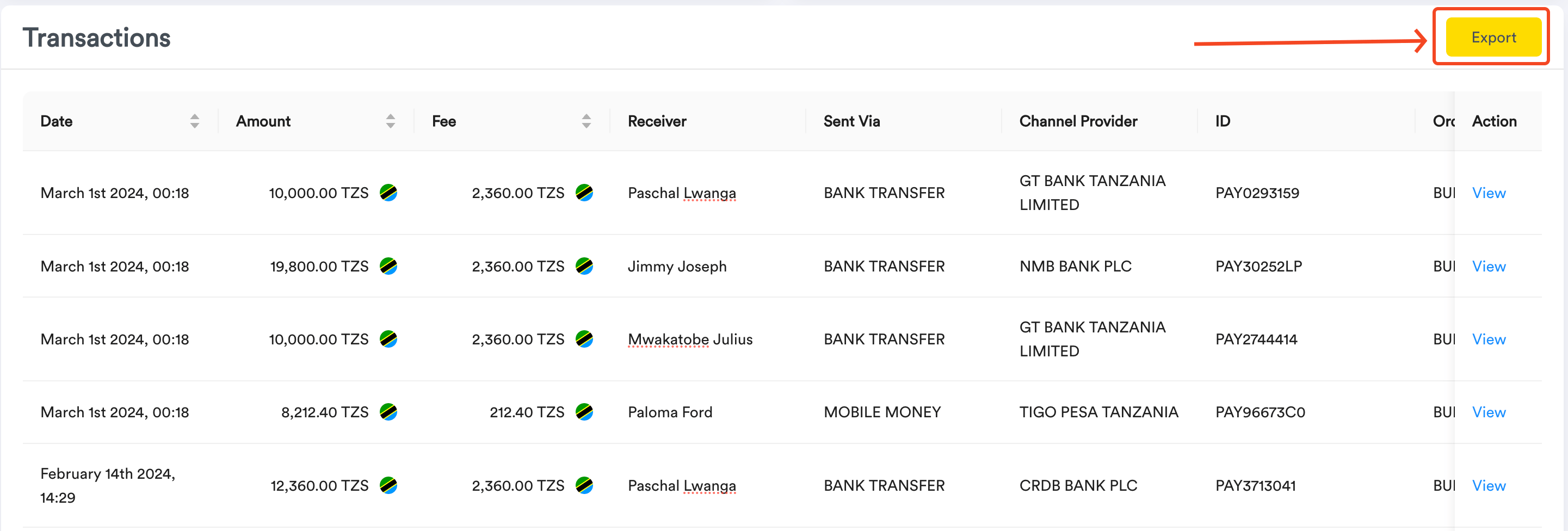
- In the Payouts Table, locate and click the “Export” button at the far right. This will take you to payout export page.
Common Use Cases
- This feature can be used mainly if you want to view your payout details
- Also if you want to export your payout details and import them to another system
Frequently Asked Questions (FAQ)
- Is it possible to export payout transaction data from the ClickPesa Merchant Dashboard to another system?
Yes, you can export all the transaction data from ClickPesa Merchant Dashboard and then import it manually within the other system if they allow for data import. - Which file formats can data be exported from the ClickPesa Merchant Dashboard?
ClickPesa Merchant Dashboard allows you to export data in CSV format. - What is the difference between payouts and withdraws?
Payouts are transfers to third parties and withdraws are transfers to your own bank account.