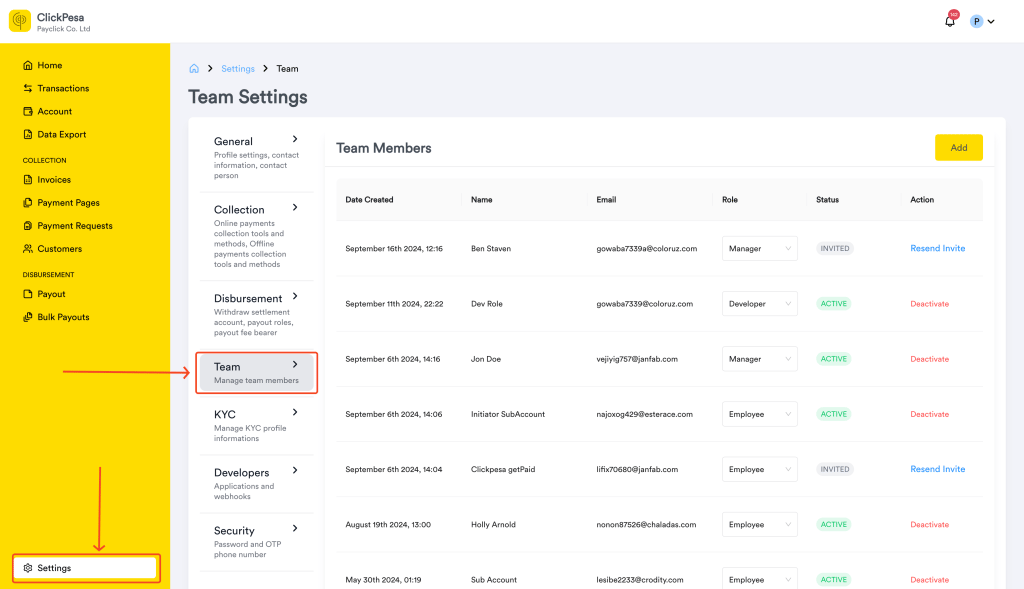
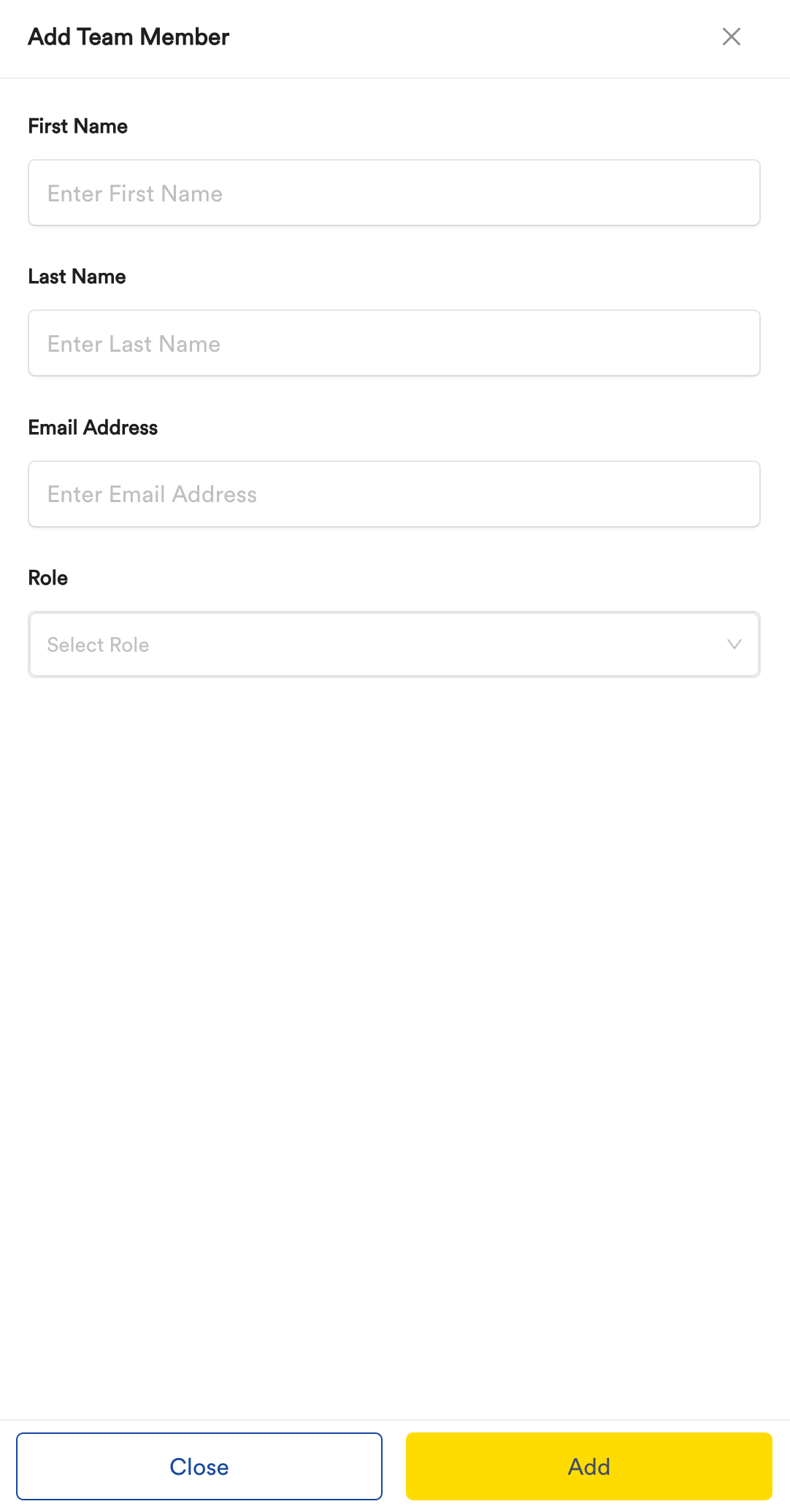
Fill in the required fields and send the invitation.
Enter team member details and send the invite.
3
Team member accepts the invite
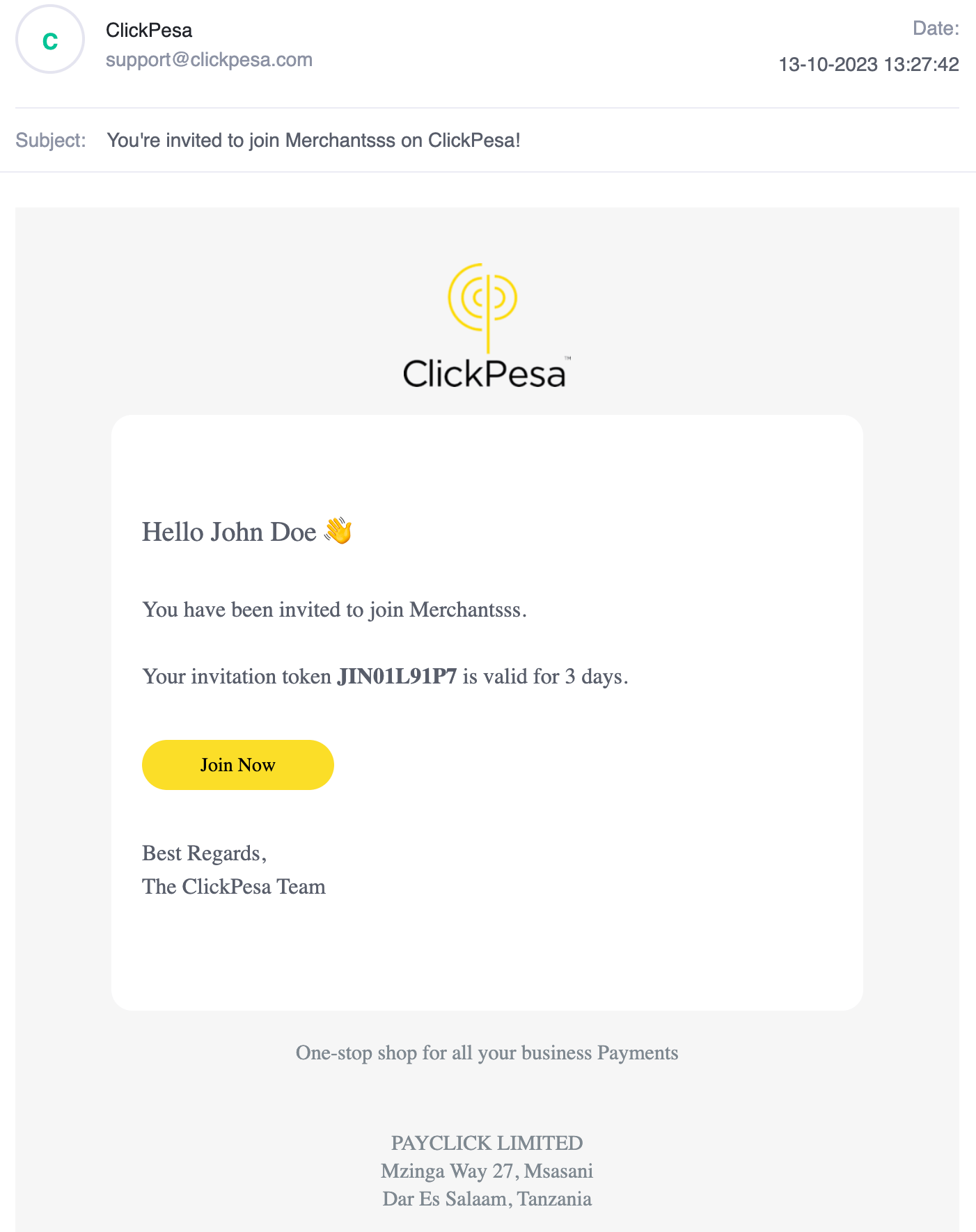
The team member receives an email with an invitation link.
Team invitation email.
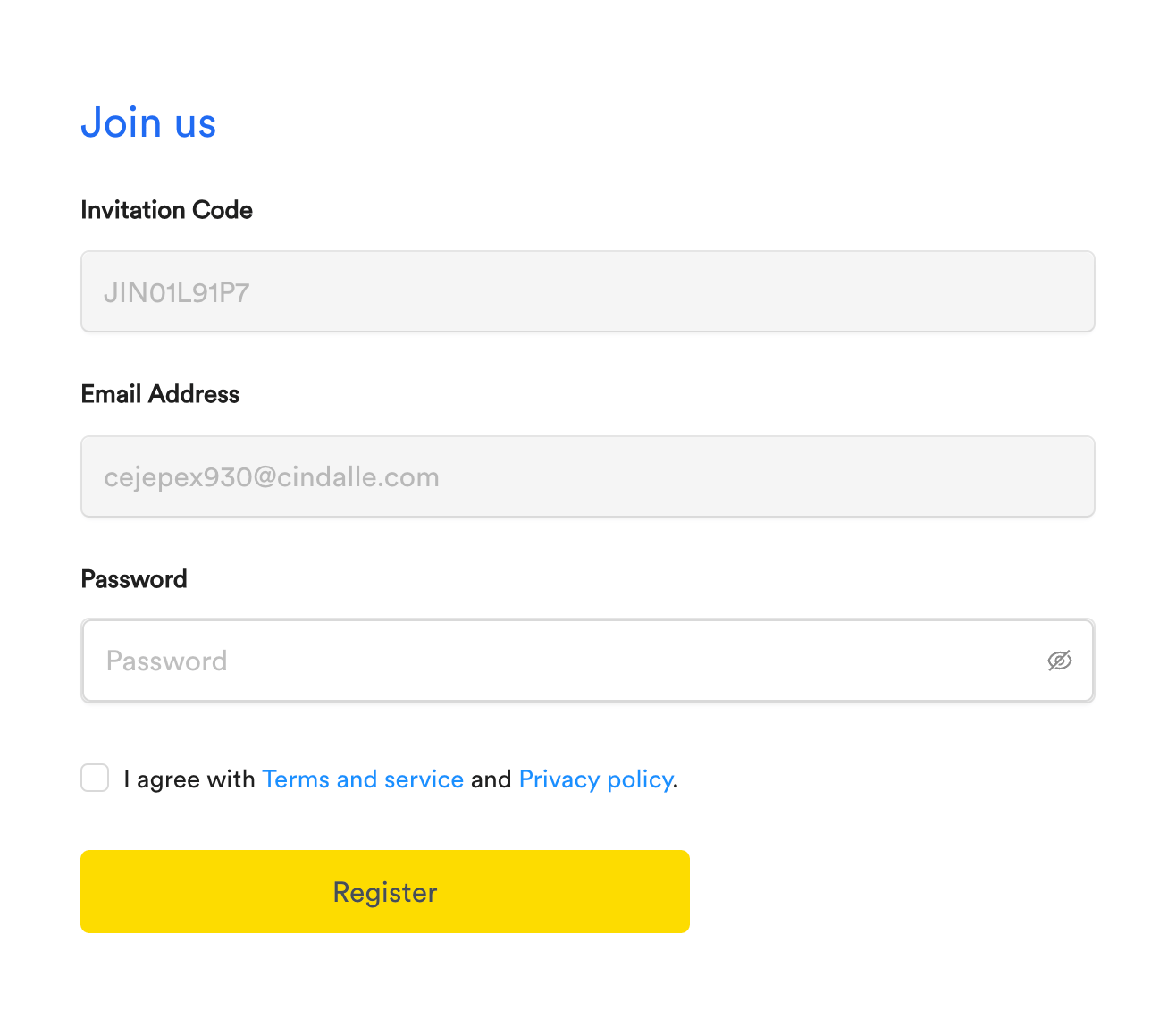
They set a password to join the platform.
Set a password to join as a team member.
4
Complete onboarding
The team member follows the standard onboarding process. They do not submit KYC documents but complete login setup.
5
Manage existing members
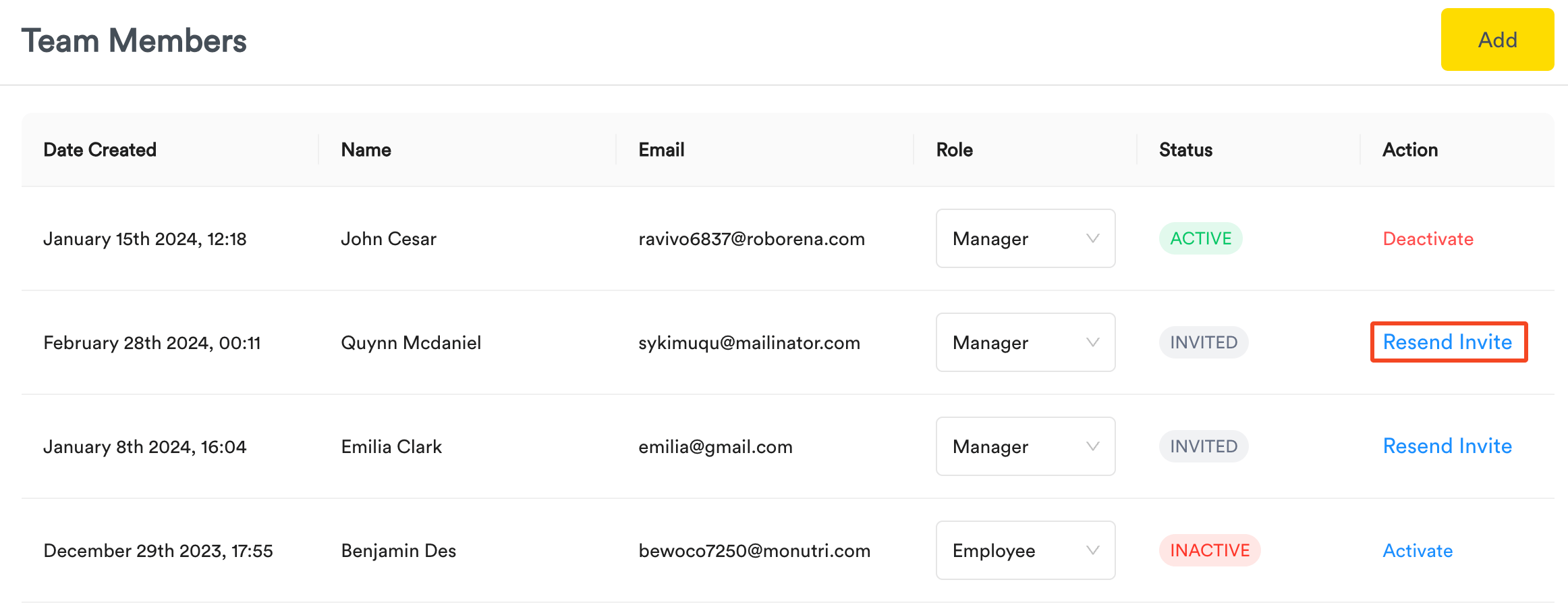
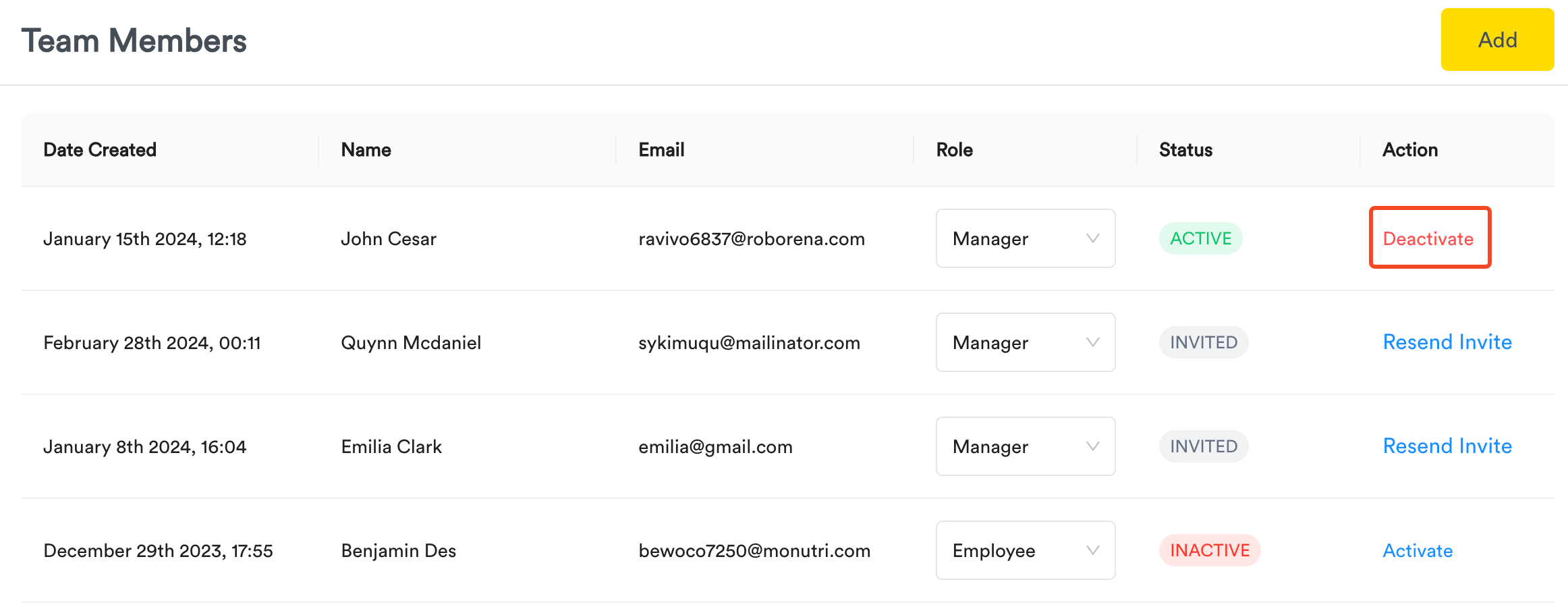
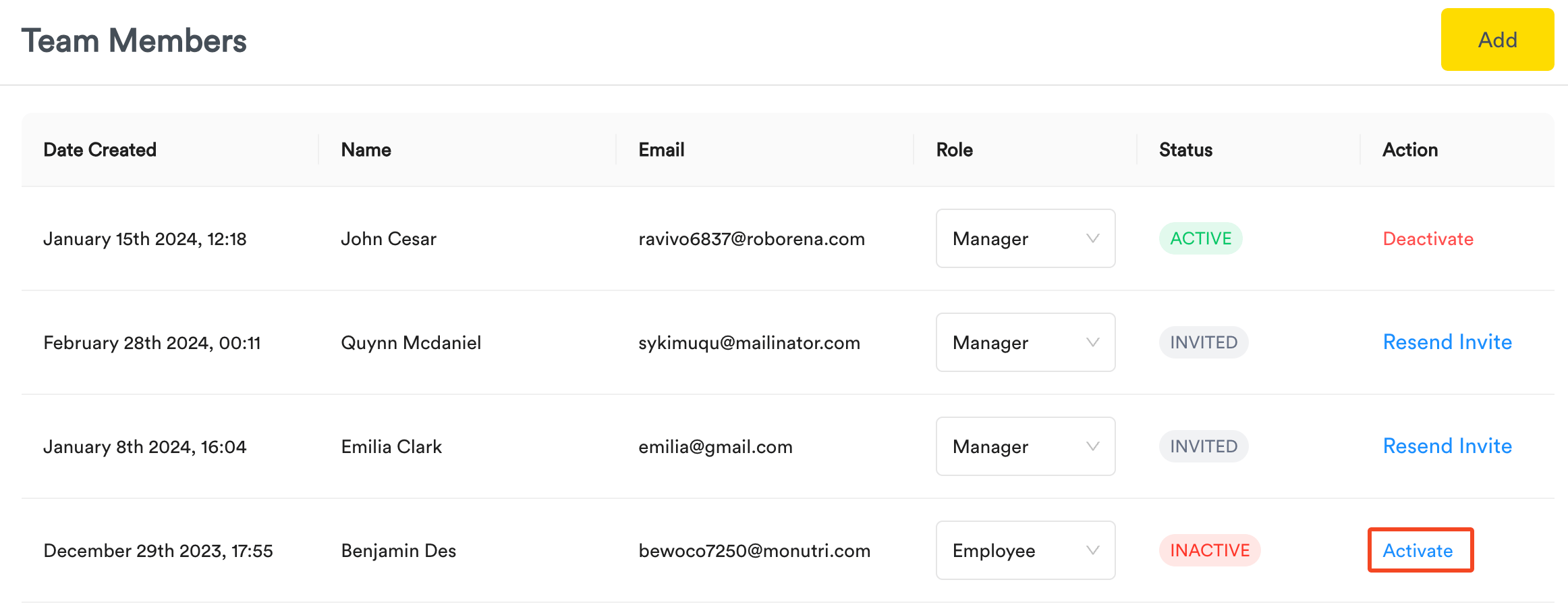
From the Team table you can Resend expired invites, change Role, or Deactivate / Activate accounts. You are prompted for your password when changing team member access.
Manager
This role can be given to those members who are likely to be given higher roles in your account, i.e We have payout roles (Initiator and Authorizer). Only a member with Managerial Role can be an Authorizer for Payouts.
Employee
This role can be given to those members who are likely to be given lower roles in your account, i.e We have payout roles (Initiator and Authorizer). Employees can only be given Initiator roles for payouts.
Developer
Developer role is created to help speed up integration process for merchants with less technical ability. Developer will only be able to view payouts and payments. And They will be able to set anything associated with integration within the dashboard. Open Here to View Developer documentation.
ExternalAccountants Collaborate with accountants by adding them as team members. Accountants can assist in managing financial records, but administrators retain control over authorizing payouts and fund withdrawals.
Administration, Bookkeepersand other staff members Collaborate with staff members to share data and do actions without giving them access to initiate payouts and withdrawals.