> ## Documentation Index
> Fetch the complete documentation index at: https://docs.clickpesa.com/llms.txt
> Use this file to discover all available pages before exploring further.
# Get Started With ClickPesa
> Learn how open a ClicPesa account for your business and organizations in Tanzania
Registered businesses (Individual and Organizations) in Tanzania can create an account with ClickPesa.
**Registering an account is FREE**— No credit card required, No monthly or yearly fees! We charge on transaction, you make money we make money. Find our [fees and pricing](https://clickpesa.com/payment-gateway/pricing/).
## Step 1: Sign Up
* Visit [ClickPesa Dashboard](https://merchant.clickpesa.com/account-registration) and create an account.
* The signup process is quick and takes **less than 3 minutes**.
* Once signed up, you can explore and use the platform, but **usage limits apply until KYC is approved** (transaction caps, API daily limit, and some features).
### Registration walkthrough
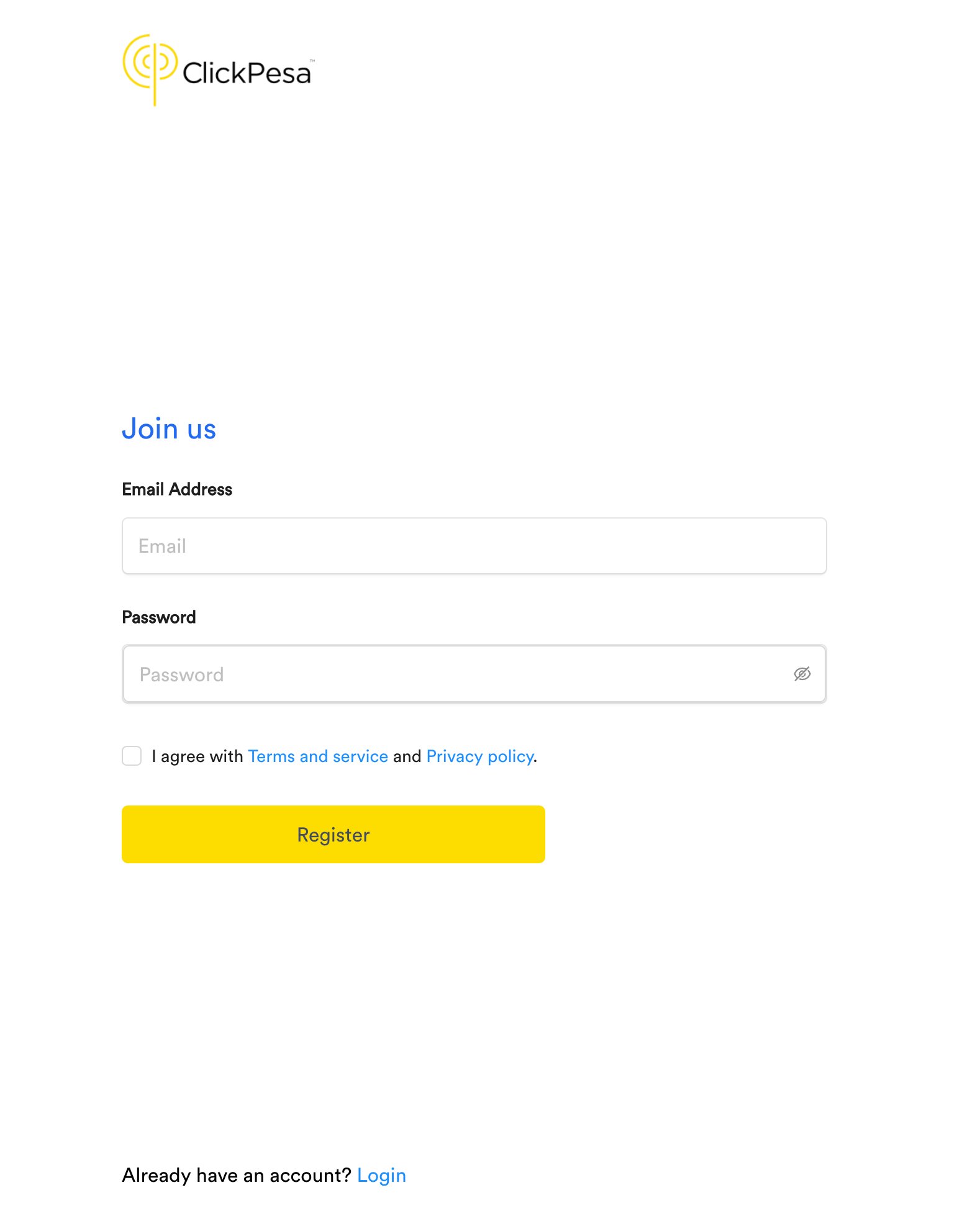
* Input your email and select a password for your ClickPesa merchant dashboard. To ensure a strong password is provided, a password should:
* have at least 8 characters
* include at least one capital letter
* include at least one small letter
* include at least one number
* include at least one special character: `!@#$%^&*()_+-=[]{};':"\|,.<>/?~`
* Check the box to agree with the terms of service and privacy policy.
* Click the "Register" button to proceed.
 1. An email will be sent to you containing a "Verify Your Email" button.
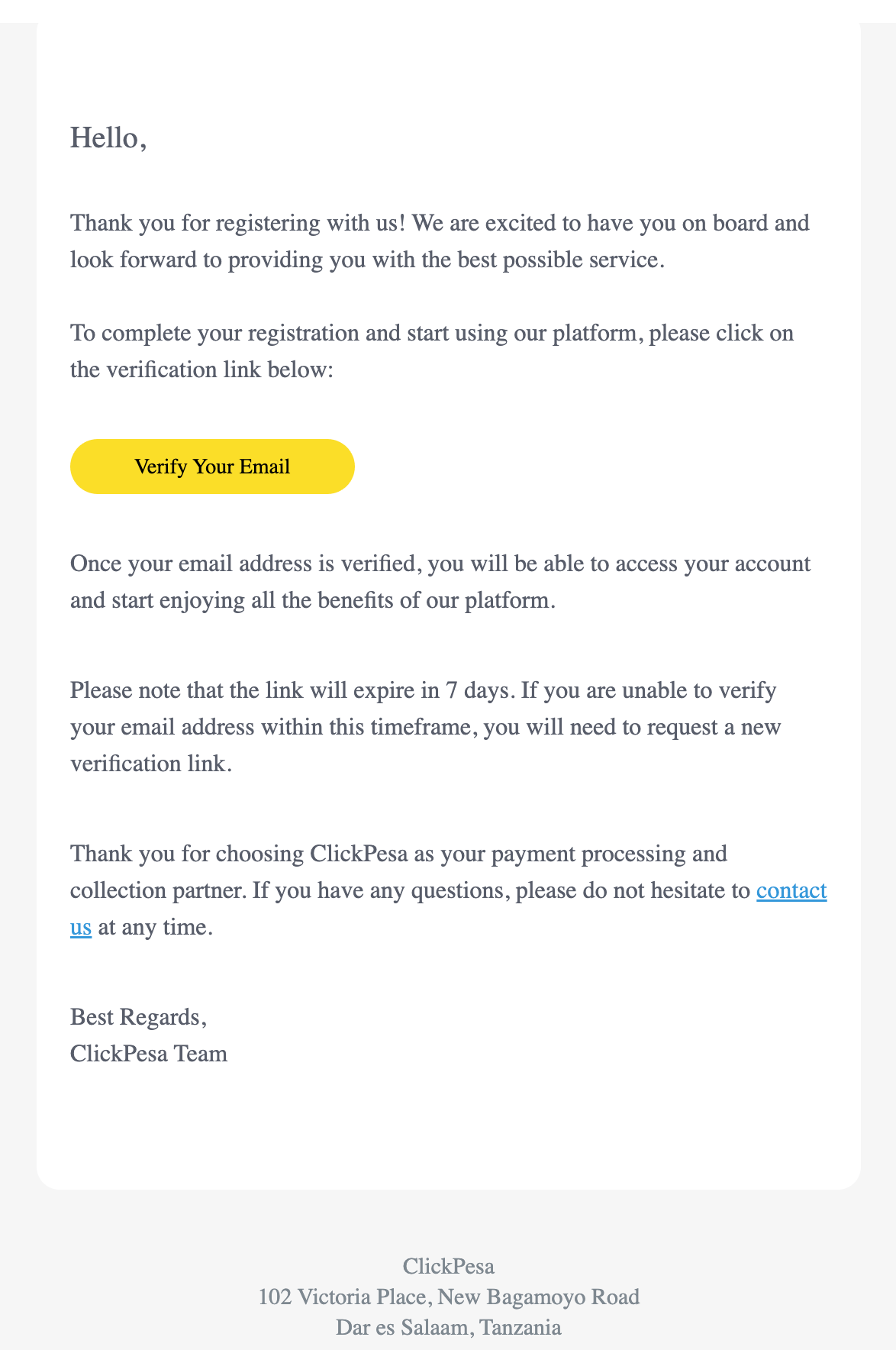 2. Click on it to confirm your email address.
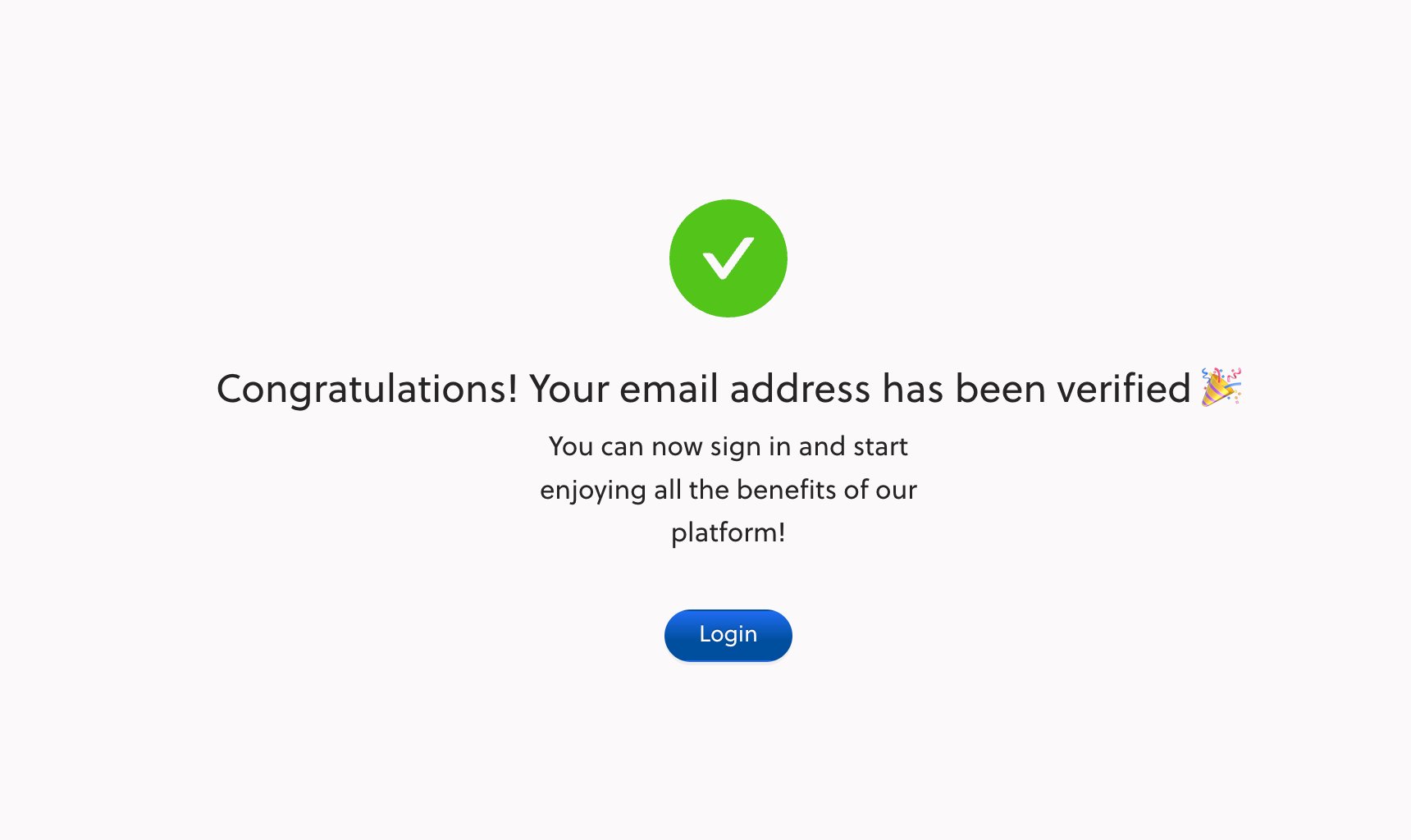 3. Congratulations! You are now successfully registered for the ClickPesa Merchant Dashboard.
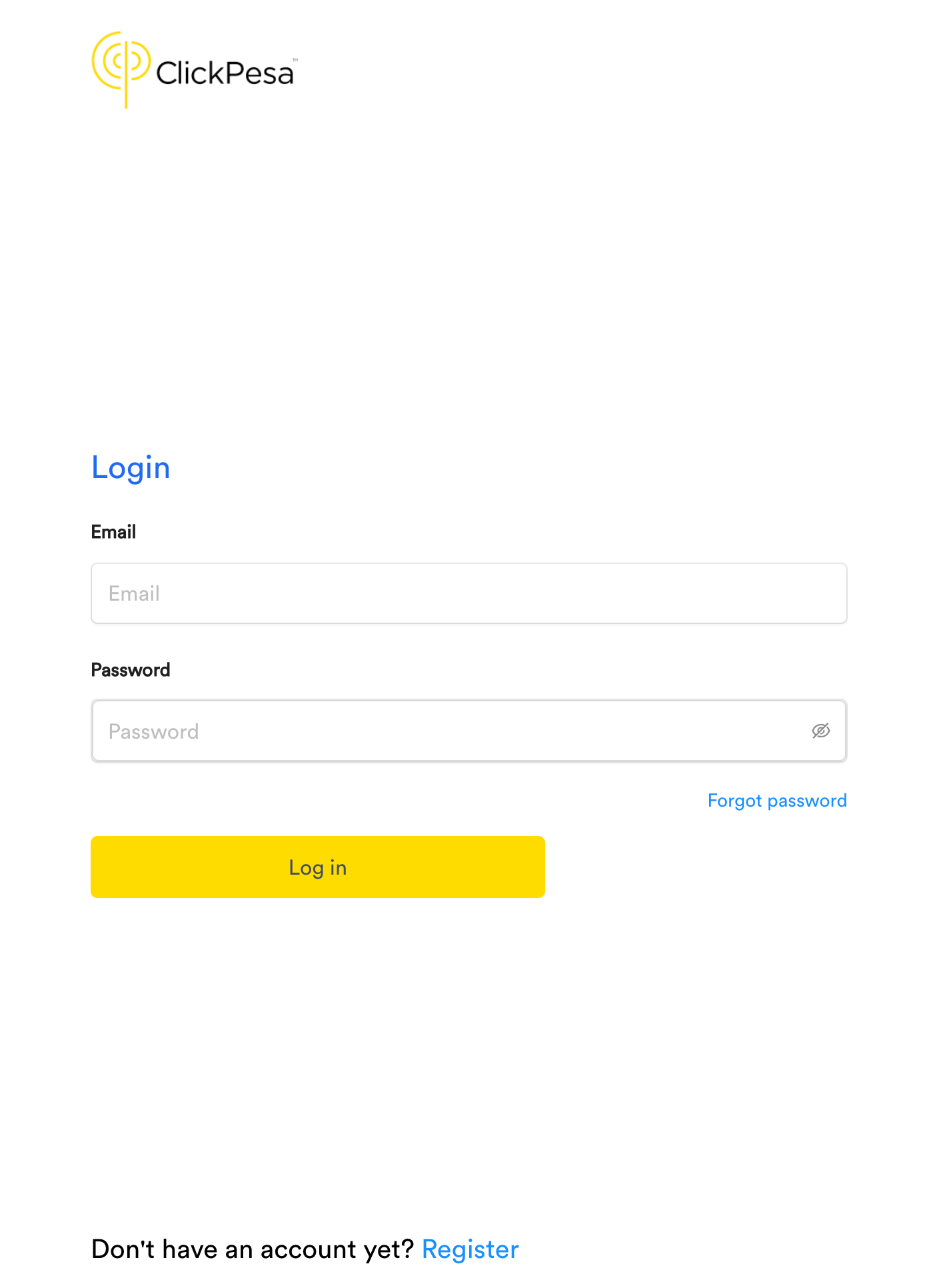
1. After email verification, log in with your email and password at [merchant.clickpesa.com](https://merchant.clickpesa.com/).
3. Congratulations! You are now successfully registered for the ClickPesa Merchant Dashboard.
1. After email verification, log in with your email and password at [merchant.clickpesa.com](https://merchant.clickpesa.com/).
 2. Set up OTP (One Time Password) — a 5-digit code sent via SMS to your phone number.
* Enter your phone number in the **Phone Number** field.
2. Set up OTP (One Time Password) — a 5-digit code sent via SMS to your phone number.
* Enter your phone number in the **Phone Number** field.
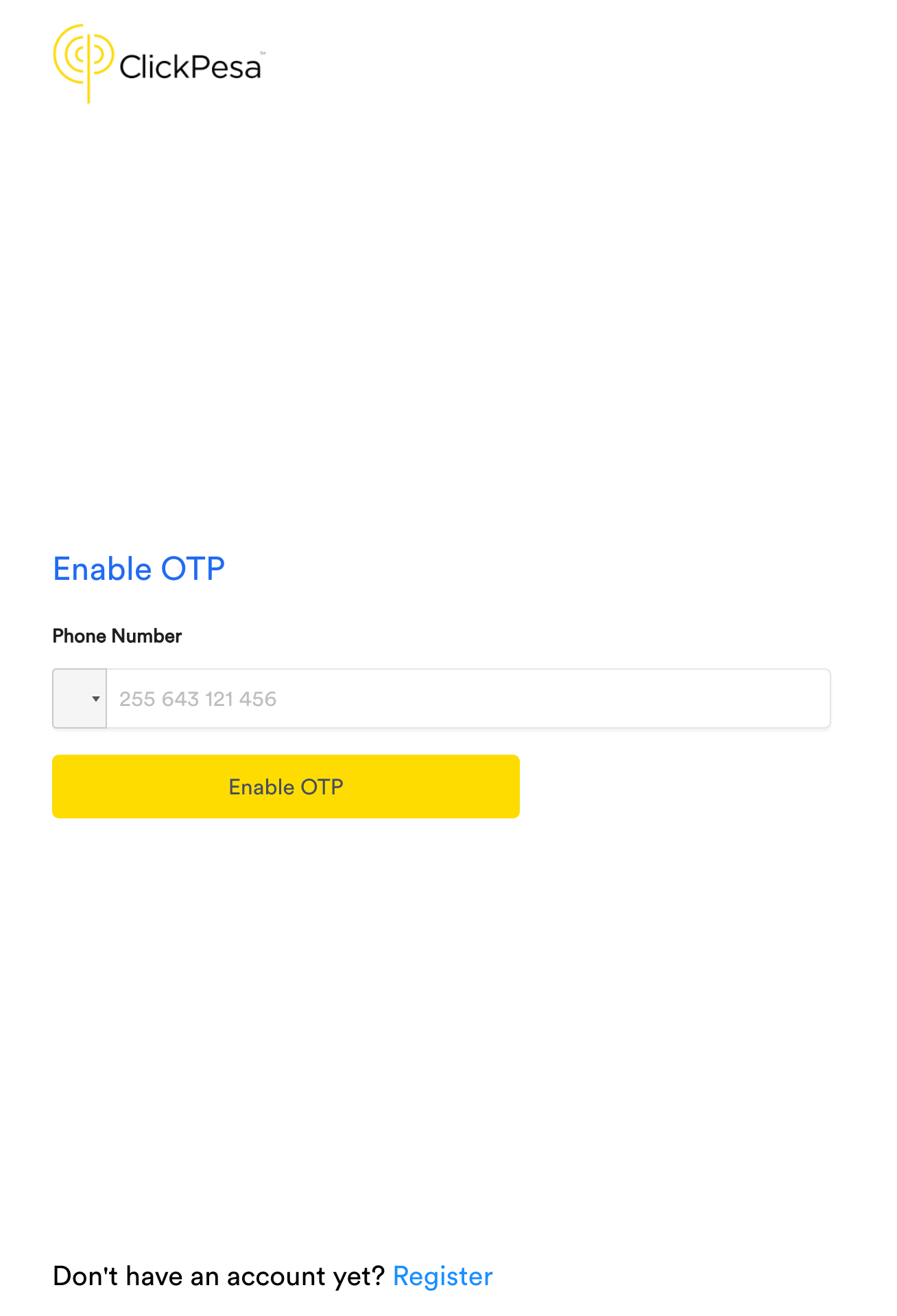 * Enter the code from the SMS into the **OTP Code** field and click **Enable OTP**.
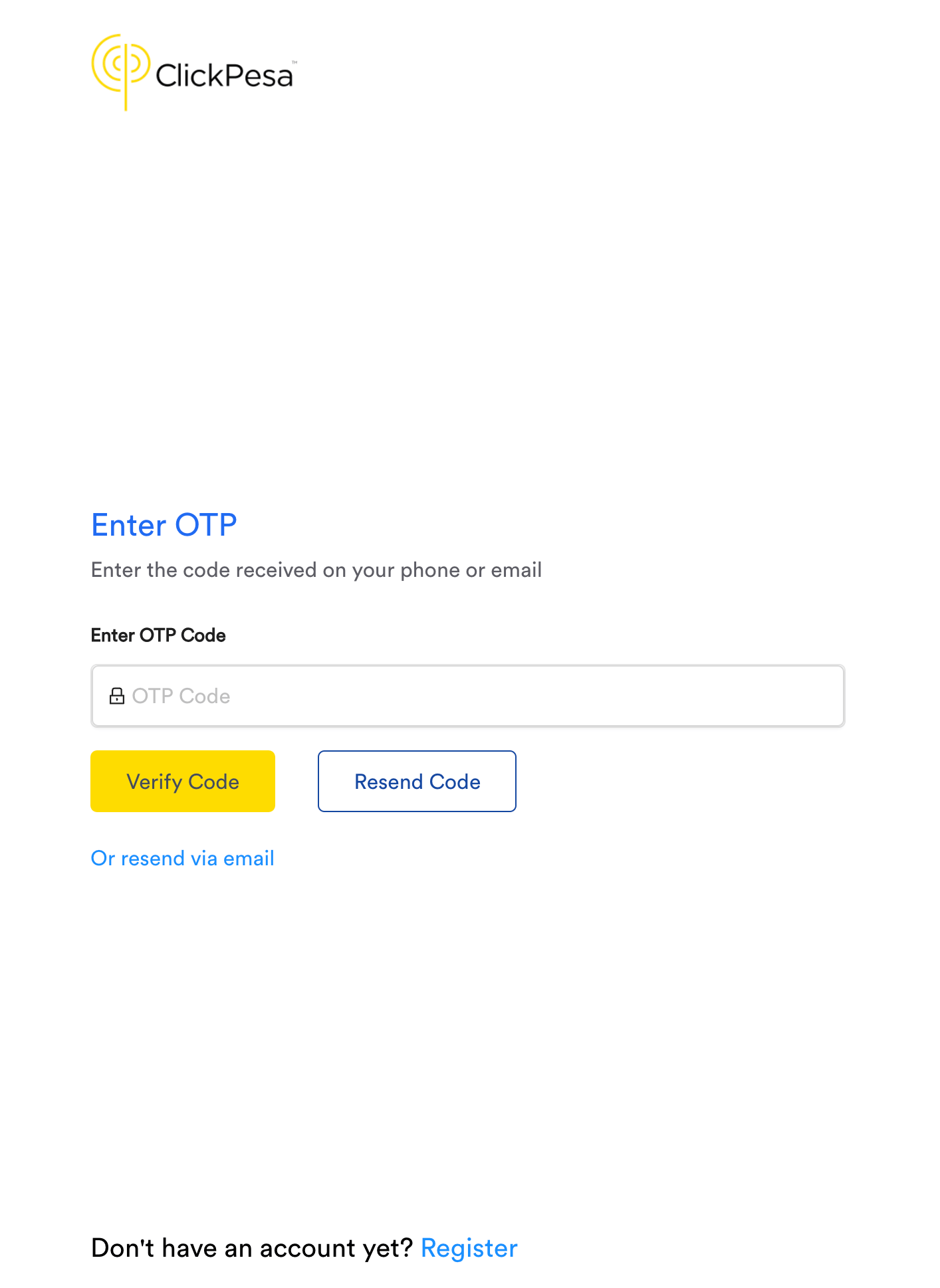 * If the code expires, click **Resend Code** to receive a new OTP.
For subsequent logins, see [Login and Password Reset](/home/login-password-reset).
After verifying your OTP during your first login, you need to enter your Business Name. Then, click the "Get Started" button to proceed.
* If the code expires, click **Resend Code** to receive a new OTP.
For subsequent logins, see [Login and Password Reset](/home/login-password-reset).
After verifying your OTP during your first login, you need to enter your Business Name. Then, click the "Get Started" button to proceed.
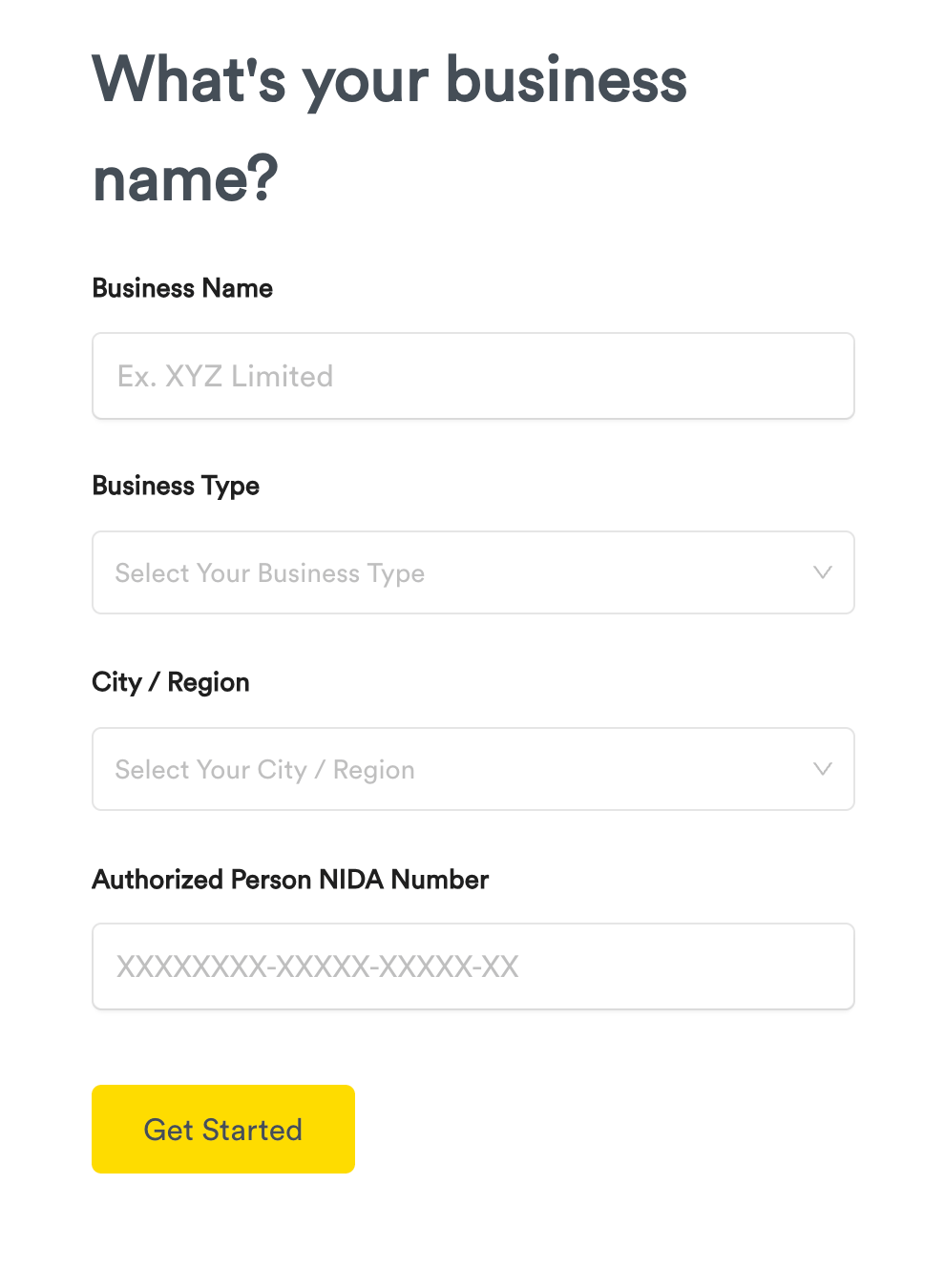 Afterward, you will be taken to the homepage of your ClickPesa Merchant Dashboard.
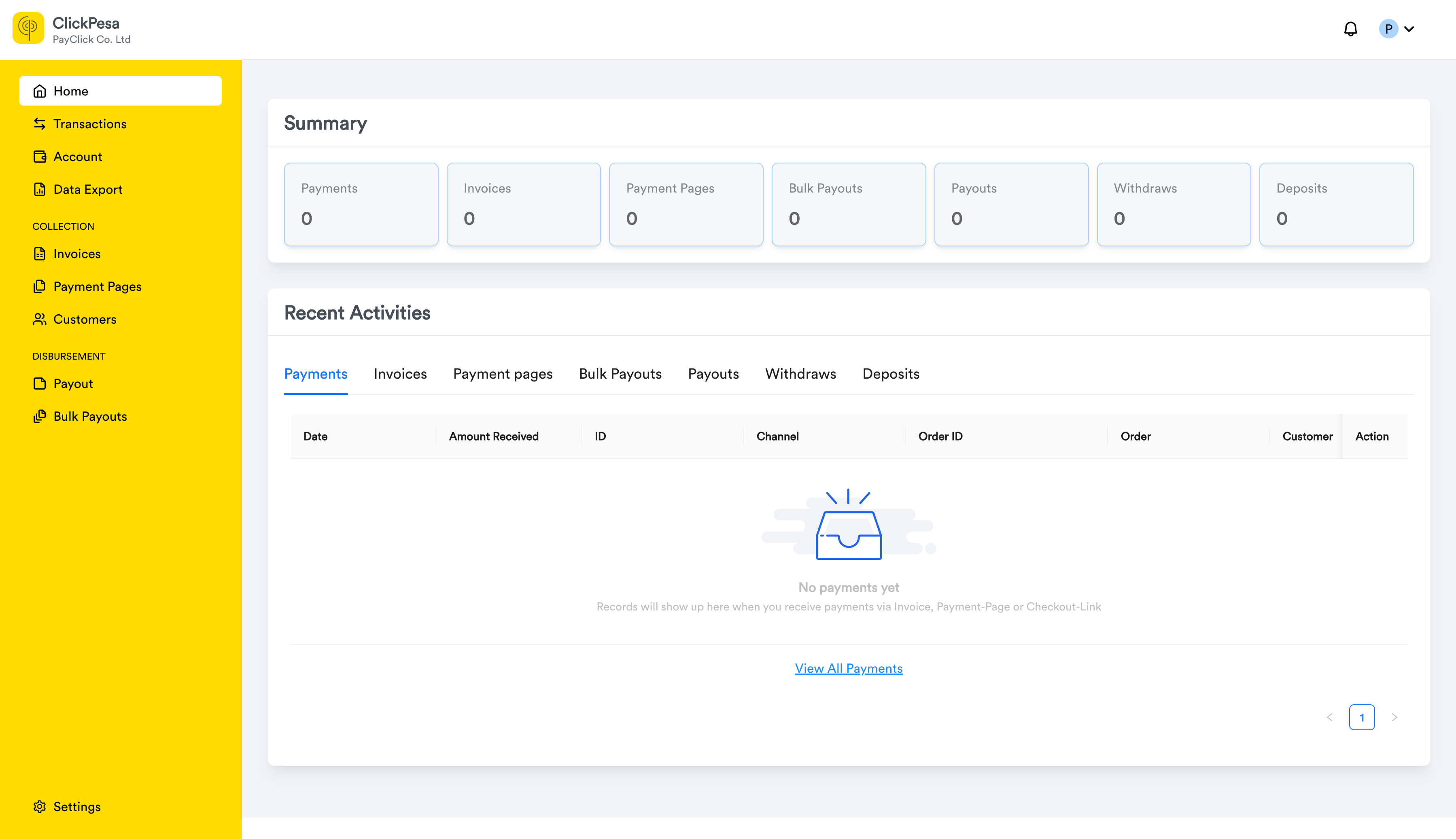 Once you are at the homepage of your ClickPesa Merchant Dashboard, open **Get Started** in the sidebar or follow the [account setup checklist](/dashboard/setup-company-account). You can also [install the dashboard as an app](/home/instant-web-access) on your phone or desktop for quick access.
### Limits before KYC approval
Until your KYC is approved:
* **TZS 100,000 total** — combined across collections, payouts, deposits, and withdraws in Tanzanian Shillings. This is one shared limit, not a separate cap per transaction type.
* **USD** — a separate pre-KYC limit applies to USD activity.
* **Card collections** — card payment methods are not available until KYC is approved.
* **TanQR/Lipa Namba and CRDB Direct Debit** — these collection methods cannot be enabled until KYC is approved.
* **Online collection channels** — some additional channel activations (for example certain mobile money or bank collection options) also require KYC before they can be turned on.
* **API usage** — **100 API calls per day**, including token generation. The count resets every day at **midnight East Africa Time (EAT)**. This applies only while KYC is not yet approved.
* **When you reach your transaction limit** — you can still view your account and work on KYC submission, but payouts, collections, and other payment actions are paused until KYC is approved.
* You are notified when you reach **half** of your transaction limit.
Complete [KYC](/home/onboarding#step-2-complete-kyc) to remove transaction and API limits and unlock all features.
## Step 2: Complete KYC
* Log in to your account and go to **Settings → KYC**.
* Required documents and beneficial owners (UBOs) are shown in the dashboard based on the **business type** you selected during registration.
* Download sample templates from the KYC page where available.
* Upload all required business documents and UBO identity documents.
* Complete any required forms (including ClickPesa Terms and Conditions) with signatures, seal, and witness where stated.
* If prompted, complete **KYC search payment** before your submission is reviewed.
See also the [KYC settings guide](/dashboard/settings/kyc).
ClickPesa is a licensed financial institution. To open an account for your business we are mandated to perform Due Diligence through a KYC (Know Your Customer) process.
**I am not registered / Individual** cannot complete KYC. Register your business (for example as a Sole Proprietor), then email [support@clickpesa.com](mailto:support@clickpesa.com) to request a business type change before submitting documents. Business type changes can only be made by ClickPesa support.
### Document requirements by business type
Requirements below match what the Merchant Dashboard shows for each business type. **(Required)** documents must be uploaded. **(Optional)** documents apply when relevant. Each listed **UBO** requires identity documents (NIDA, Voter's ID, Driving Licence, or Passport).
**Business documents**
1. Extract from register / detailed information of the entity **(Required)** — provided by your registration body
2. Certificate of Registration **(Required)**
3. Regulatory License (optional)
4. Certificate from Tax Revenue Authority (TIN) **(Required)** — TIN should show the business or company name
5. VAT Certificate (optional, if applicable)
6. Business Licence Certificate **(Required)** — licence should show the business or company name
7. Memorandum & Articles of Association **(Required)**
8. Board Resolution **(Required)** — download the sample template from **Settings → KYC**
9. ClickPesa Customer Service Level Agreement (Terms and Conditions) **(Required)** — signatures, seal, and witness required
**Beneficial owners (UBOs)**
* Authorized Personnel **(Required)**
* Director **(Required)**
* Shareholder **(Required)**
**Business documents**
1. Extract from register / detailed information of the entity **(Required)**
2. Certificate of Registration **(Required)**
3. Regulatory License (optional)
4. Certificate from Tax Revenue Authority (TIN) **(Required)**
5. VAT Certificate (optional, if applicable)
6. Business Licence Certificate **(Required)**
7. Power of Attorney (optional) — if someone other than the sole proprietor opens and operates the account; template available in **Settings → KYC**
8. ClickPesa Customer Service Level Agreement (Terms and Conditions) **(Required)**
**Beneficial owners (UBOs)**
* Authorized Personnel (optional)
* Business Owner **(Required)**
**Business documents**
1. Extract from register / detailed information of the entity **(Required)**
2. Certificate of Registration **(Required)**
3. Regulatory License (optional)
4. Certificate from Tax Revenue Authority (TIN) **(Required)**
5. VAT Certificate (optional, if applicable)
6. Business Licence Certificate **(Required)**
7. Partnership Deed **(Required)**
8. Partner Resolution **(Required)** — template available in **Settings → KYC**
9. ClickPesa Customer Service Level Agreement (Terms and Conditions) **(Required)**
**Beneficial owners (UBOs)**
* Authorized Personnel **(Required)**
* Director **(Required)**
* Partner **(Required)**
**Business documents**
1. Extract from register / detailed information of the entity **(Required)**
2. Certificate of Registration **(Required)**
3. Regulatory License (optional)
4. Certificate from Tax Revenue Authority (TIN) **(Required)**
5. VAT Certificate (optional, if applicable)
6. Business Licence Certificate **(Required)**
7. Trust Deed **(Required)**
8. Board Resolution **(Required)** — Trust template available in **Settings → KYC**
9. ClickPesa Customer Service Level Agreement (Terms and Conditions) **(Required)**
**Beneficial owners (UBOs)**
* Authorized Personnel **(Required)**
* Director **(Required)**
* Trustee **(Required)**
**Business documents**
1. Extract from register / detailed information of the entity **(Required)**
2. Certificate of Registration **(Required)**
3. Regulatory License (optional)
4. Certificate from Tax Revenue Authority (TIN) **(Required)**
5. VAT Certificate (optional, if applicable)
6. Business Licence Certificate **(Required)**
7. Cooperatives By laws **(Required)**
8. List of Cooperative members **(Required)**
9. Board Resolution **(Required)** — template available in **Settings → KYC**
10. ClickPesa Customer Service Level Agreement (Terms and Conditions) **(Required)**
**Beneficial owners (UBOs)**
* Authorized Personnel **(Required)**
* Director **(Required)**
**Business documents**
1. Extract from register / detailed information of the entity **(Required)**
2. Certificate of Registration **(Required)**
3. Regulatory License (optional)
4. Certificate from Tax Revenue Authority (TIN) **(Required)**
5. VAT Certificate (optional, if applicable)
6. Business Licence Certificate **(Required)**
7. Constitution **(Required)**
8. Board Resolution **(Required)** — template available in **Settings → KYC**
9. ClickPesa Customer Service Level Agreement (Terms and Conditions) **(Required)**
**Beneficial owners (UBOs)**
* Authorized Personnel **(Required)**
* Director **(Required)**
* Founder Member **(Required)**
**Business documents**
1. Hati Ya Usajili **(Required)**
2. Barua ya utambulisho wa Serikali ya Mtaa **(Required)**
3. Katiba Ya Kikundi **(Required)**
4. Azimio la kufungua akaunti ClickPesa **(Required)** — template available in **Settings → KYC**
5. VAT Certificate (optional)
6. Regulatory License (optional)
7. ClickPesa Customer Service Level Agreement (Terms and Conditions) **(Required)**
**Beneficial owners (UBOs)**
* Authorized Personnel **(Required)**
* Kiongozi wa kikundi (Group leader) **(Required)**
Make sure all documents are current and match your registered business name.
## Step 3: KYC Approval
* Our compliance team will review your submission.
* You’ll receive an email notification once your KYC is **approved or if more information is needed**.
* After approval, **pre-KYC transaction and API limits are removed**, giving you full access to the platform.
## Need Help?
If you have any questions at any stage, feel free to reach out to [compliance@clickpesa.com](mailto:compliance@clickpesa.com) for assistance.
Once you are at the homepage of your ClickPesa Merchant Dashboard, open **Get Started** in the sidebar or follow the [account setup checklist](/dashboard/setup-company-account). You can also [install the dashboard as an app](/home/instant-web-access) on your phone or desktop for quick access.
### Limits before KYC approval
Until your KYC is approved:
* **TZS 100,000 total** — combined across collections, payouts, deposits, and withdraws in Tanzanian Shillings. This is one shared limit, not a separate cap per transaction type.
* **USD** — a separate pre-KYC limit applies to USD activity.
* **Card collections** — card payment methods are not available until KYC is approved.
* **TanQR/Lipa Namba and CRDB Direct Debit** — these collection methods cannot be enabled until KYC is approved.
* **Online collection channels** — some additional channel activations (for example certain mobile money or bank collection options) also require KYC before they can be turned on.
* **API usage** — **100 API calls per day**, including token generation. The count resets every day at **midnight East Africa Time (EAT)**. This applies only while KYC is not yet approved.
* **When you reach your transaction limit** — you can still view your account and work on KYC submission, but payouts, collections, and other payment actions are paused until KYC is approved.
* You are notified when you reach **half** of your transaction limit.
Complete [KYC](/home/onboarding#step-2-complete-kyc) to remove transaction and API limits and unlock all features.
## Step 2: Complete KYC
* Log in to your account and go to **Settings → KYC**.
* Required documents and beneficial owners (UBOs) are shown in the dashboard based on the **business type** you selected during registration.
* Download sample templates from the KYC page where available.
* Upload all required business documents and UBO identity documents.
* Complete any required forms (including ClickPesa Terms and Conditions) with signatures, seal, and witness where stated.
* If prompted, complete **KYC search payment** before your submission is reviewed.
See also the [KYC settings guide](/dashboard/settings/kyc).
ClickPesa is a licensed financial institution. To open an account for your business we are mandated to perform Due Diligence through a KYC (Know Your Customer) process.
**I am not registered / Individual** cannot complete KYC. Register your business (for example as a Sole Proprietor), then email [support@clickpesa.com](mailto:support@clickpesa.com) to request a business type change before submitting documents. Business type changes can only be made by ClickPesa support.
### Document requirements by business type
Requirements below match what the Merchant Dashboard shows for each business type. **(Required)** documents must be uploaded. **(Optional)** documents apply when relevant. Each listed **UBO** requires identity documents (NIDA, Voter's ID, Driving Licence, or Passport).
**Business documents**
1. Extract from register / detailed information of the entity **(Required)** — provided by your registration body
2. Certificate of Registration **(Required)**
3. Regulatory License (optional)
4. Certificate from Tax Revenue Authority (TIN) **(Required)** — TIN should show the business or company name
5. VAT Certificate (optional, if applicable)
6. Business Licence Certificate **(Required)** — licence should show the business or company name
7. Memorandum & Articles of Association **(Required)**
8. Board Resolution **(Required)** — download the sample template from **Settings → KYC**
9. ClickPesa Customer Service Level Agreement (Terms and Conditions) **(Required)** — signatures, seal, and witness required
**Beneficial owners (UBOs)**
* Authorized Personnel **(Required)**
* Director **(Required)**
* Shareholder **(Required)**
**Business documents**
1. Extract from register / detailed information of the entity **(Required)**
2. Certificate of Registration **(Required)**
3. Regulatory License (optional)
4. Certificate from Tax Revenue Authority (TIN) **(Required)**
5. VAT Certificate (optional, if applicable)
6. Business Licence Certificate **(Required)**
7. Power of Attorney (optional) — if someone other than the sole proprietor opens and operates the account; template available in **Settings → KYC**
8. ClickPesa Customer Service Level Agreement (Terms and Conditions) **(Required)**
**Beneficial owners (UBOs)**
* Authorized Personnel (optional)
* Business Owner **(Required)**
**Business documents**
1. Extract from register / detailed information of the entity **(Required)**
2. Certificate of Registration **(Required)**
3. Regulatory License (optional)
4. Certificate from Tax Revenue Authority (TIN) **(Required)**
5. VAT Certificate (optional, if applicable)
6. Business Licence Certificate **(Required)**
7. Partnership Deed **(Required)**
8. Partner Resolution **(Required)** — template available in **Settings → KYC**
9. ClickPesa Customer Service Level Agreement (Terms and Conditions) **(Required)**
**Beneficial owners (UBOs)**
* Authorized Personnel **(Required)**
* Director **(Required)**
* Partner **(Required)**
**Business documents**
1. Extract from register / detailed information of the entity **(Required)**
2. Certificate of Registration **(Required)**
3. Regulatory License (optional)
4. Certificate from Tax Revenue Authority (TIN) **(Required)**
5. VAT Certificate (optional, if applicable)
6. Business Licence Certificate **(Required)**
7. Trust Deed **(Required)**
8. Board Resolution **(Required)** — Trust template available in **Settings → KYC**
9. ClickPesa Customer Service Level Agreement (Terms and Conditions) **(Required)**
**Beneficial owners (UBOs)**
* Authorized Personnel **(Required)**
* Director **(Required)**
* Trustee **(Required)**
**Business documents**
1. Extract from register / detailed information of the entity **(Required)**
2. Certificate of Registration **(Required)**
3. Regulatory License (optional)
4. Certificate from Tax Revenue Authority (TIN) **(Required)**
5. VAT Certificate (optional, if applicable)
6. Business Licence Certificate **(Required)**
7. Cooperatives By laws **(Required)**
8. List of Cooperative members **(Required)**
9. Board Resolution **(Required)** — template available in **Settings → KYC**
10. ClickPesa Customer Service Level Agreement (Terms and Conditions) **(Required)**
**Beneficial owners (UBOs)**
* Authorized Personnel **(Required)**
* Director **(Required)**
**Business documents**
1. Extract from register / detailed information of the entity **(Required)**
2. Certificate of Registration **(Required)**
3. Regulatory License (optional)
4. Certificate from Tax Revenue Authority (TIN) **(Required)**
5. VAT Certificate (optional, if applicable)
6. Business Licence Certificate **(Required)**
7. Constitution **(Required)**
8. Board Resolution **(Required)** — template available in **Settings → KYC**
9. ClickPesa Customer Service Level Agreement (Terms and Conditions) **(Required)**
**Beneficial owners (UBOs)**
* Authorized Personnel **(Required)**
* Director **(Required)**
* Founder Member **(Required)**
**Business documents**
1. Hati Ya Usajili **(Required)**
2. Barua ya utambulisho wa Serikali ya Mtaa **(Required)**
3. Katiba Ya Kikundi **(Required)**
4. Azimio la kufungua akaunti ClickPesa **(Required)** — template available in **Settings → KYC**
5. VAT Certificate (optional)
6. Regulatory License (optional)
7. ClickPesa Customer Service Level Agreement (Terms and Conditions) **(Required)**
**Beneficial owners (UBOs)**
* Authorized Personnel **(Required)**
* Kiongozi wa kikundi (Group leader) **(Required)**
Make sure all documents are current and match your registered business name.
## Step 3: KYC Approval
* Our compliance team will review your submission.
* You’ll receive an email notification once your KYC is **approved or if more information is needed**.
* After approval, **pre-KYC transaction and API limits are removed**, giving you full access to the platform.
## Need Help?
If you have any questions at any stage, feel free to reach out to [compliance@clickpesa.com](mailto:compliance@clickpesa.com) for assistance.