> ## Documentation Index
> Fetch the complete documentation index at: https://docs.clickpesa.com/llms.txt
> Use this file to discover all available pages before exploring further.
# Collection
> In this section, you'll find all the settings related to receiving funds through Online and Offline Collections . These settings control payment...
In this section, you'll find all the settings related to receiving funds through **Online** and **Offline Collections**. These settings control payment options, methods, and certain customer permissions within the checkout process.
 ## Online Payments Collection
### Collection Tools
Online collection allows merchants to receive payments through various tools like:
* **[Invoice](/dashboard/e-invoice)**
* **[Payment Page](/dashboard/payment-pages)**
* **[Checkout Link](/checkout/checkout-link)**
This guide will focus on the general settings that apply across these tools.
### Checkout Page Settings
Each tool opens a **Checkout Page**, where customers can make payments
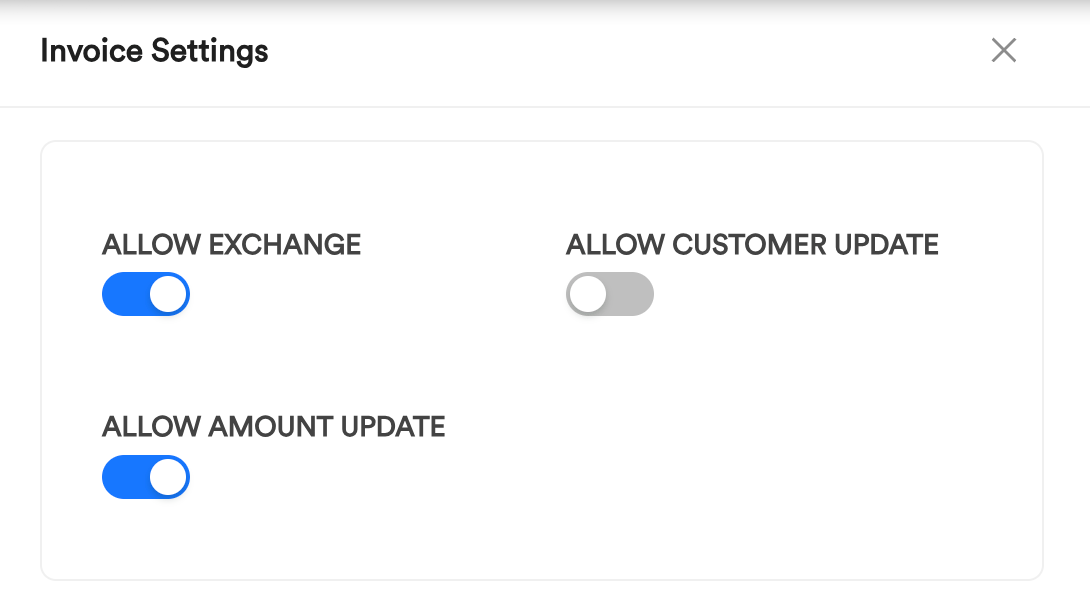
Merchants can control what customers are allowed to do on the checkout page. Settings include:
* **Allow/Disallow Currency Exchange**: This lets customers choose if they want to pay in a currency other than the one specified (e.g., exchange USD to TZS).
* **Allow/Disallow Customer Info Update**: This lets customers edit their information (such as name, email, and phone number.).
* **Allow/Disallow Amount Update**: This lets customers change the payment amount if enabled by the merchant.
When a tool (Invoice, Payment Page, Checkout Link) is created, it generates a checkout page. The checkout page will display the customer (if pre-attached), the amount to be paid, and the supported payment methods.
### Checkout Link Activation
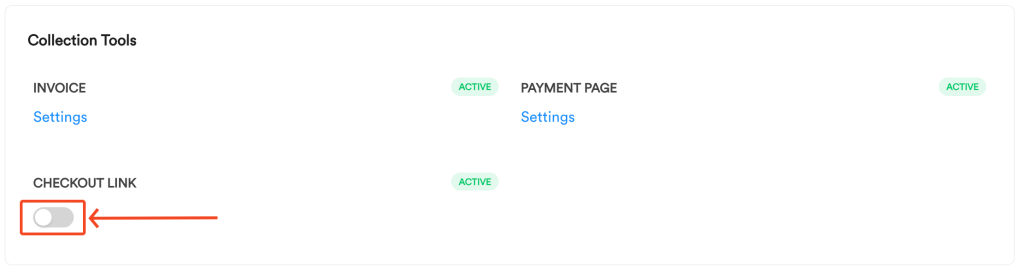
To generate checkout links via the [Checkout Link API](/checkout/checkout-link-api), activate Checkout Link in collection settings:
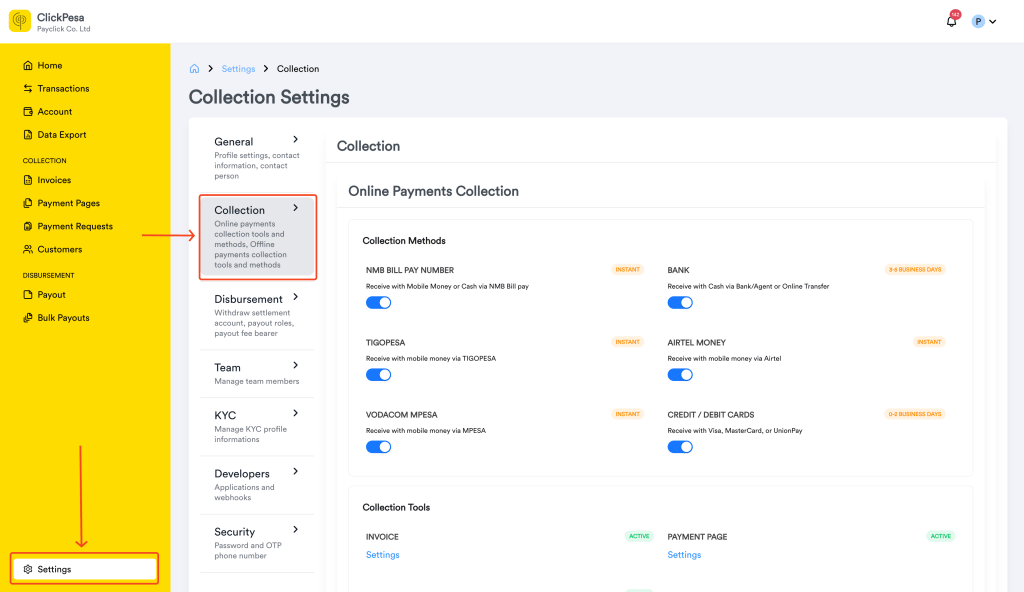
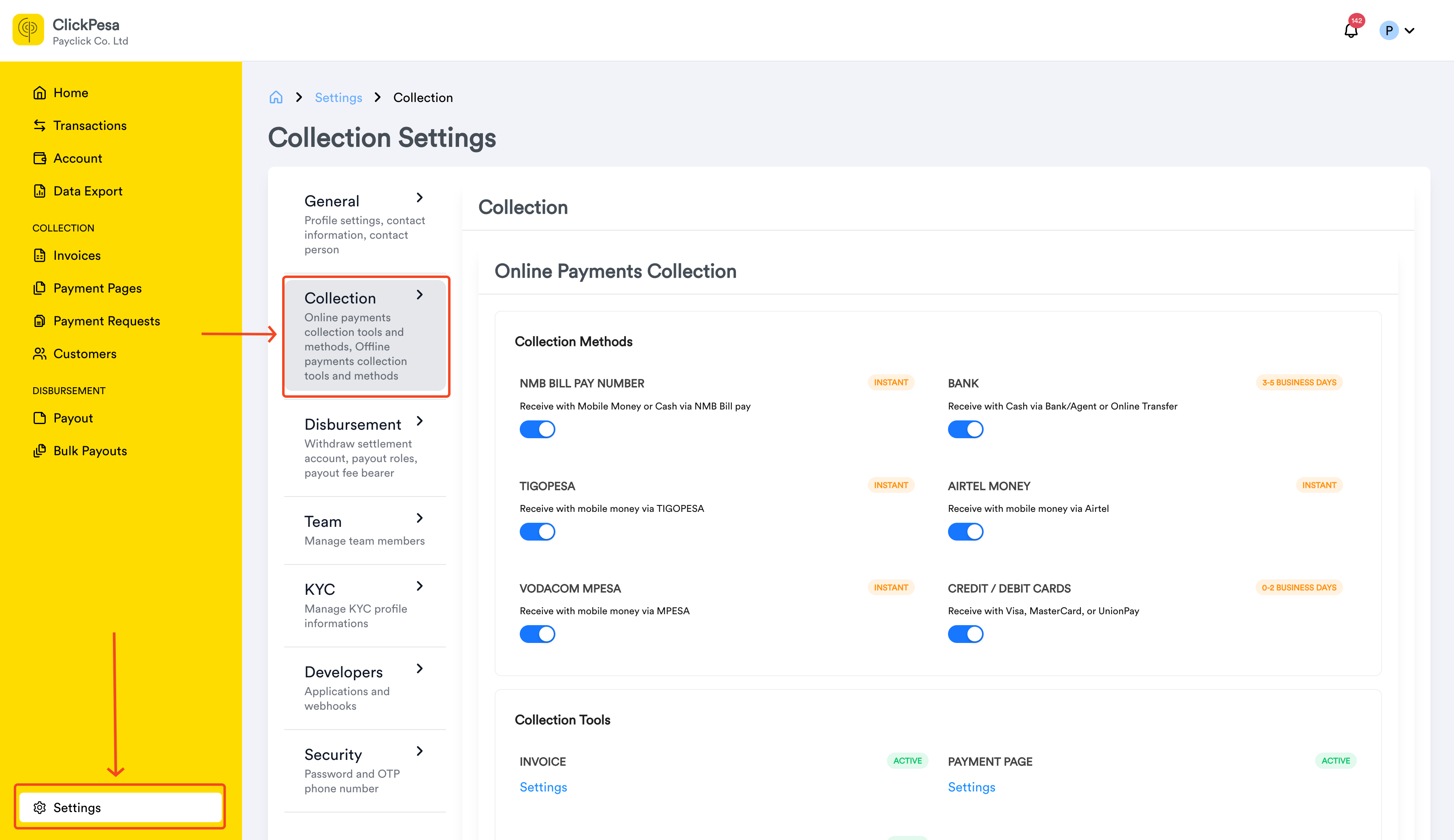
Log in to the Merchant Dashboard and open **Settings → Collection**.
## Online Payments Collection
### Collection Tools
Online collection allows merchants to receive payments through various tools like:
* **[Invoice](/dashboard/e-invoice)**
* **[Payment Page](/dashboard/payment-pages)**
* **[Checkout Link](/checkout/checkout-link)**
This guide will focus on the general settings that apply across these tools.
### Checkout Page Settings
Each tool opens a **Checkout Page**, where customers can make payments
Merchants can control what customers are allowed to do on the checkout page. Settings include:
* **Allow/Disallow Currency Exchange**: This lets customers choose if they want to pay in a currency other than the one specified (e.g., exchange USD to TZS).
* **Allow/Disallow Customer Info Update**: This lets customers edit their information (such as name, email, and phone number.).
* **Allow/Disallow Amount Update**: This lets customers change the payment amount if enabled by the merchant.
When a tool (Invoice, Payment Page, Checkout Link) is created, it generates a checkout page. The checkout page will display the customer (if pre-attached), the amount to be paid, and the supported payment methods.
### Checkout Link Activation
To generate checkout links via the [Checkout Link API](/checkout/checkout-link-api), activate Checkout Link in collection settings:
Log in to the Merchant Dashboard and open **Settings → Collection**.
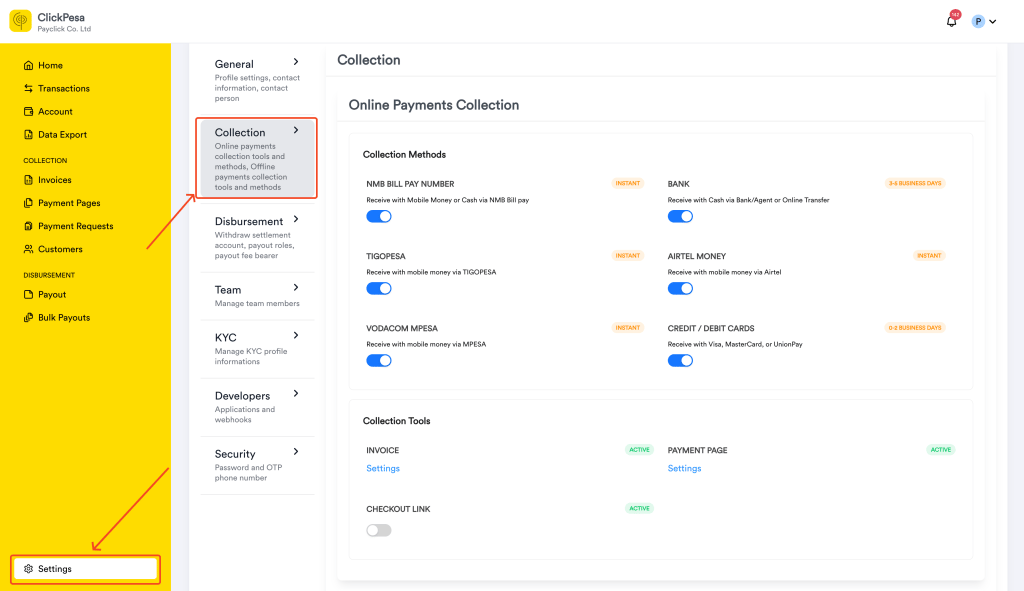 Scroll to the **Checkout Link** section and activate the feature.
 See [Checkout Link](/checkout/checkout-link) for use cases and API integration.
### Collection Methods
Merchants can enable or disable specific payment methods depending on their preferences. Available methods include:
* **Cards**: Visa, Mastercard, UnionPay
* **NMB Bill Number**
* **Bank Deposit**
* **Tigo Pesa**
* **Airtel Money**
* **MPesa** - if not available you can request it via [support@gmail.com](mailto:support@clickpesa.com)
### Customizing Payment Methods
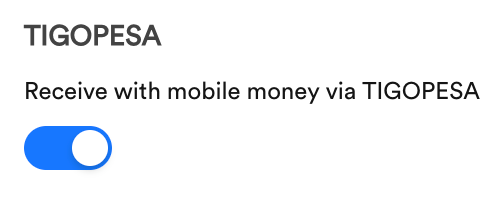
By turning on or off any of these methods in the settings, merchants can decide what options will appear on the checkout page for customers to use.
### How to Access Online Collection Settings
1. Navigate to Collection Settings:
See [Checkout Link](/checkout/checkout-link) for use cases and API integration.
### Collection Methods
Merchants can enable or disable specific payment methods depending on their preferences. Available methods include:
* **Cards**: Visa, Mastercard, UnionPay
* **NMB Bill Number**
* **Bank Deposit**
* **Tigo Pesa**
* **Airtel Money**
* **MPesa** - if not available you can request it via [support@gmail.com](mailto:support@clickpesa.com)
### Customizing Payment Methods
By turning on or off any of these methods in the settings, merchants can decide what options will appear on the checkout page for customers to use.
### How to Access Online Collection Settings
1. Navigate to Collection Settings:
 2. Enable/Disable Payment Methods:
 3. Customize Checkout Page (Invoice as an example):
* Click Settings button, it will open a drawer with the following actions
3. Customize Checkout Page (Invoice as an example):
* Click Settings button, it will open a drawer with the following actions
 ## Offline Payments Collection
### Collection Methods
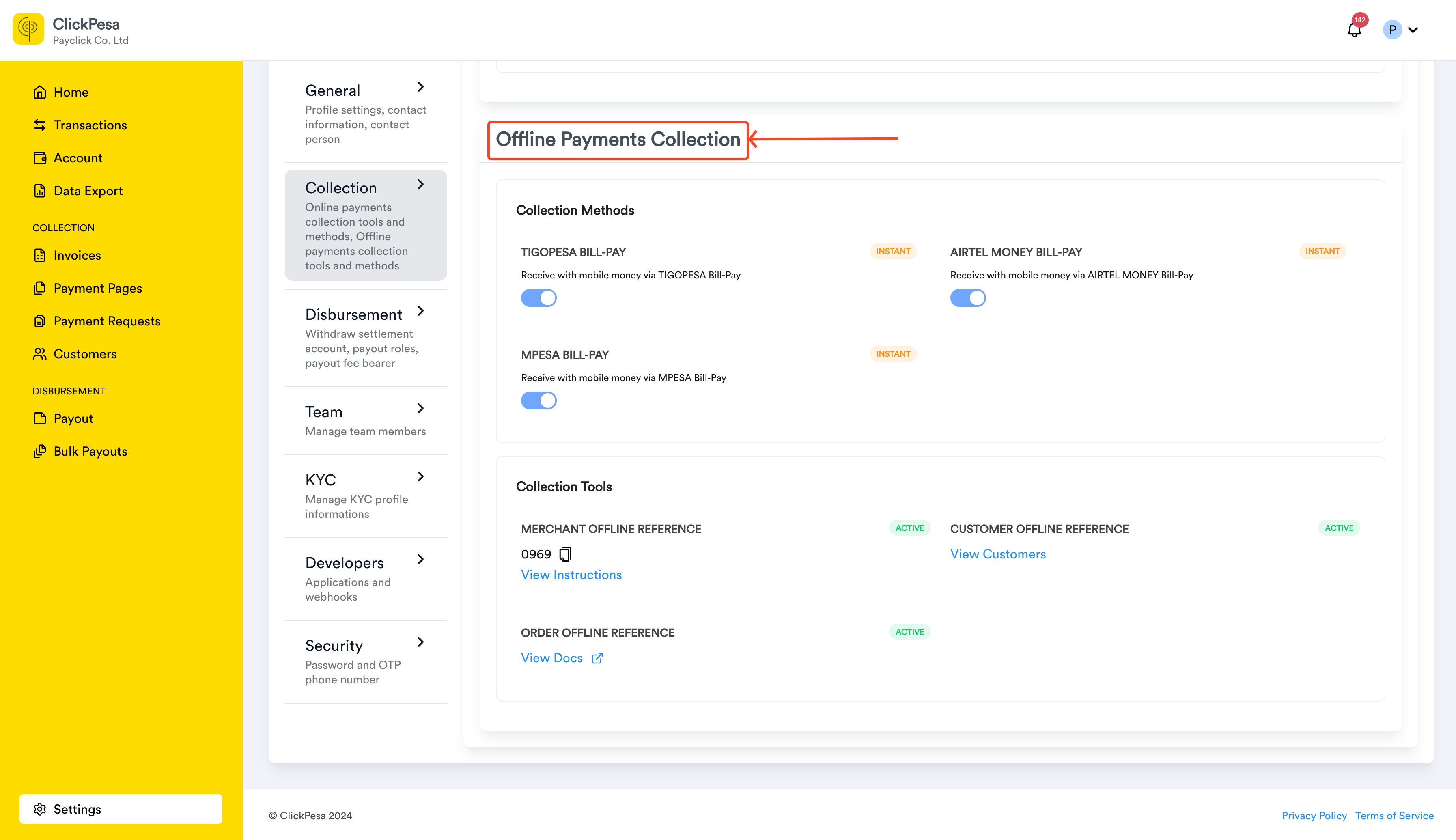
There are three payment methods available for offline collections:
* **TigoPesa** **Bill-Pay**
* **Airtel Money** **Bill-Pay**
* **MPesa Bill-Pay** - if not available you can request it via [support@gmail.com](mailto:support@clickpesa.com)
### Collection Tools
The offline collection setup includes three key tools for managing customer payments:
1. **Merchant Offline Reference**\
This provides a static reference number for the merchant, which customers can use to pay via mobile money. Detailed instructions on how to use this reference are available on [here](/bill-pay/billpay-namba).
2. **Customer Offline Reference**\
Similar to the merchant reference, but unique for each customer. Detailed instructions on using customer references are available [here](/bill-pay/customer-billpay-namba).
3. **Order Reference**\
A unique order identifier used in offline transactions. This reference is explained thoroughly in the [Developer Documentation](https://developers.clickpesa.com).
### How to Access Offline Collection Settings
1. Navigate to Collection Settings and scroll down to **Offline Collection**:
## Offline Payments Collection
### Collection Methods
There are three payment methods available for offline collections:
* **TigoPesa** **Bill-Pay**
* **Airtel Money** **Bill-Pay**
* **MPesa Bill-Pay** - if not available you can request it via [support@gmail.com](mailto:support@clickpesa.com)
### Collection Tools
The offline collection setup includes three key tools for managing customer payments:
1. **Merchant Offline Reference**\
This provides a static reference number for the merchant, which customers can use to pay via mobile money. Detailed instructions on how to use this reference are available on [here](/bill-pay/billpay-namba).
2. **Customer Offline Reference**\
Similar to the merchant reference, but unique for each customer. Detailed instructions on using customer references are available [here](/bill-pay/customer-billpay-namba).
3. **Order Reference**\
A unique order identifier used in offline transactions. This reference is explained thoroughly in the [Developer Documentation](https://developers.clickpesa.com).
### How to Access Offline Collection Settings
1. Navigate to Collection Settings and scroll down to **Offline Collection**: