> ## Documentation Index
> Fetch the complete documentation index at: https://docs.clickpesa.com/llms.txt
> Use this file to discover all available pages before exploring further.
# Notifications
> Stay informed about payments, deposits, payouts, and withdrawals via email, in-app, and web notifications
Notifications alert you to key account activity in real time. You can customize which transaction types and channels you receive alerts for.
**Notification categories**
1. **Payout** — payout initiated, refunded, or reversed
2. **Deposit** — deposit instructions and confirmations
3. **Local payment** — payments settled into your account
**Channels**
1. **Email** — sent to your registered email address
2. **In-app** — shown inside the Merchant Dashboard
3. **Web** — browser notifications when logged in (Safari support may vary)
## View notifications
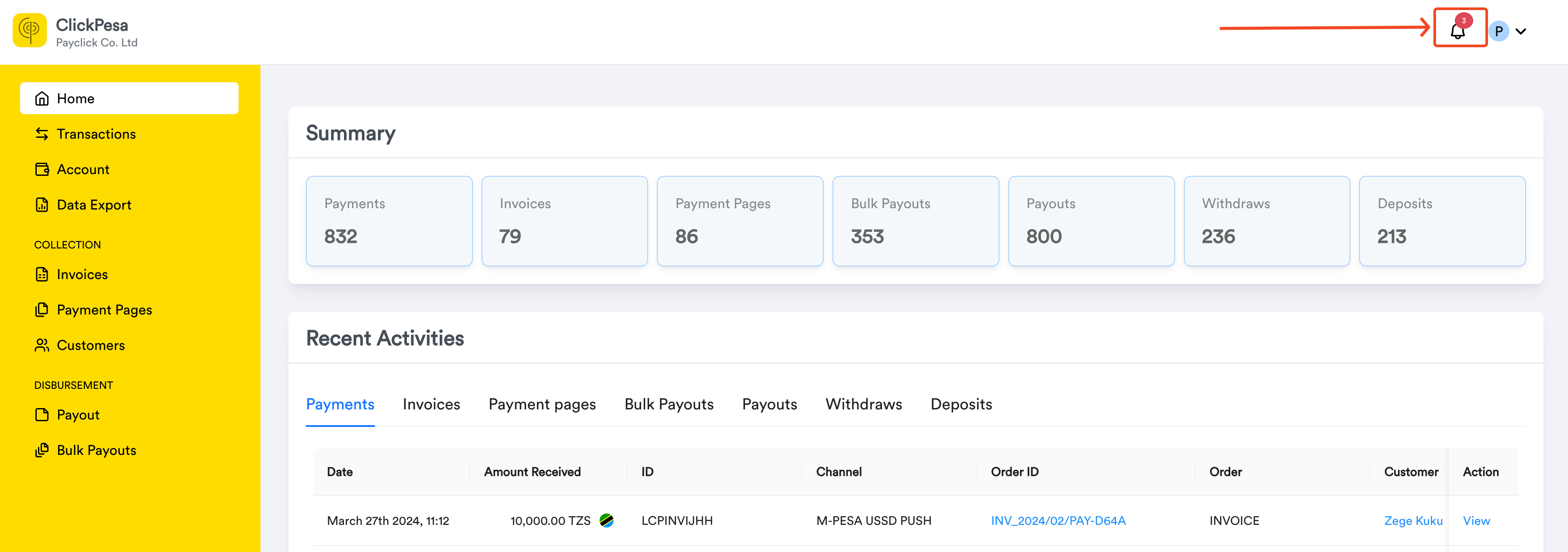
Click the notification icon at the top right of the dashboard.
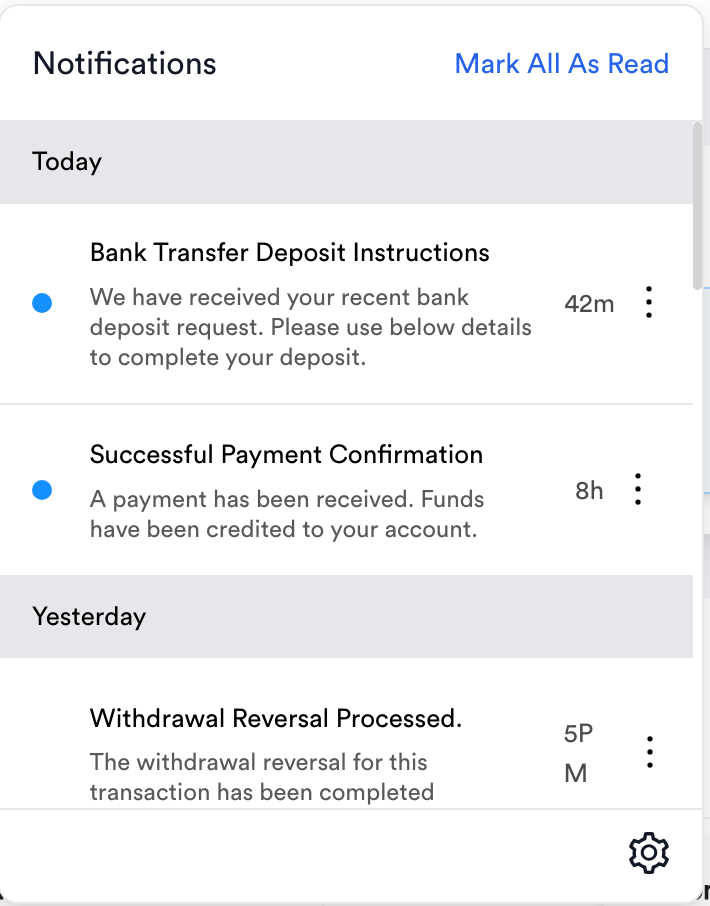
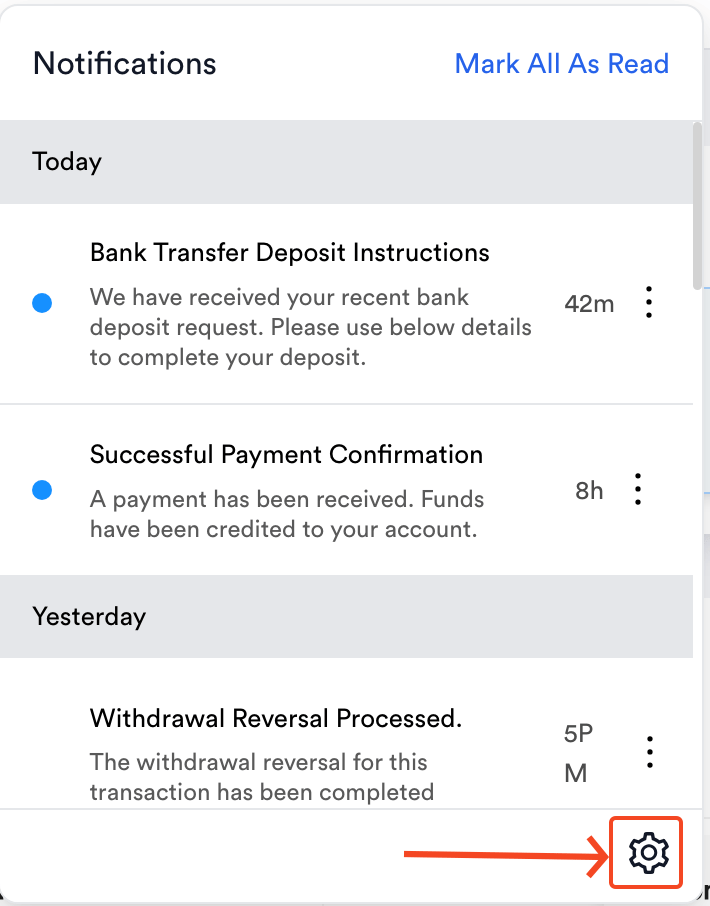
 View payment, payout, and deposit updates in the notifications panel.
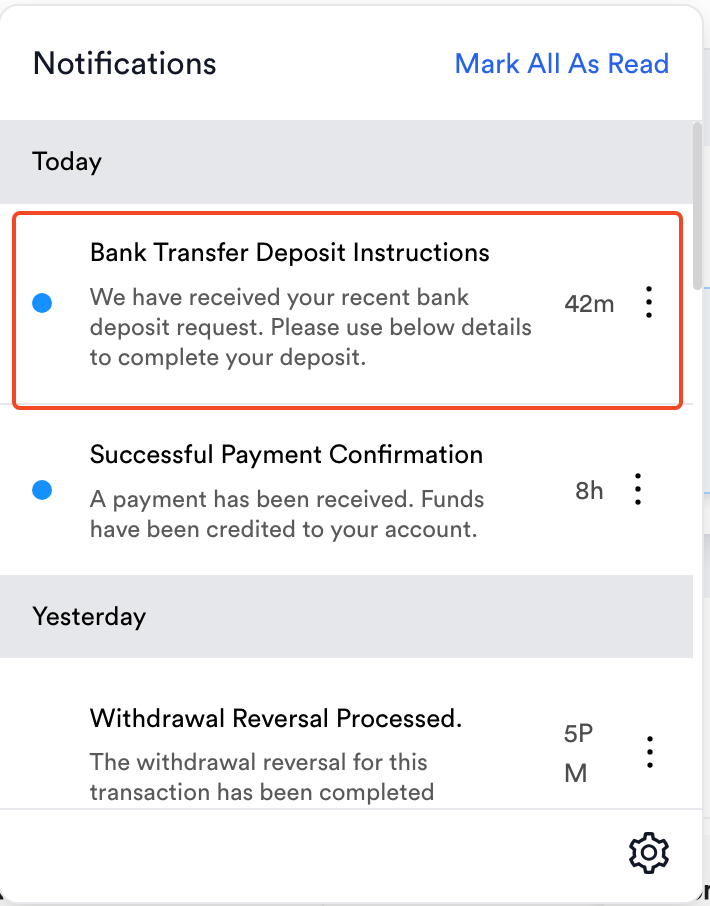
 Click a notification to open its details in a drawer.
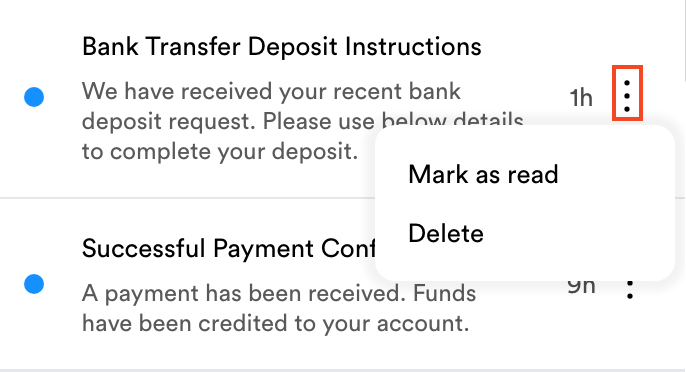
 Use the three-dot menu on a notification to delete it or mark it read or unread.
 You also receive **email** notifications with the same information when email alerts are enabled.
If web notifications are enabled and you have granted permission for merchant.clickpesa.com, you can receive **web** notifications while logged in, even when the dashboard tab is in the background.
## Notification settings
Click the notification icon at the top right of the dashboard.
Click the settings icon at the bottom right of the notifications panel.
You also receive **email** notifications with the same information when email alerts are enabled.
If web notifications are enabled and you have granted permission for merchant.clickpesa.com, you can receive **web** notifications while logged in, even when the dashboard tab is in the background.
## Notification settings
Click the notification icon at the top right of the dashboard.
Click the settings icon at the bottom right of the notifications panel.
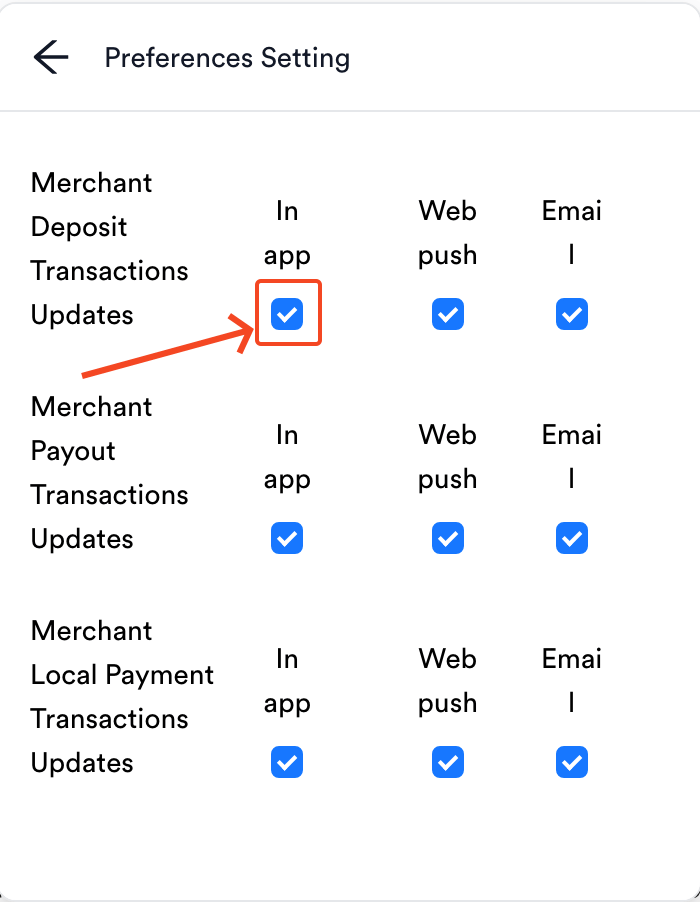
 Turn categories and channels on or off per your preference.
 ## FAQ
**Can I receive notifications for only certain transaction types?**
Yes. Use notification settings to enable alerts for selected categories only.
**Are web notifications available when I am not on the dashboard?**
Web notifications require an active browser session where you are logged in and have granted permission.
**How do I stop email notifications?**
Turn off **Email** for the categories you do not want in notification settings.
**Do notification settings affect security alerts?**
Security-related alerts are mandatory and are not controlled by these preferences.
## FAQ
**Can I receive notifications for only certain transaction types?**
Yes. Use notification settings to enable alerts for selected categories only.
**Are web notifications available when I am not on the dashboard?**
Web notifications require an active browser session where you are logged in and have granted permission.
**How do I stop email notifications?**
Turn off **Email** for the categories you do not want in notification settings.
**Do notification settings affect security alerts?**
Security-related alerts are mandatory and are not controlled by these preferences.