> ## Documentation Index
> Fetch the complete documentation index at: https://docs.clickpesa.com/llms.txt
> Use this file to discover all available pages before exploring further.
# Deposit Export
> This feature simplifies the process of exporting your deposits data exactly how you want it. We've already organized the data for you, so all you need to do...
## Introduction
This feature simplifies the process of exporting your deposits data exactly how you want it. We've already organized the data for you, so all you need to do is choose which data you want and export it to Excel or CSV.
In this guide, we'll walk you through how to filter your deposits data to find exactly what you're looking for. Then, we'll show you how to export that data into an Excel or CSV file. It's a straightforward way to get the information you need, hassle-free. Let's dive in and get started!
### Export deposits as CSV
1. Login to your [merchant.clickpesa.com](https://merchant.clickpesa.com) account.
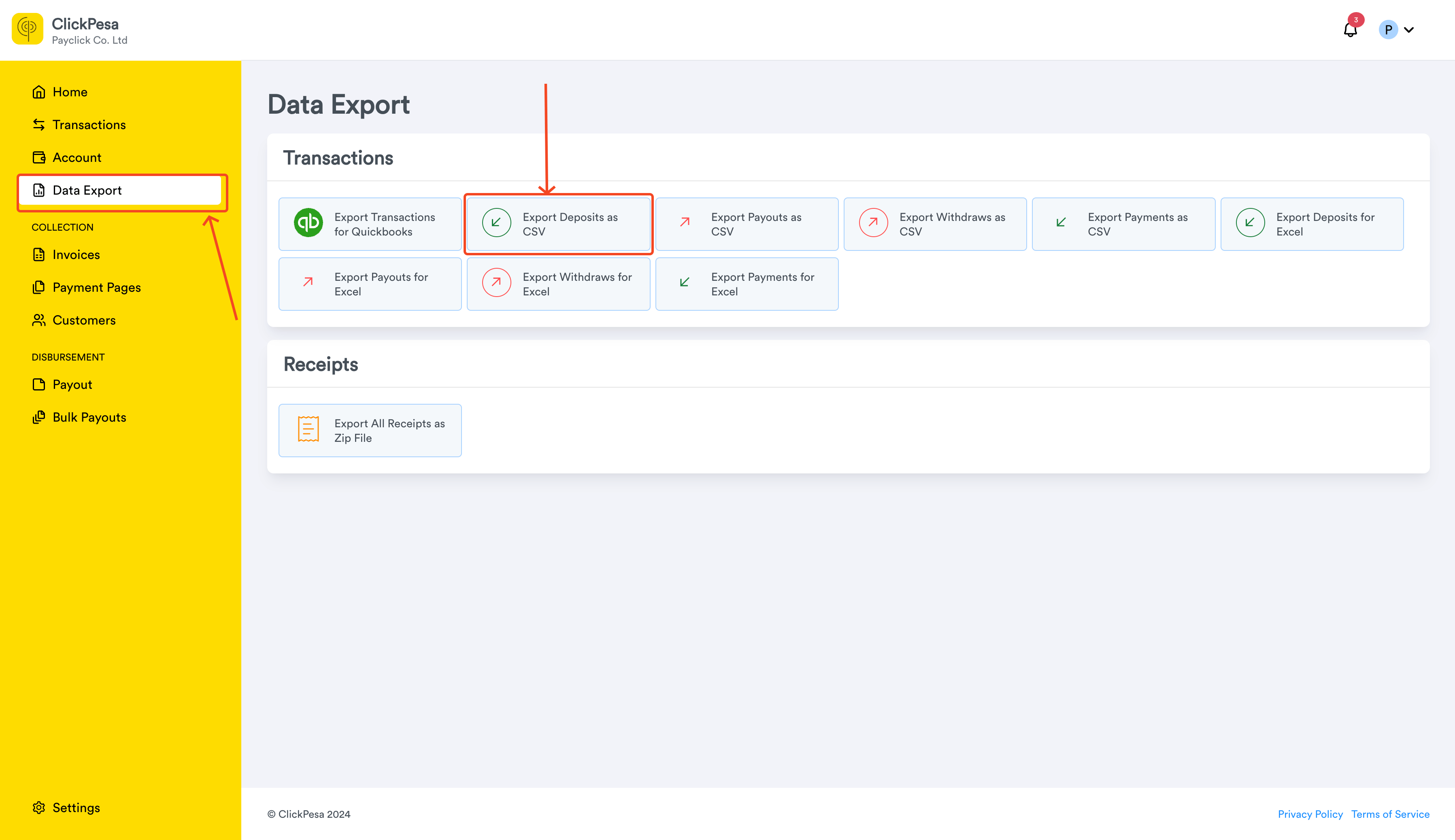
2. Navigate to Data Export and select Export Deposits as CSV card.
 3. You should land to page called Export Deposits as CSV, with filters (Status and date preselected) and table and button to export and button for More Exports options.
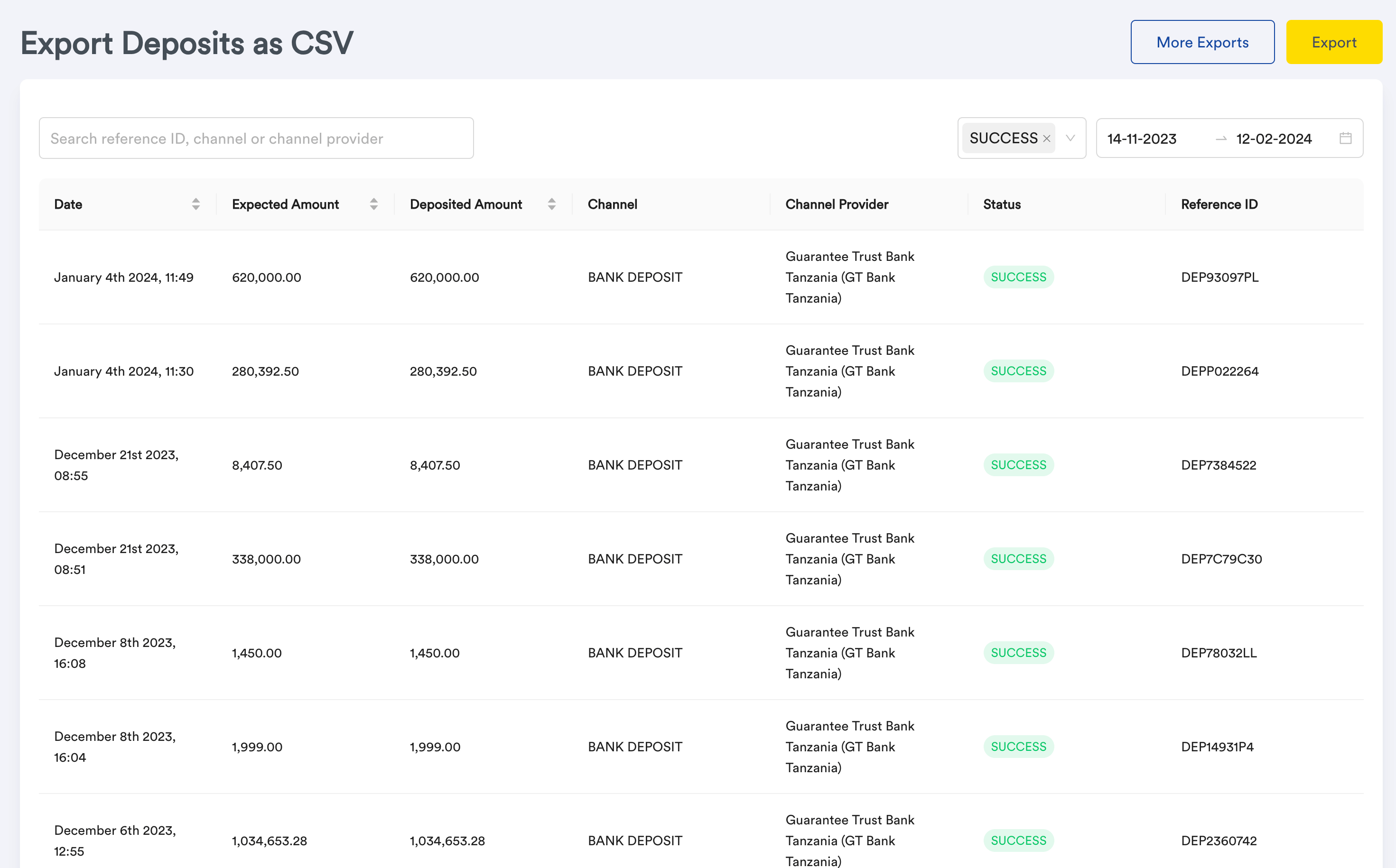 4. You can use filters such as status and date range to return the actual data you want to export.
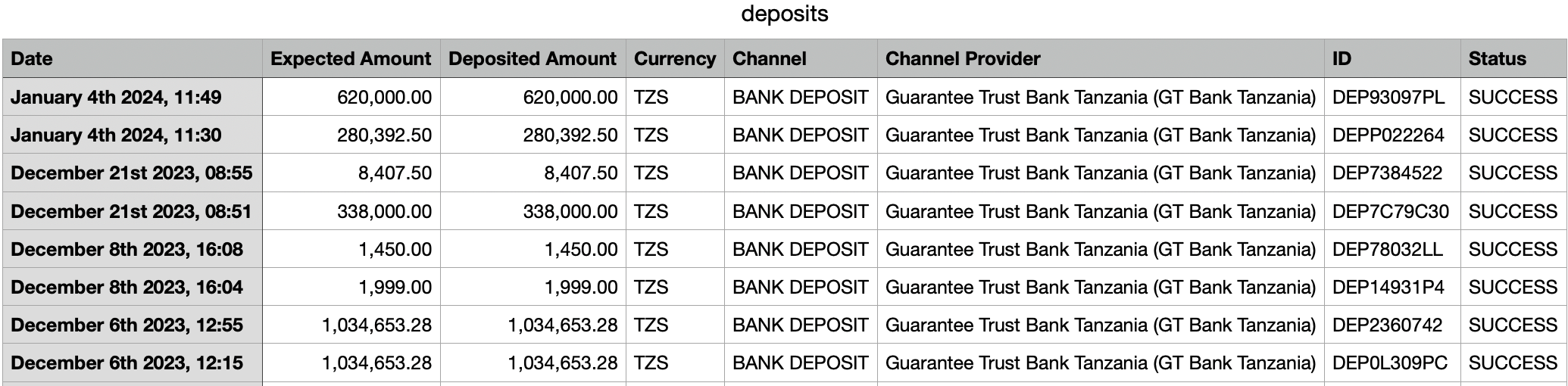
 5. Upon clicking export browser will download a file called deposits.csv. It will look like this.
 ### Export deposits for excel
1. Login to your [merchant.clickpesa.com](https://merchant.clickpesa.com) account.
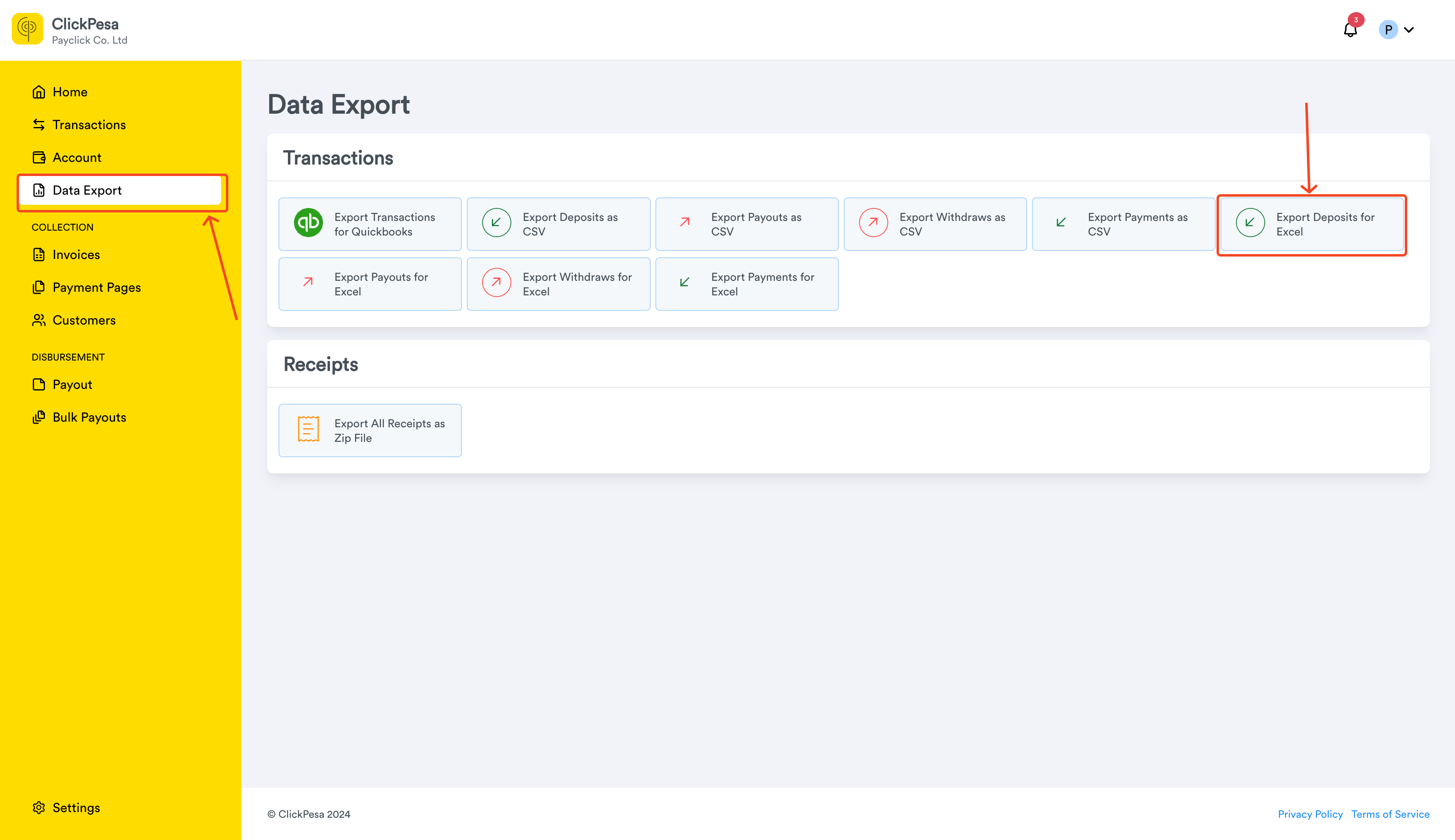
2. Navigate to Data Export and select Export Deposits for Excel card.
### Export deposits for excel
1. Login to your [merchant.clickpesa.com](https://merchant.clickpesa.com) account.
2. Navigate to Data Export and select Export Deposits for Excel card.
 3. You should land to page called Export Deposits for Excel, with filters (Status and date preselected) and table and button to export and button for More Exports options.
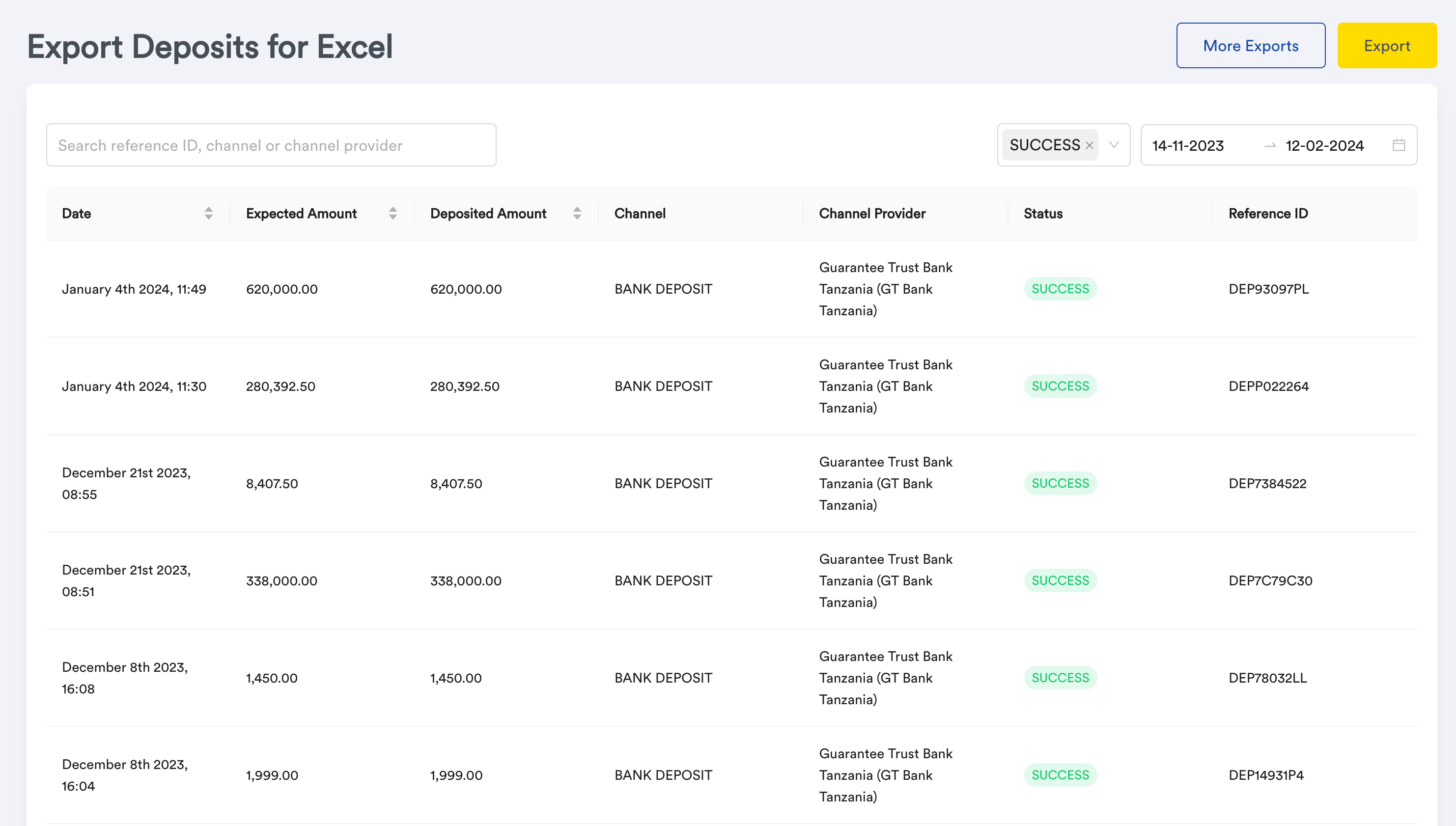 4. You can use filters such as status and date range to return the actual data you want to export.
5. Upon clicking export browser will download a file called deposits.xlsx. It will look like this.
4. You can use filters such as status and date range to return the actual data you want to export.
5. Upon clicking export browser will download a file called deposits.xlsx. It will look like this.
 ## Common Use cases
1. Importing data into account systems or third parties systems.
## Common Use cases
1. Importing data into account systems or third parties systems.